How do I connect my Jabra Pro 9450 with Cisco 7942G, 7945G, 7962G, 7965G, 7975G?
Prerequisites:
Jabra Pro 9450 + Jabra Link 14201-22
In combination with one of the following phones:
- Cisco 7942G
- Cisco 7945G
- Cisco 7962G
- Cisco 7965G
- Cisco 7975G
Important:
If you are connecting the Jabra Pro 9450 wireless headset to a Cisco desk phone infrastructure that uses LAN switches, while also using the included Jabra USB cable between the base and a computer, then we recommended that you use the latest version of the Jabra Link 14201-43 (marked B) instead of the Jabra Link 14201-22 EHS cable to ensure the stable use of the Cisco desk phone.
System:
- Cisco Unified Call Manager (CUCM)
- Cisco Call Manager Express (CME) from version 4.1 and phone firmware 8.3.3. You will be informed of the required IOC version when downloading from Cisco.
Important:
The following requirements must be fulfilled in order to use remote call control:
- Voip phones SCCP (Cisco protocol) require the phone firmware 8.3(3) and the Cisco Unified Communications Manager (CUCM) from release 3.3, 4.0, 4.1, 4.2, 4.3, 5.0, 6.0, 7.0, and 8.0.
- SIP phones require the phone firmware 8.3(3) and the Cisco Unified Communications Manager (CUCM) from release 5.0, 5.1, 6.0, 7.0, and 8.0.
Remote call control is also possible In combination with the expansion modules 7915 and 7916.
Connection:
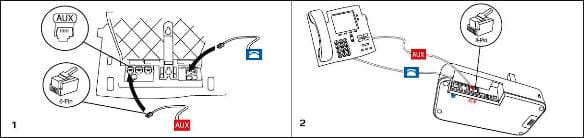
- Insert the RJ10 to RJ10 connection cable supplied with the Pro 94x0 in the headset interface on the Cisco phone and in the socket marked with a phone icon on the 94x0 base
- Connect the EHS adapter with the AUX socket on the Cisco phone and the AUX interface on the base.
Automatic configuration:
To start the automatic configuration, have someone call the phone and wait at least 10 seconds before answering. The appropriate EHS mode should now be installed. If this did not work, select the Cisco mode manually.
Base setup:
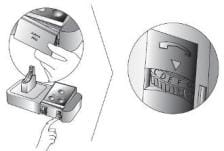
Set the phone setup switch to position "B".
Microphone level setup:
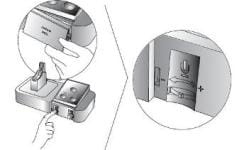
Remove the cover from the base of the Jabra Pro 9450 and make a test call with the headset. Adjust the level until you achieve the appropriate volume.
Communication Manager setup:
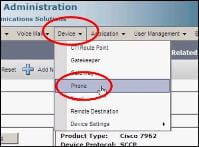
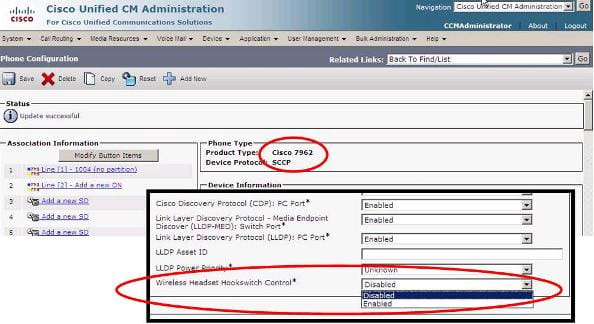
Under Phone>Wireless Headset Hookswitch Control, enable Answer/end call for each terminal.