
How do I connect my headset with my Alcatel IP Touch 4029 or 4039?
Jabra Link 14201-36
To connect your headset, please follow these steps:
2. Plug the RJ9 connector (blue band) into the blue socket marked with the phone symbol on the Jabra device base.
3. For the 2-fold Y coupling end, plug the 3.5 mm phone connector into the headset interface.
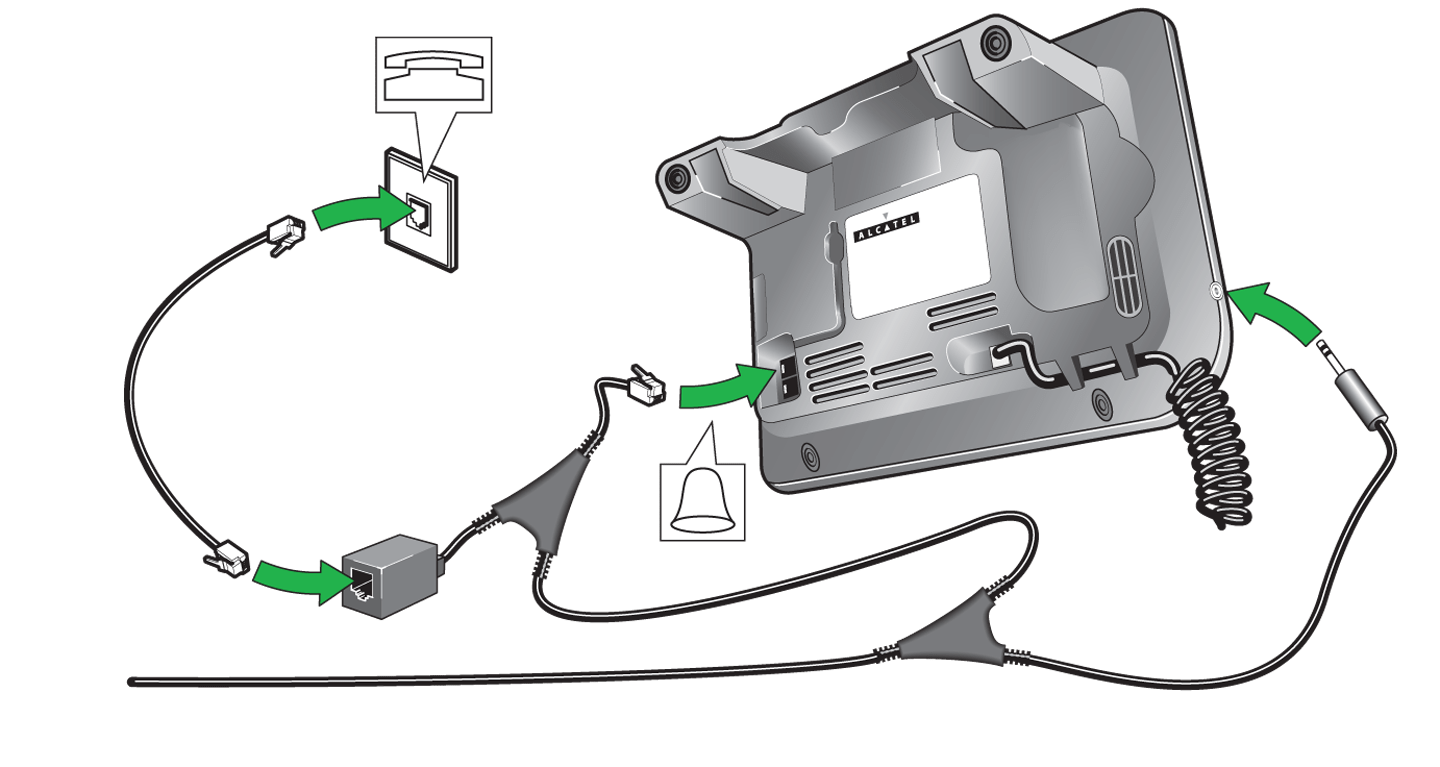
4. Plug the RJ12 connector into the socket marked by a bell on the phone.
5. Plug the phone cable for the phone directly into the additional connection socket of the Y-cable.
6. Then follow the instructions on the Jabra device touch screen:
a. Select Phone settings.
b. Select Connect desk phone.
c. Select Manual.
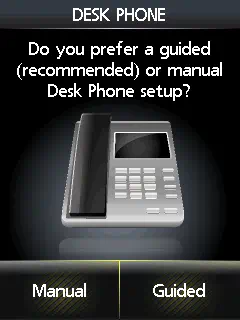
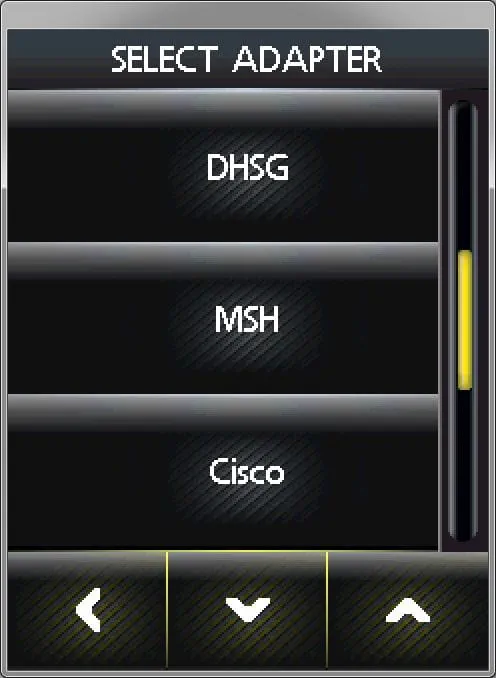
d. Select adapter type MSH.
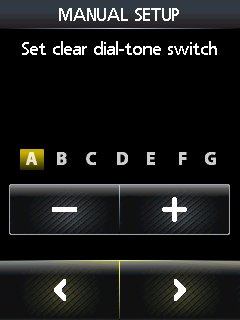
6. For the base settings on the phone:
a. Set the phone setup switch to position A.
B. We recommend the microphone volume is set to 7 out of 13.
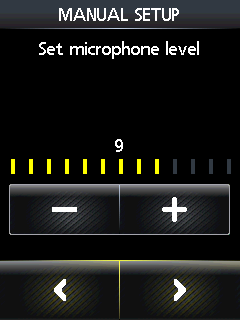
Guided setup:
As a part of the installation, you can dial into your local Jabra setup server, which will configure the audio path. Follow the instructions shown on the display. If your Jabra setup server is unavailable, contact your local Jabra Support team.
Phone settings with device software version 9.xx and later:
Phone settings are no longer required. Once the phone connector has been inserted correctly, a headset symbol should appear in the “phone” display. If the headset symbol does not appear, check the following settings:
Menu>Settings>Phone>Phone connector>Activate/select headset
Phone settings with device software version earlier than 9.xx:
Note that the “Force Headset” function must not be activated on the device as this will prevent you from accepting external calls.
Menu>Settings>Phone>Phone connector>Force headset OFF
Menu>Settings>Phone>Socket>Activate headset
Ringtone signal/phone settings:
Select the ringtone from Menu>Settings>Ringtone>Internal/External. Note that the ringtone signal on the headset is transferred only if one of the following ringtones is selected:
Standard / Classic / Cold River / Dooing-Dooing
If you have set the correct ringtone and you still do not have a ringtone signal, check the following settings:
Menu>Settings>Phone>Internal/External>Additional options. Set the following options to “OFF”: No tone, Progressive, Beeps.
Calls using the headset can be connected/transferred as follows:
1. Dial the phone number.
2. “Transfer” will now appear on the phone display.
3. Press the associated function button next to the phone display.
4. End the conversation using the button marked “Headset”.
