How to connect Jabra my GN9330e with Nortel IP 1120E, 1140E, 1150E, 1165E
How to connect Jabra my GN9330e with Nortel IP 1120E, 1140E, 1150E, 1165E
Prerequisite:
Jabra GN9330e + Jabra Link 14201-32
In combination with one of the following phones:
- Nortel IP 1120E
- Nortel IP 1140E
- Nortel IP 1150E
- Nortel IP 1165E
from Firmware release 3.1 for IP phones
Connection:
- Connect the 1-sided end (USB plug) of the EHS adapter to the USB socket of your phone set.
- Plug the RJ10 plug into the socket marked with a “phone” symbol and the RJ45 plug into the socket marked with "AUX" on the base.
Software setup:
Put the headset into the base and activate “DHSG” mode.
Hold down the “phone” button on the base of the Jabra GN9330e for approx. 6 seconds until the online display (blue LED) on the headset starts to flash. The current software is displayed to you by activating the volume controller in the form of the charge display (yellow LED).
LEDs from left to right:
LED 1 = RHL
LED 2 = DHSG
LED 3 = AEI
LED 4 = MSH
Thereafter, you can switch into the different software modes (LED 1-4) with the “volume” controller on the headset. To confirm the software has successfully installed, the base automatically switches back to charge mode after approx. 15 seconds.
Base setup:
Set the phone setup switch (A-G) to "A".

Microphone level setup:
Please call someone with the headset.
If the other party cannot hear you well or just faintly, activate the volume controller at the base until you can be understood clearly.
Headset answer/end:
As soon as the dial tone signal can be heard in the headset, you can answer the call by pressing the ”answer/end” button on the headset; by pressing again the call is ended.

Phone setup:
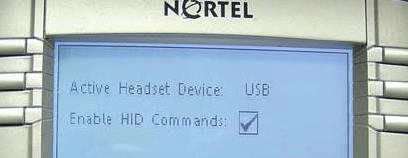
Press the "Service" button twice > Preset >Headsets > USB

In addition, you must activate the menu option "Enable HID Commands", see below.