
QUESTIONS FRÉQUEMMENT POSÉES
How do I update the firmware on my Jabra device using Jabra Suite for Mac?
How do I update the firmware on my Jabra device using Jabra Suite for Mac?
- Jabra 14201-29 Service Cable (for Jabra Pro 920 only). To connect your Jabra Pro 920 to a computer that has Jabra Suite for Mac installed, use a special service cable (available as Jabra accessory no. 14201-29). On some computers, you may have to remove the power plug from the Jabra Pro 920 base, connect the service cable to the computer, and then reconnect the power plug to the Jabra 920 base.
- Jabra 14201-13 Mini USB to USB cable (for Jabra Pro 925 only). To connect your Jabra Pro 925 to a computer that has Jabra Suite for Mac installed, use a Mini USB to USB cable (available as Jabra accessory product no. 14201-13).
To check for firmware and update your Jabra device, you must have Jabra Suite for Mac installed on your computer. To update devices such as Jabra Motion or Jabra Stealth, they must be connected directly to the computer using a USB cable. For some Jabra Link EHS adapters, you may need a micro USB cable to connect the adapter to the computer. To check for firmware follow these steps:
1. Click the Jabra headset logo in the menu bar.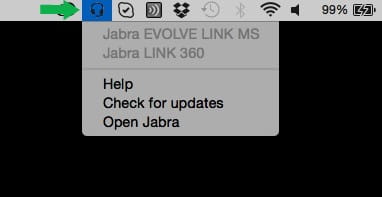
2. Select Check for updates.

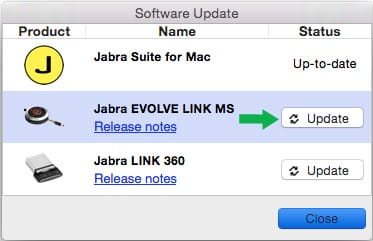
3. If an update is available for the Jabra device, click Update.
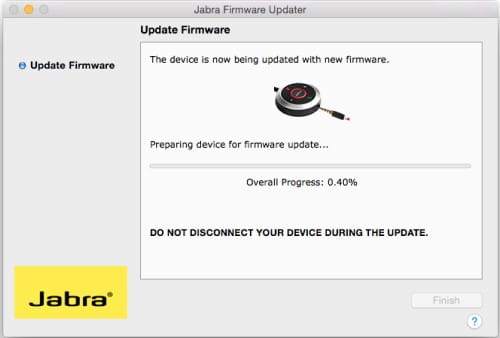
4. The firmware then initializes the update. Do not unplug the Jabra device while the firmware updater is running.
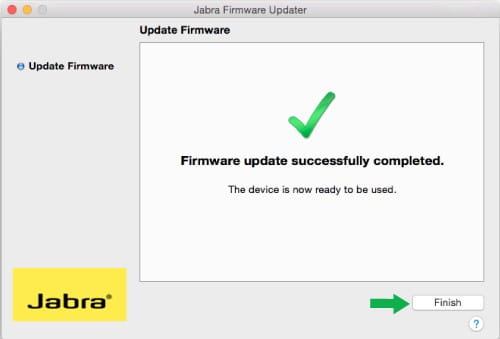
5. When the firmware updater is done click Finish, and the Jabra device is ready for use again.
Note: For some Jabra Link EHS adapters you need a micro USB cable to connect the adapter to the Mac. If you are using a Jabra Bluetooth adapter with the device, for example a Jabra Motion UC or Jabra Stealth UC, we recommend that you update both the headset and Bluetooth adapter at the same time.

Le saviez-vous ?
0