
How to connect my Jabra GN9350e with Aastra 6753i, 6755i, 6757i
Prerequisite:
Jabra GN9350 + Jabra LINK 14201-10 + DHSG connection cable (Aastra product no.: D0062-0011-34-00)
In combination with one of the following phones:
- Aastra 53i / 55i / 57 i / 57iCT
- Aastra 6753i / 6755i / 6757i / 6757i CT
from phone firmware 2.5.1.2000 and higher
Connection:
Aastra DHSG cable:
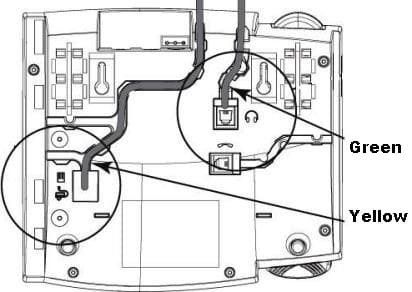
- Insert the split end of the Aastra DHSG cable into your phone as follows: RJ9 plug (marked green) into the "headset" socket and the RJ45 plug (marked yellow) into the socket for the expansion module/ expansion modules.
- Plug the 1-sided blue marked end of the Aastra DHSG cable into the RJ45 adapter.
GN Netcom DHSG cable:
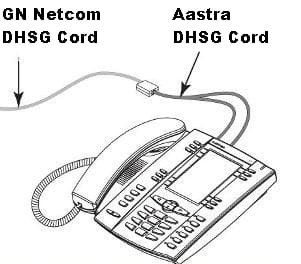
- Now plug the 1-sided blue end of the Jabra LINK 14201-10 cable into the free socket of the RJ45 adapter.
- Connect the split end of the DHSG cable with the Jabra GN9350 base as follows. Insert the RJ9 plug into the socket marked with a complete "phone" symbol and the RJ45 plug into the base socket of the Jabra GN9350 marked with "AUX".
Software setup:
In the LCD Display, set the Jabra GN9350 to "DHSG" and press the OK button.

Base setup:
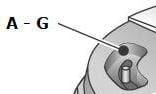
Set the phone set-up switch to "A".
Microphone level setup:
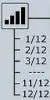
We recommend setting the microphone volume in the LCD display to 7 out of 12.
Phone setup:
In version 2.5.1.2000 the DHSG mode is disabled by default and must be activated via the Aastra.cfg or mac.cfg with the command dhsg:1.
From version 2.5.2 Options> Preferences> Audio Settings> DHSG > On
The audio mode must be set to "Headset/Speaker" in the phone settings: Options > Preferences > Audio Settings > Audio Mode > Headset/Speaker
Remote call control in combination with an expansion keypad is not supported.
Headset answer/end:
As soon as the dial tone signal can be heard in the headset, you can answer the call by pressing the "answer/end" button on the headset; by pressing again the call is ended.

