
FAQ
How to connect my Jabra PRO / GO with Avaya 2420, 4610, 4620, 4621, 4622, 4625, 4630, 5420, 5610, 5620, 5621, 5625
How to connect my Jabra PRO / GO with Avaya 2420, 4610, 4620, 4621, 4622, 4625, 4630, 5420, 5610, 5620, 5621, 5625
Prerequisite:
Jabra PRO 9460 / 9470 + Jabra Link 14201-19
In combination with one of the following Avaya phones:
- 2420 from Call manager Software 4.0
- 4610 / 4620 / 4621 / 4622 / 4625 from firmware 1.8
- 4630 / 5420 / 5610 / 5620 / 5621 / 5625
Connection:
- Remove your phone's network cable.
- Connect the EHS adapter to the "EU24/ ADJ" socket on your Avaya device and the "AUX" interface on your Jabra PRO 9400 base.
- Now connect supplied RJ9 to RJ9 cable connection to the socket marked with the "phone" symbol on the base of the Jabra PRO 94x0 and the other end to the "headset" interface of your phone.
- Now you can reconnect your phone to the network cable.
Then follow the instructions on the Jabra PRO 94x0 base SmartSetup Wizard.
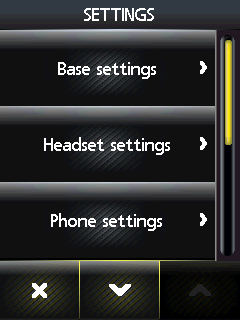

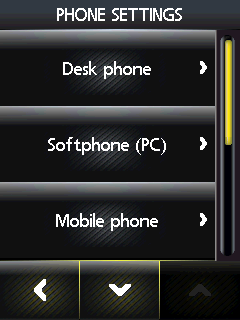
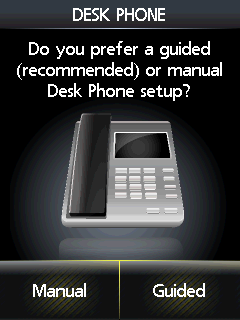
Select the phone setting "Desk phone", then "Connect to a desk phone?", "Manual".
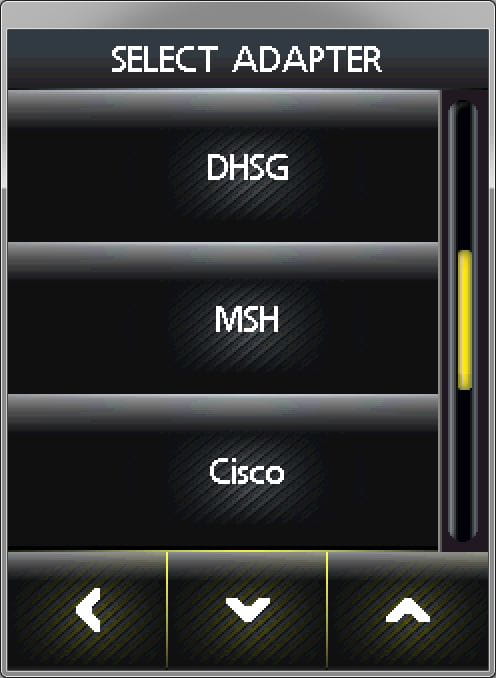
Select adapter type "DHSG"
Base settings:
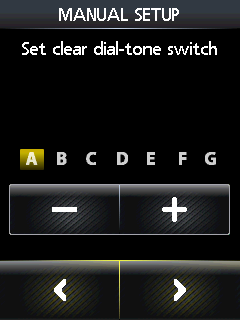
Set the phone set-up switch to position "A".
Microphone level setup:
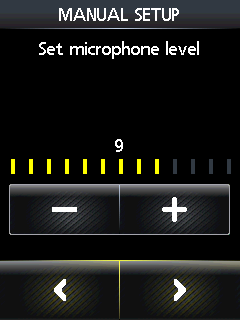
We recommend setting the microphone volume to 7 out of 13.
Guided setup:
As part of the installation, you can dial into your local Jabra Setup Server, which will configure the audio path. Please follow the instructions shown on the display. If your Jabra Setup Server is unavailable, please contact your local Jabra support team.

Did you know?
0