

11 Tips to Follow in 2026
Eating on camera, talking over people, disappearing into a black rectangle with your mic on. Without the right etiquette in place, virtual meetings can become a little too casual and unprofessional habits can get in the way of professional collaboration.
These 11 tips (split between hosts and participant behaviors) cover everything from how you show up to the tech you use, to help ensure smoother and more productive virtual meetings for everyone.
6 virtual meeting etiquette tips for hosts
Tip 1: Set clear expectations before the meeting starts
When hosting a meeting, set the direction before anyone joins the call.
Send an agenda to all participants at least 24 hours before the meeting. For client calls, interviews, or leadership reviews, send it at least 48 hours in advance. Early notice gives people time to prepare questions, review materials, and know how to contribute.
Your message should clearly outline:
- The purpose of the meeting and the outcome you want. State whether you're making a decision, reviewing progress, solving a problem, or aligning on next steps.
- The order of topics and the time allocated to each. This keeps the discussion structured and prevents one item from taking over the entire meeting.
- Camera expectations. Let participants know if cameras are required, encouraged, or optional so no one feels put on the spot.
- How questions will be handled. Clarify whether participants should use chat, raise their hand, or wait for a discussion segment.
- Any materials they should review in advance. Attach decks, reports, or documents that will be referenced so people won't be reading them for the first time during the call.
When you do this, participants will arrive prepared, discussions will stay focused, and you'll avoid spending the first ten minutes explaining what the meeting is about.
Tip 2: Join the meeting early to conduct tech checks
Don't wait until the scheduled start time to get plugged in and properly connected. Instead, join the meeting 5–10 minutes early so you can handle technical setup before others arrive.
Use those few minutes to:
- Test your microphone and listen for echo. Say a few words out loud and check how you sound. Make sure your audio is clear, and there's no feedback.
- Adjust your camera and lighting. Position your camera at eye level and face a light source so your face is visible. Avoid sitting in front of a bright window.
- Open all documents and slides in advance. Have your deck, reports, or dashboards ready so you can move through them smoothly.
- Test screen-sharing permissions. Share your screen briefly to confirm that the correct window appears and that participants can see it.
- Check your internet connection. If your connection is unstable, switch networks or move closer to your router before others join.
When you handle these checks early, the meeting starts on time, and you can stay focused on the agenda rather than fixing technical issues.
Tip 3: Eliminate background noise before the meeting starts
Background noise is annoying. And beyond that it distracts participants, makes it difficult to hear what's been said, and causes delays in your meeting when you have to repeat yourself or wait for a loud noise to stop.
Here are a few simple steps to eliminate background noise before the meeting begins:
- Close unnecessary tabs and apps. Silence notifications and shut down apps and programs that may send alerts during the meeting.
- Close doors and windows. This reduces street noise and office sounds such as HVAC humming, keyboards clacking, coffee machines whirring, or cars honking.
-
Use noise-cancelling headphones. Closing doors may not be enough, especially in open offices or busy environments. So use noise-cancelling headsets like the Jabra Evolve3 75 and Jabra Evolve3 85, both of which feature adaptive noise cancellation that adjusts in real time to block out surrounding noise.
These headsets also use Jabra ClearVoice™ technology to isolate your voice and remove background noise, so even if you're taking meetings in a busy café, your voice comes through clearly.

- Enable software-based noise suppression. Platforms like Zoom, Microsoft Teams, and Google Meet include built-in AI tools that suppress background noise. Turn this feature on before the meeting starts.
Tip 4: Manage the meeting pace to prevent fatigue
Tip 4: Maintain a steady pace to keep energy high
When a meeting drags on, a participant's attention is more likely to drift too. As the host, try to maintain a steady meeting pace that keeps energy high and helps participants stay focused.
Here's how to do that:
- Warm up the room. Start with a brief 1–2-minute icebreaker or status check-in before diving into the agenda. Ask questions like: "How was your weekend?" or "Outside of work, what do you hope to accomplish this week?" This builds rapport and gets everyone speaking early without the pressure to 'perform'.
- Build in short breaks for longer meetings. If your meeting runs over 60 minutes, schedule a 5–10-minute break every hour so people can stand, stretch, get some water, etc. A short pause to recalibrate helps everyone return with renewed focus.
- Use interactive elements. Break up long stretches of talking with polls, digital whiteboards, short breakout rooms, chat discussions, or quick round-robin updates. These short interactive moments help people refocus and stay mentally present.
Tip 5: Design for hybrid equity
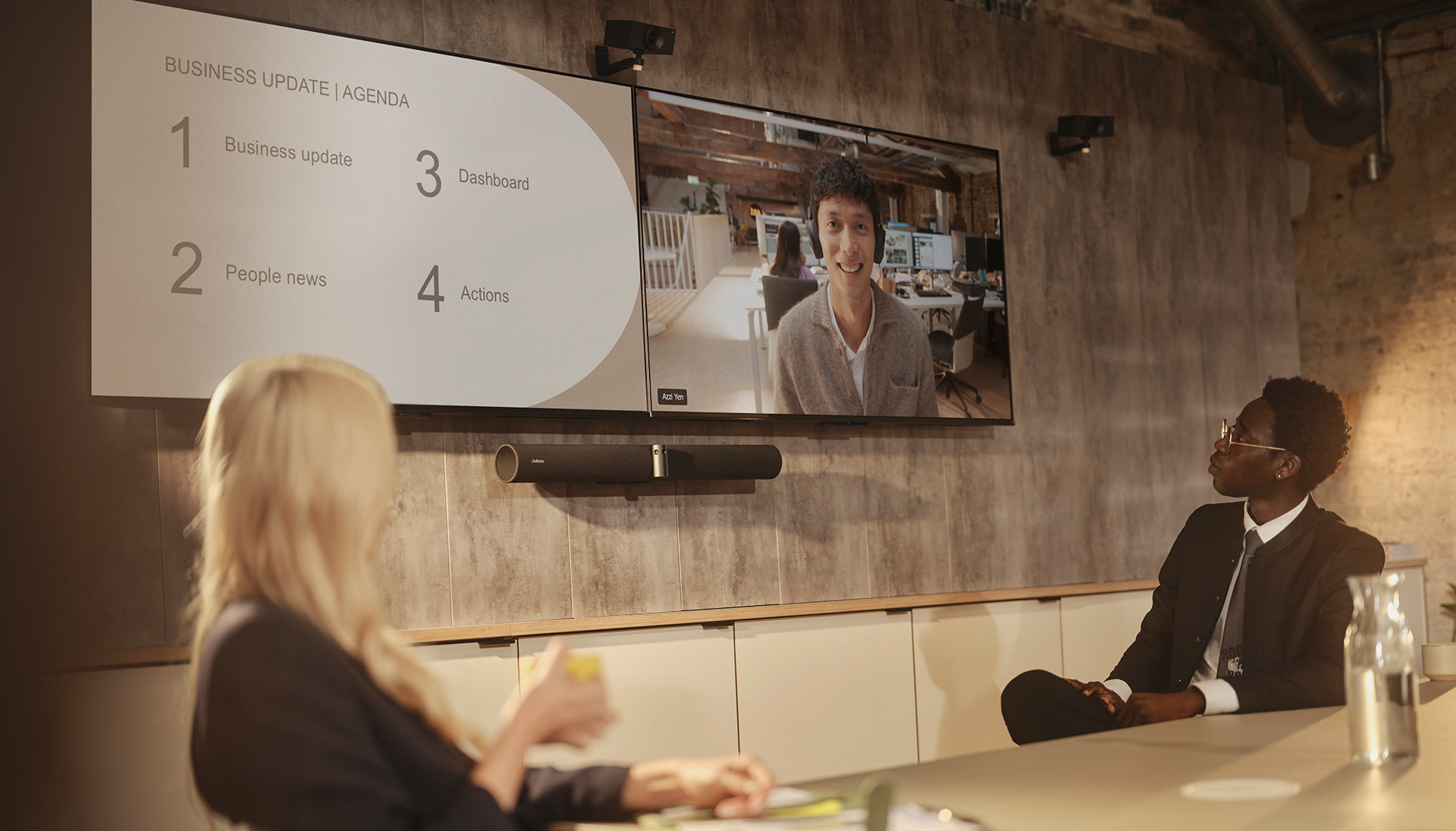
If you're hosting a hybrid meeting, ensure that both in-room attendees and remote participants can see and hear each other, as well as contribute equally. Otherwise, remote attendees may struggle to see who's speaking, miss side conversations, or feel overlooked.
Here's how to make your hybrid meeting equitable:
- Use a camera that captures the entire room. A camera like the Jabra PanaCast 55 VBS bar uses three 13-megapixel 4K cameras to create a 180° field of view. This allows remote participants to see everyone at the table and follow the conversation more easily.
- Call on remote participants directly. Instead of generally asking, "Any thoughts?" invite remote participants by name to contribute, e.g., "Sarah, I noticed you nodding. Would you like to add something?" Direct invitations make remote attendees part of the discussion instead of passive listeners.
- Assign a "remote champion." Choose one person in the room to monitor chat and virtual hand raises. Their job is to speak up if remote participants are waiting to contribute or if someone gets talked over.
- Discourage side conversations in the room. When people whisper or speak off-mic, remote participants can't hear what's being said and may feel left out of the discussion. Keep all comments in the main conversation so everyone stays included.
Tip 6: End every meeting with clear action items
Don't let the meeting fade out with a casual "Thanks, everyone." Instead, take a few minutes to go over what was covered in the meeting and the outcomes.
- Recap the decisions made. State them clearly so everyone hears the same conclusion. This avoids confusion later.
- Assign owners for each task. Instead of making vague statements like "We should look into this," specify who's responsible for what. For example, "Alex will draft the proposal" or "Marcy will set up the drip sequence for the new ICP."
- Confirm deadlines. Agree on specific dates, not vague timelines like "soon" or "next week."
- Clarify the follow-up channel. Let participants know where updates will happen – whether in email, Slack, Teams, or in the next scheduled meeting.
When you end with clear action items, people leave knowing exactly what they need to do and when they need to do it.
Virtual meeting etiquette tips for participants
Tip 7: Join early and test your audio and camera before the meeting starts
Even if you're not hosting, you still bear some responsibility for how smoothly the meeting runs. Join 2–3 minutes early so you can sort out your setup before the meeting begins. Many video tools like Zoom and Google Meet let you test your audio, camera, and background in a waiting room before officially logging into the call.
Here's how you can properly prepare:
- Check your microphone clarity. Say a few words and confirm your voice sounds clear and steady. If it sounds muffled or distant, adjust your mic or switch to a different device.
- Test your camera framing. Make sure your face is centered, well-lit, and at eye level.
- Close background apps. Shut down programs that could send notifications, consume bandwidth, or slow your device.
- Switch to the correct audio device. Confirm you're using your headset and not your laptop speakers.
- Rename yourself properly on the platform. Use your full name and role if needed so others can identify you easily.
- Open any relevant materials. If you know the meeting will reference a document or dashboard, open it in advance so you're not distracted trying to find it during the meeting.
Joining early shows respect for everyone's time. It also helps you appear professional and protects you from awkward delays when you're asked to speak.
Tip 8: Use a professional setup for your meetings
If your image is poorly lit, awkwardly angled, or filled with distractions, it can draw attention away from what you're saying. A clean, well-lit setup, however, keeps the focus on you and your ideas.
Here's how to improve your on-camera presence:
- Use a clean background. Choose a neat space with minimal visual distractions, and remove clutter that may pull attention away from you.
- Face the light. Sit facing a window or use soft front lighting so your face is clearly visible. Avoid sitting with bright light behind you.
- Position your camera at eye level. Place your camera so it's straight on, not angled up from your lap or down from above. This helps you maintain direct eye contact and avoid unflattering or distracting angles.
-
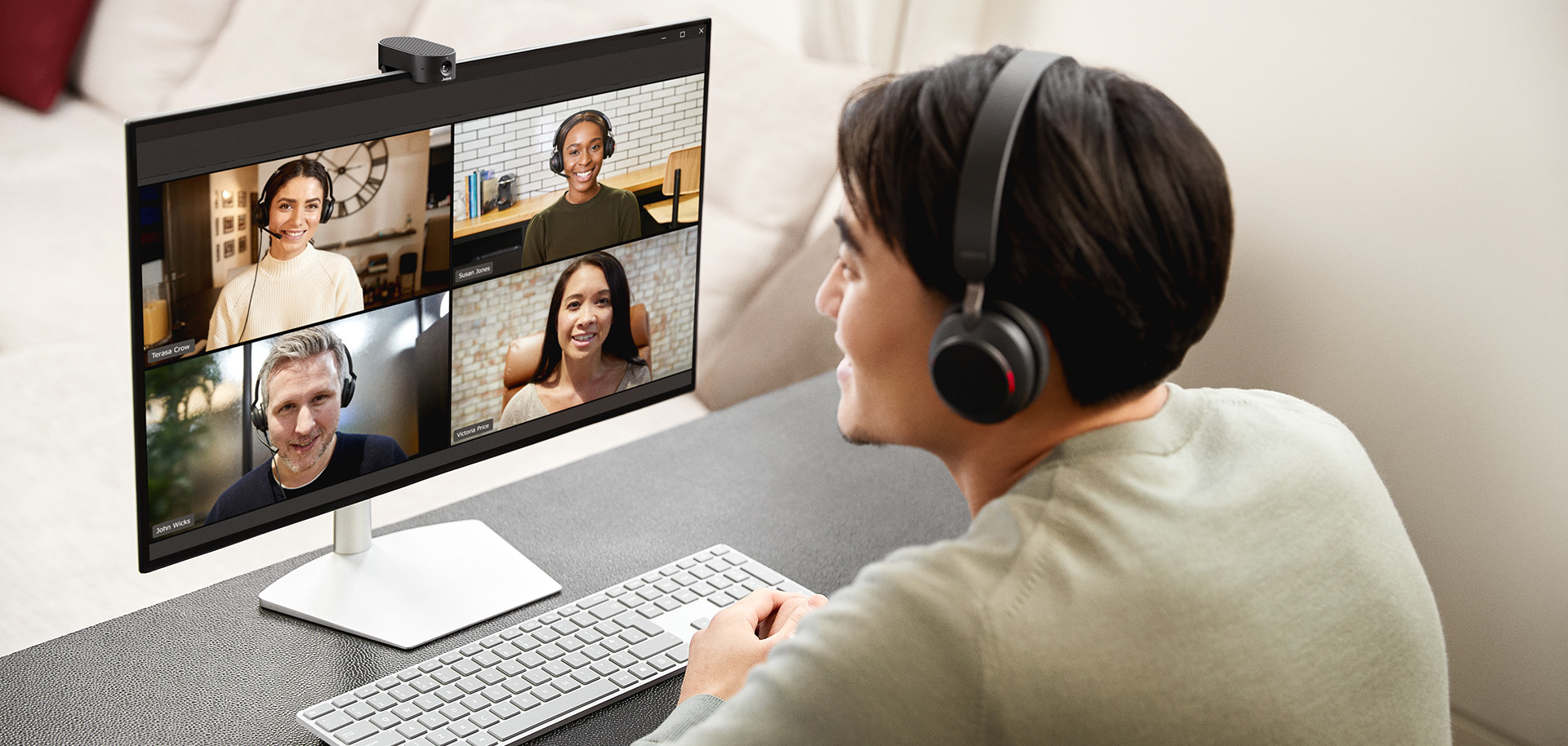
Use a webcam. Many built-in laptop cameras produce grainy or washed-out video, especially in low light. So, switch to a dedicated webcam like the Jabra PanaCast 20, which offers 4K Ultra-HD video, intelligent lighting optimization, and AI-enabled image enhancement to keep your video sharp and clear.
It also features Intelligent Zoom, which scans and adjusts your framing in real time, keeping you centered in the frame at all times.
Tip 9: Remove background noise and disruptions
As a participant, you're responsible for the sound coming from your side of the call. Removing background noise not only helps the meeting proceed smoothly, but it also keeps you focused and reduces the chance you miss key details.
Here's what to do:
- Wear noise-cancelling headphones. Professional-grade headsets like the Jabra Evolve3 75 and Jabra Evolve3 85 use Jabra Advanced ANC™ technology to adapt to your environment and block unwanted background noise, like a roommate talking or dogs barking.
- Keep your microphone muted by default. Stay muted when you're not speaking to prevent keyboard noise, side conversations, and breathing sounds from seeping through.
- Use the "Raise Hand" feature instead of interrupting. This signals that you want to speak without cutting someone off.
- Leverage chat for questions or clarifications. Drop comments or questions in the chat rather than speaking over the presenter. Also, use reactions like a thumbs-up or applause to show engagement without interrupting.

Tip 10: Avoid multitasking during meetings
It's tempting to reply to emails or scroll through your phone while someone else is speaking. But when you split your attention, you miss context, overlook key details, give delayed responses, and slow the conversation down by asking questions that have already been answered.
If you want to stay engaged and get the most out of the meeting, try this:
- Put your phone away or on silent. Keep it out of reach so you're not tempted to check notifications.
- Close unrelated tabs and apps. Remove visual distractions that pull your attention away from the discussion.
- Use a meeting note-taker if needed. Tools like Fireflies.ai or Otter.ai can record, transcribe, and summarize the meeting in real time, so you can stay focused on the conversation.
- Engage intentionally. Nod, use emoji reactions, or add comments in the chat to stay mentally involved.
Tip 11: Demonstrate post-meeting accountability
How you close out a meeting and follow through afterward matters just as much as how you show up during it.
In the final minutes of the call (and in the hours that follow), here's what to do:
- Exit professionally. Don't disappear mid-sentence or click "Leave" abruptly. Instead, wait for a natural closing moment, thank the host, and confirm you have no final questions before signing off.
- Confirm your commitments out loud. If you were assigned a task, repeat it back at the end. For example, "I will send the revised draft by Thursday." This removes confusion and shows ownership.
- Follow up promptly on your action items. Start the task soon after the meeting, rather than waiting until the deadline approaches. Early progress prevents last-minute issues.
- Review shared notes or recordings. If the host sends a recap or meeting notes, read them and ensure your responsibilities and deadlines match what was discussed.
Etiquette for virtual meetings: A quick checklist
Use this quick checklist as a guide.
For hosts:
- Set clear expectations and share the agenda in advance
- Join early to test audio, video, and screen sharing
- Eliminate background noise before the meeting begins
- Manage the meeting pace to prevent fatigue
- Design meetings that include both remote and in-room participants
- End with clear decisions, owners, and deadlines
For participants:
- Join early and test your setup
- Maintain a clean, professional on-camera presence
- Reduce background noise and avoid interruptions
- Stay focused and avoid multitasking
- Confirm your commitments before leaving
Improve the quality of every virtual meeting with Jabra
Jabra designs audio and video hardware built specifically to help virtual and hybrid meetings run smoothly and professionally.
The Jabra Evolve3 75 and Jabra Evolve3 85 feature Adaptive Active Noise Cancellation that adjusts in real time to your surroundings and blocks out ambient sounds. They also use Jabra ClearVoice™, an AI-powered technology that isolates your voice and reduces background noise, so you sound clear even during a busy commute or from a crowded café.
For hybrid meetings, the Jabra PanaCast 55 VBS captures everyone in the room with a 180-degree field of view, so remote participants can always see who's speaking and follow the conversation easily. For remote professionals, the Jabra PanaCast 20 delivers 4K Ultra-HD video with Intelligent Zoom, so you appear polished and professional during meetings.
These devices connect seamlessly with Microsoft Teams and Zoom, which means fewer technical disruptions and smoother call controls. You can join meetings quickly, manage audio settings easily, and count on stable performance throughout the conversation.
If you want smoother, clearer, more professional virtual meetings, explore Jabra's solutions today.
Frequently Asked Questions About Virtual Meeting Etiquette
1. Should cameras be on during virtual meetings?
It depends on the meeting type. For interviews, client calls, and leadership discussions, keep your camera on unless told otherwise. In large internal meetings, cameras may be optional.
If your camera is on, ensure proper lighting, eye-level framing, and a clean background. If you need to turn it off, communicate briefly in chat so others know you're still present and engaged.
2. How do you behave professionally in an online meeting?
Professional behavior looks slightly different for hosts and participants. If you're hosting, send a meeting agenda ahead of time, test your tech setup before others join, manage speaking order, use noise-cancelling headphones to block out ambient sound, include remote participants in the discussion, and end with defined action items.
If you're a participant, join the meeting early and test your tech setup beforehand, mute when not speaking, use professional-grade webcams, avoid multitasking, use engagement tools respectfully, and confirm your responsibilities before leaving.
3. What are common virtual meeting mistakes?
If you're a host, some common mistakes include starting without an agenda, skipping tech checks, ignoring remote participants in hybrid meetings, allowing cross-talk or side conversations, and ending without clear next steps.
If you're a participant, some mistakes include joining late, speaking while muted, leaving your microphone unmuted in noisy spaces, using a blurry camera, interrupting others, multitasking during the meeting, and failing to clarify action items.
4. How can I look more confident in a virtual meeting?
Confidence comes from adequate preparation. Dress professionally, even if the meeting is remote. Position your camera at eye level, use proper lighting, and maintain steady eye contact with the lens. Also, sit upright and speak clearly at a measured pace. When you look polished and sound clear, people tend to pay more attention to what you have to say.