
What is a huddle room? Layout, design & technology needs
Picture this: You walk into the office and see three people from the marketing team huddled around a laptop. They're mid-meeting with a remote colleague, leaning in so the mic can catch their voices. The room they're in was built for fifteen people, but most of the chairs are empty, and the space feels too big for what they actually need.
Scenes like this are common in hybrid workplaces. Most hybrid meetings now involve just a few people at a time – some joining remotely, others in the office. But many workplaces still rely on oversized conference rooms that go largely unused.
According to XY Sense's Workplace Utilization Index*:
- Meeting rooms designed for 6–9 people average just 2.6 occupants per meeting
- Rooms for 10-14 people average 3.2 occupants
- Rooms for 15-19 people average 4.3 occupants
- And large rooms for 30-49 average 7.2 occupants
That's a lot of empty chairs and wasted real estate.
However, getting rid of meeting rooms isn't the answer. Instead, it's time to rethink how meeting rooms are structured. Smaller, more focused spaces are better suited for the kind of quick, focused collaboration that teams rely on today. They're called huddle rooms.
If you want to get more out of your office space by setting up one (or more!), this guide is for you.
You'll learn:
- What a huddle room is and how it's used
- The key elements of great huddle room design (with layout examples)
- Common mistakes to avoid when setting up a huddle room
- And how Jabra's audio and video solutions help make huddle rooms functional, inclusive, and hybrid-ready
What is a huddle room?
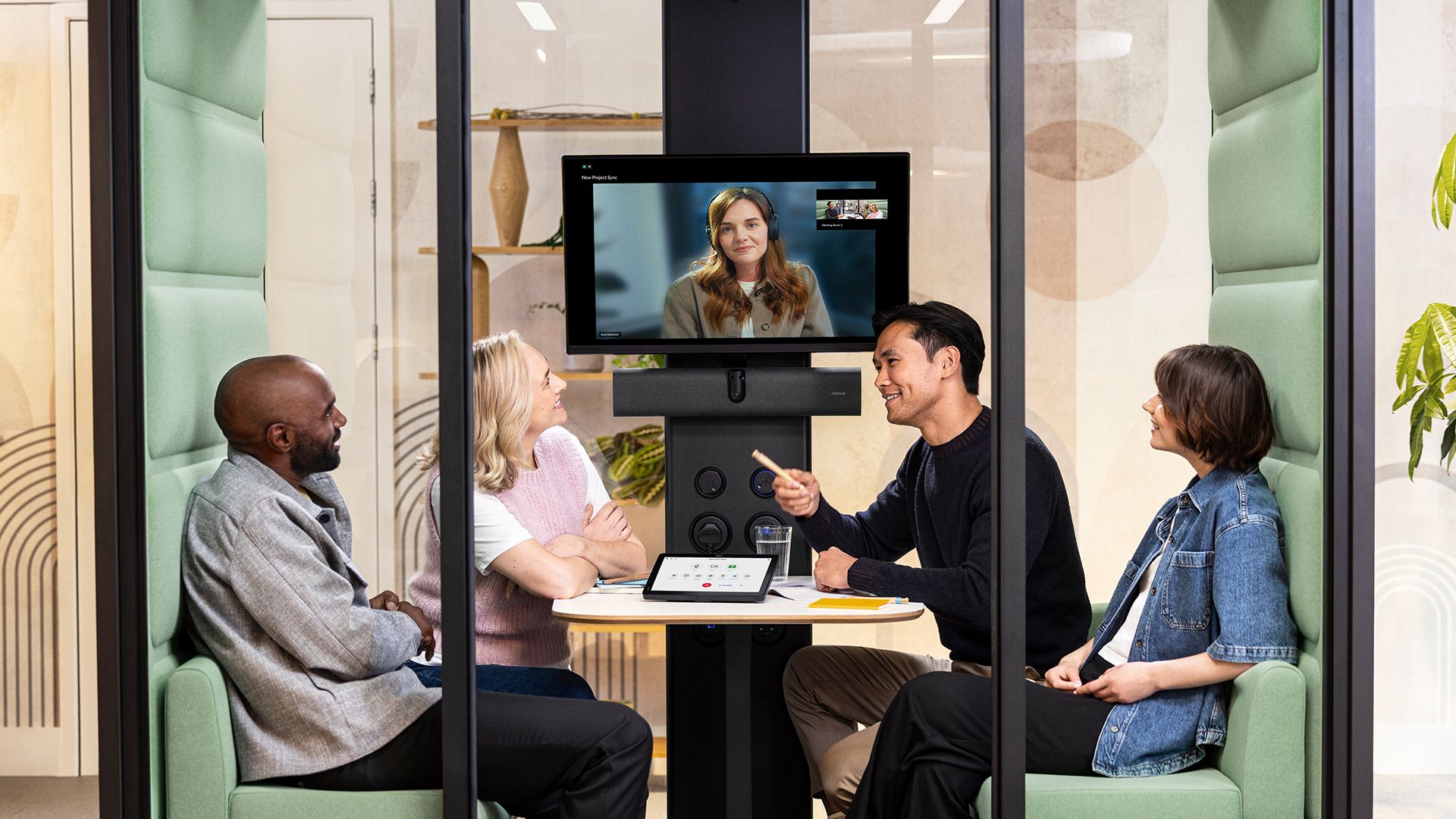
A huddle room is a small, tech-equipped meeting space designed for quick, focused collaboration. Picture a few teammates leaning in together to solve a problem – close, connected, and engaged.
Huddle rooms are typically:
- Sized for 2 to 6 people
- More informal than traditional conference rooms
- Equipped with essential technology, like videoconferencing cameras, noise-cancelling headsets, webcams, and interactive whiteboards
- Designed for both scheduled meetings, brainstorming sessions, and impromptu check-ins
As more companies adopt the hybrid work model, demand for smaller, flexible spaces has skyrocketed. Teams don't want to book a 15-seat conference room for a three-person meeting, and they shouldn't have to. With many employees splitting their time between home and the office, huddle rooms provide a more efficient way for hybrid teams to collaborate.
The concept of a "huddle" has even made its way into digital tools. Collaboration platforms like Slack now let users start informal huddles for quick video chats. The physical huddle room brings that same energy into the real world: lightweight, agile, and built for modern collaboration.
Why huddle rooms have become so popular: The benefits for business.
If you opened up XY Sense's Workplace Utilization Index, you'll find that:
- Small meeting spaces (or huddle rooms) now outperform individual desks in both average utilization and utilized hours.
- The use of huddle rooms has risen to 42%, a 7-point jump from last year.
- On average, these spaces are used for 4.1 hours per day, compared to 3.5 hours for desks.
This shows that teams want (and are actively) using smaller, purpose-driven spaces to connect. And it's no surprise. As businesses adapt to hybrid schedules and distributed teams, huddle rooms solve many of the problems that traditional meeting spaces can't.
Here's how:
They make in-office time more purposeful
Most hybrid employees don't come to the office to do solo work because they can do that remotely. Instead, they come in to meet, collaborate, and connect with their colleagues.
Huddle rooms provide small, focused environments where employees can have meaningful conversations, solve problems quickly, and get value from every in-office day.
They make participation easier
Huddle rooms are intentionally small, which helps keep conversations focused and inclusive. Everyone has a clear view of one another and the shared screen, and voices carry better, which makes it easier to stay engaged and follow along.
That closeness also reduces the pressure of speaking up in front of a crowd and encourages active contribution.
They support more inclusive hybrid collaboration
Just like huddle rooms make it easier for in-person teams to collaborate, they also create a more balanced experience for remote attendees.
With the right audio and video setup, huddle rooms help remote participants feel just as present as those in the room. Fewer people, clearer views, and better sound quality help remote teammates follow conversations and contribute confidently.
They drive creativity, innovation, and teamwork
In our survey on workplace collaboration, employees pointed to small meeting spaces as a catalyst for better thinking and teamwork:
- 65% said they generate their best ideas in huddle rooms
- 73% find it easier to collaborate in small meeting spaces
- 23% say huddle rooms are where they feel most creative
Why? Small spaces strip away the pressure and formality of larger meetings. They make it easier to share ideas, solve problems, and make decisions.
They improve space planning and resource use
In hybrid offices, large meeting rooms often sit half-empty because employees are split between working in the office and remotely. Huddle rooms make better use of space by offering small, high-functioning areas for teamwork.
If you're designing a new office, building several of these gives teams more places to meet, without competing for space or time. And if you already have oversized rooms gathering dust, converting them into huddle spaces can meet more team needs without adding square footage.
What meeting types are best for huddle rooms?
Huddle rooms are perfect for teams that need to connect quickly, collaborate deeply, or bridge the gap between in-person and remote participants. Here's when they're most effective:
1. Quick sync meetings
These quick, 20-minute-or-less meetings are meant to keep everyone on the same page throughout the workday.
Whether the goal is to align on priorities, share progress, or remove a blocker, a huddle room offers a quiet, focused space for teammates to connect. It's easy to jump into and doesn't require a lot of setup.
2. Small team stand-ups
A huddle room is the perfect fit for stand-ups involving three to five team members. It's just enough space for everyone to stand or sit comfortably and hear one another clearly as they share updates about their work and tackle any blockers. The compact size of the room also reinforces the purpose of a stand-up: to keep it brief, focused, and momentum-driven.
3. Brainstorming and ideation sessions
Our research shows that huddle rooms create a sense of psychological safety that larger spaces often lack.
Because they're small and limited to just a few people at a time, employees feel more comfortable sharing ideas, sketching on a whiteboard, or working through half-formed thoughts without feeling self-conscious.
The low-pressure environment makes it easier to speak up, take creative risks, and collaborate more openly.
4. One-on-one meetings
Whether it's a performance review, a goal-setting session, or a weekly check-in, one-on-ones work best in a quiet, private space.
These conversations often cover sensitive ground, like feedback, career growth, or personal challenges, so both the manager and their direct report need to feel comfortable speaking openly.
Huddle rooms offer the right level of privacy without the formality or distractions of a larger meeting room.
5. Hybrid meetings
Huddle rooms are especially valuable in hybrid meetings where only part of the team is physically present. With the right audio-visual (AV) setup, they ensure everyone (remote or in-person) is clearly seen, heard, and able to contribute.
The small size of the room keeps cameras framed tightly and audio consistent, which reduces technical friction and helps remote teammates feel truly involved in the discussion.
When a huddle room isn’t needed at all
Not every conversation needs to happen in a room. If the topic is a quick yes/no, a document share, or a one-line question, a Slack message, email, or a tap on the shoulder will do just fine.
Huddle rooms should be saved for collaborative sessions that benefit from face-to-face time, whether physical or virtual. When used intentionally, they can free up larger rooms and give teams the focused space they need to be productive.
Key elements of huddle room design
Room size and capacity
A huddle room needs to feel comfortable, not cramped. Aim for a space that fits 2-6 people with enough room to sit or stand without bumping elbows, but small enough to feel personal and connected.
Think of a small basketball team huddled around a clipboard, planning their next move — focused, collaborative, and in sync. Not a large football team at half-time listening to their coach recap what went wrong in the last half.
The ideal size of a huddle room is 100-250 square feet (or slightly larger, depending on the size of your team). This way, there's space for comfortable seating, the AV setup, and movement around the room.
Furniture and layout
The layout of the room should promote face-to-face interaction, support technology, and feel natural to walk into and use. You should:
- Choose a small round or square table that allows equal visibility for everyone.
- Use mobile or stackable chairs for flexibility and easy reconfiguration.
- Mount a display on the wall to free up space and reduce clutter.
- Keep clear walking paths to doors, screens, and whiteboards.
- Include a small shelf or cabinet to discreetly store tech accessories (e.g., headsets, remotes, HDMI cables).
💡 Pro tip: Add a potted plant, soft lighting, or artwork (or all three!) to make the space feel more inviting.
Acoustics and soundproofing
Sound quality can make or break a huddle room, especially during hybrid meetings. Poor acoustics lead to echo and miscommunication, which can cause frustration for participants. The goal is to keep sound contained inside the room and uninterrupted by noise outside.
To improve acoustics:
- Add acoustic panels to walls or ceilings to help absorb echo.
- Use carpet tiles, rugs, or upholstered furniture to soften sound and prevent it from bouncing around.
- Seal doors properly to reduce the chance of nearby teams overhearing conversations.
- Avoid glass walls without acoustic treatment—they may look sleek, but they allow sound to travel into surrounding areas.
Display placement and visibility
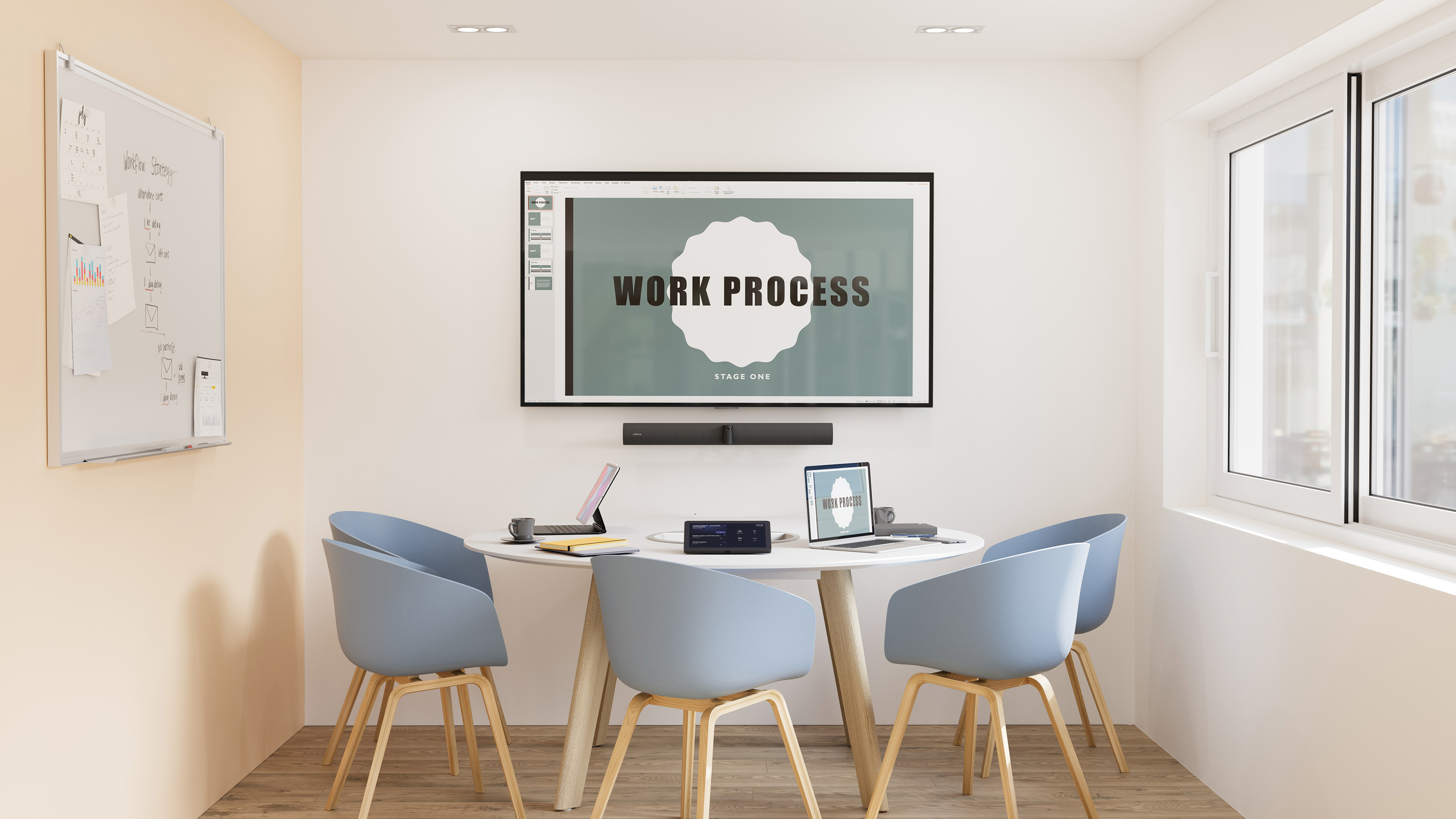
Ideally:
- Mount the screen at eye level for seated users (about 48–52 inches from the floor).
- Make sure it's large enough that text can be read easily from every seat (typically 40–55 inches for small rooms).
- Don't place a chair directly under the screen; treat it like a "seat at the table" so no one has to twist or lean to see it.
- Angle the display to avoid glare from windows or overhead lights.
- Keep the webcam centered just above or below the screen for natural eye lines.
That said, not every huddle room will allow for the perfect setup, especially in leased spaces or smaller offices where you can't make major changes. Treat these tips as best practices to aim for, and adjust based on what your space allows.
Accessibility and consistency
Huddle rooms should be effortless to use, even for someone who's never been in the room before. And if your organization has multiple huddle rooms (or offices), aim for a consistent experience.
Employees should feel confident using any huddle room without having to relearn how things work each time.
To improve accessibility and consistency:
- Stick to a standard layout and furniture style so rooms feel familiar.
- Create a room naming convention (e.g., "Huddle-A1" for Building A, Floor 1) and standard booking process across all locations to avoid confusion.
- Use the same AV setup (e.g., Jabra PanaCast U30 + Evolve3 headsets) across rooms (or locations).
- Keep room controls, displays, and cabling in the same shelf across rooms to reduce setup friction and shorten ramp-up time.
- Label inputs and cables clearly.
- Have a quick-start guide (printed or digital) in each room that shows how to connect devices and run a hybrid meeting.
- Make sure there's room to maneuver for individuals using mobility aids.
- Ensure the lighting is even, bright, and adjustable to minimize screen glare and enhance video clarity.
Huddle room layout examples
1. The 3–5 person pod: Quick stand-ups or brainstorming bursts.
Layout: Small round or square table with chairs spaced evenly. A wall-mounted screen and wide-angle camera/video bar on the short side of the room keep remote participants front and center.
Why it works: Everyone's close to the mic and camera, so sound and video stay natural. No one's off-frame, and eye lines are clear, which is great for short, high-energy syncs.
2. The 5–6 person side-by-side setup: Small group collaboration.
Layout: Rectangular table pushed slightly forward, with seating along both long edges and on the back end of the table. Video camera and screen positioned on the wall at the head of the table.
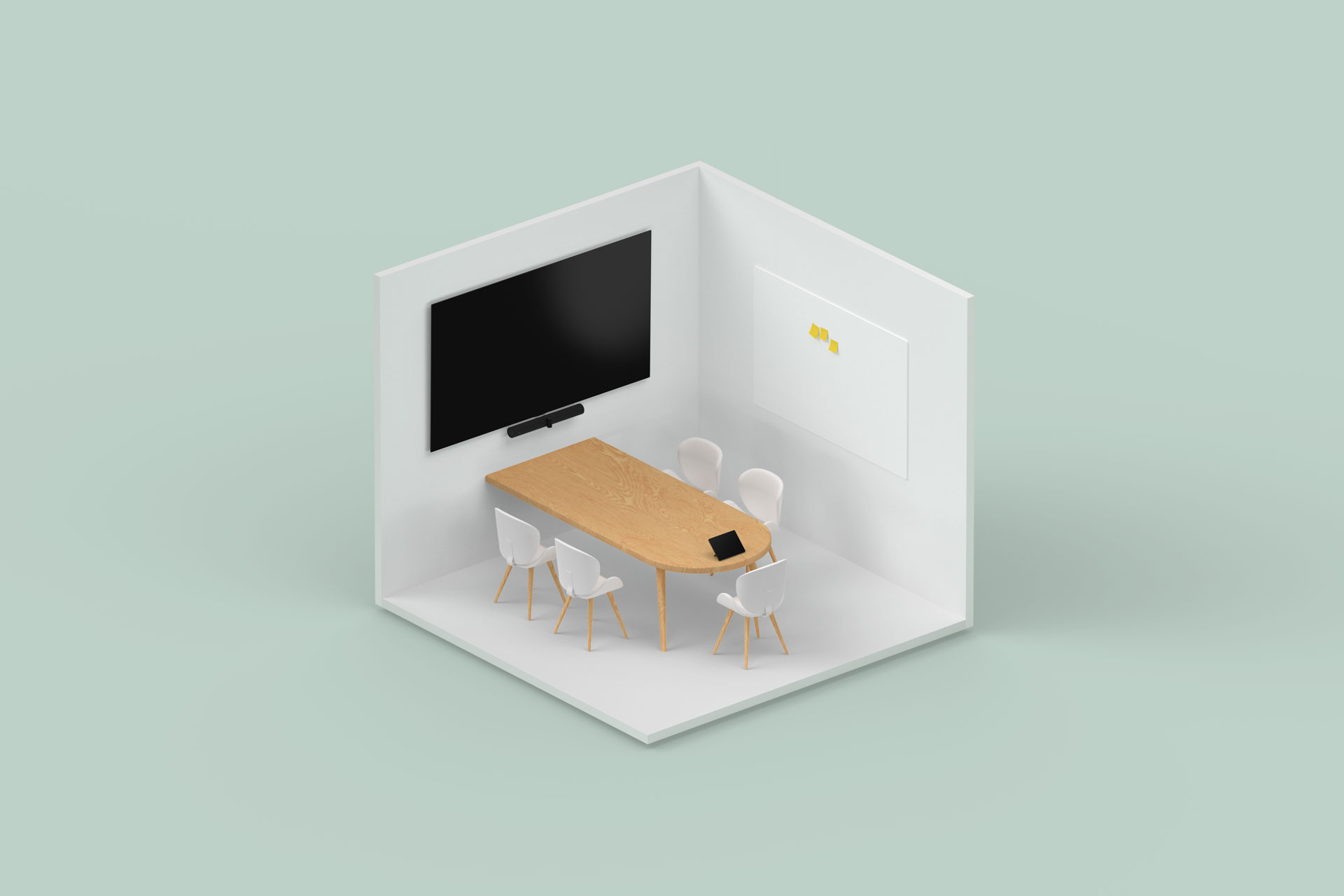
Why it works: The staggered positioning helps the camera capture everyone while giving remote participants a better view of facial expressions and gestures. Add an intelligent framing camera and multi-mic array for smooth hybrid flow.
Huddle room technology: Everything you need for hybrid success
Smarter AV solutions
Standard webcams and mics fall short in huddle rooms. They miss people at the edges, pick up background noise, and make remote attendees feel like spectators.
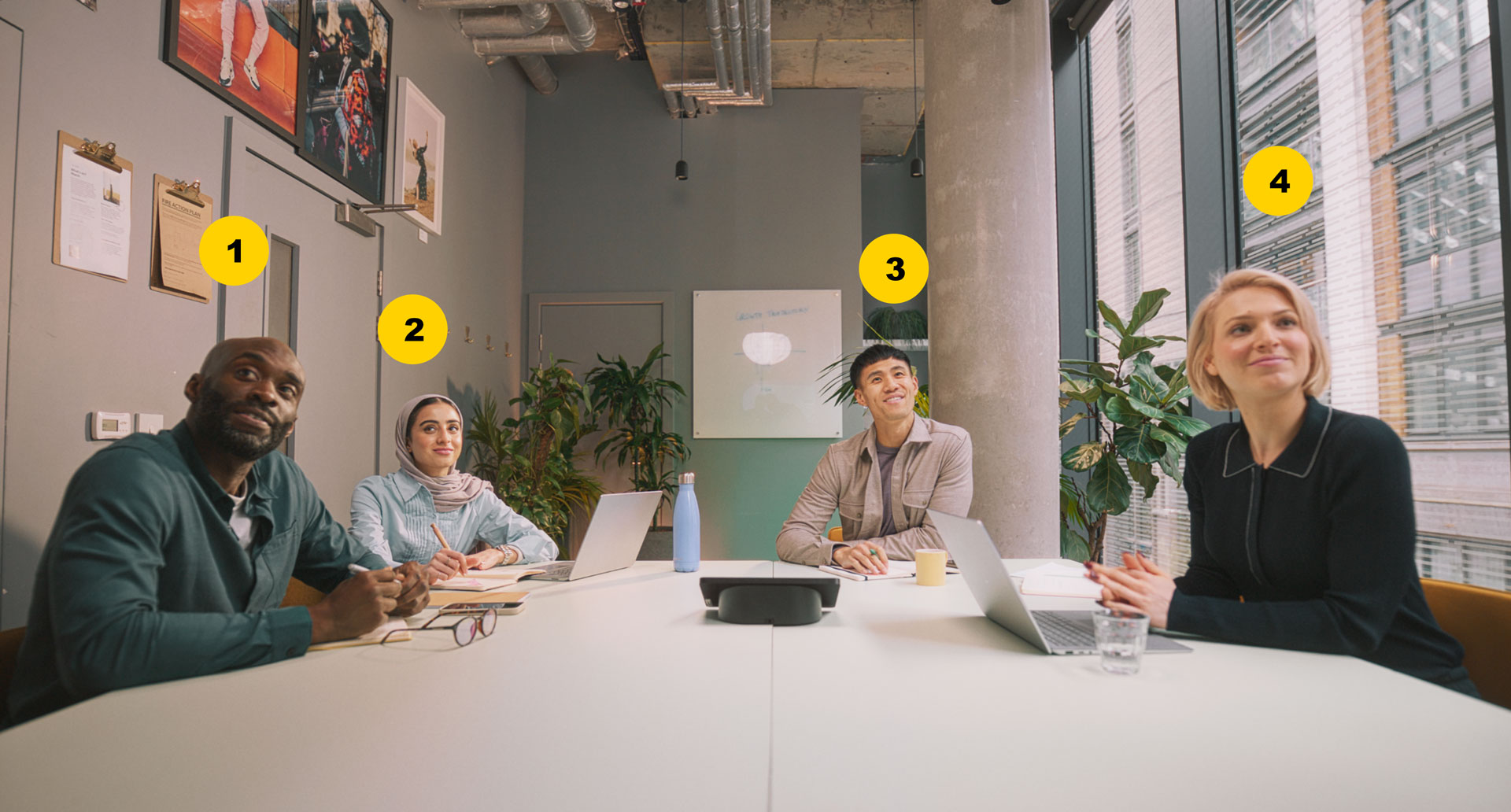
To prevent this, use high-quality AV tools, like our Jabra PanaCast U30, with a 120° field of view, intelligent conversation framing, and a microphone array that picks up every voice clearly, no matter where they're seated.
Headsets for hybrid workdays
In hybrid offices, people shift between huddle rooms, open desks, and remote work. They need audio gear that keeps up with them as they move.
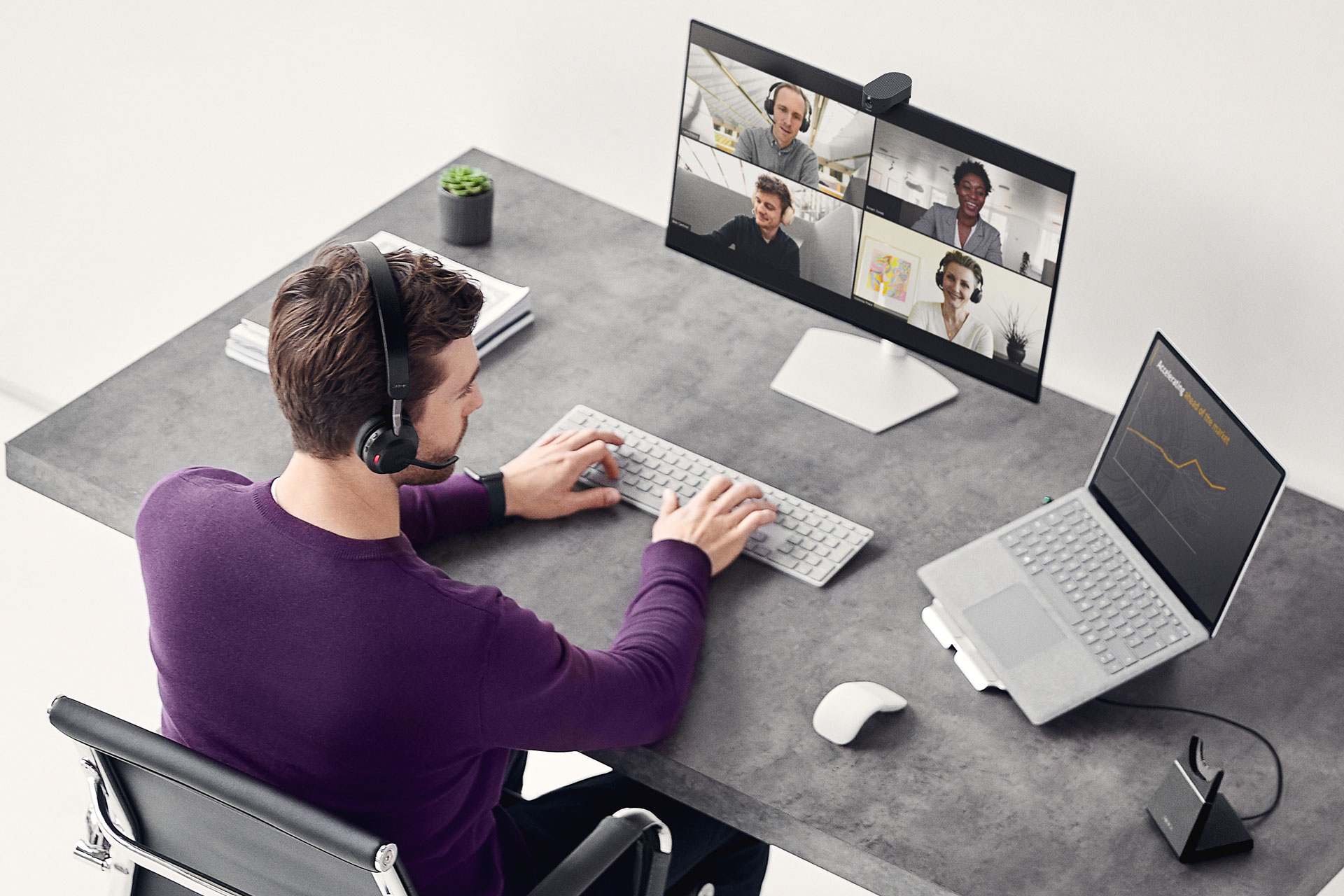
A great option is our Evolve3 65 Flex headset that delivers rich audio, powerful adaptive active noise cancellation (ANC), and professional-grade microphones in a portable, foldable design—ideal for hybrid employees who work from different locations.
Better video for remote employees
Built-in laptop cameras don't provide the high-resolution video that remote employees need to appear professional during hybrid calls.
So, invest in professional-grade webcams like our PanaCast 20 personal camera , which offers 4K Ultra-HD video, AI-powered framing, and lighting correction, so remote teammates are seen just as clearly as those in the room.
Plug-and-play simplicity
How much does a huddle room cost?
The cost of setting up a huddle room varies widely depending on:
- Room size. Larger spaces may require more advanced AV coverage and better sound treatment.
- Technology needs, including cameras, microphones, speakers, and displays.
- Videoconferencing hardware and software, e.g., plug-and-play tools or integrated unified communications (UC) platforms.
- Furniture and décor, including chairs, tables, wall finishes, and storage.
- Acoustics and soundproofing, like panels, rugs, upholstery, and door seals.
- Advanced features, like smart lighting, touch panels, or wireless content sharing.
Here's what to expect at different investment levels:
Basic setup: $2,000–$5,000
This typically includes:
- Simple furniture (table, chairs, and basic acoustics)
- Basic HD monitor/interactive whiteboard (32–40 inches)
- Basic video conferencing (webcam, omnidirectional microphone, and speaker)
- Manual cable connections for laptops
Mid-range setup: $5,000–$12,000
This typically covers:
- Flexible seating and modular furniture, including a larger table and ergonomic chairs
- 40–55 inch display with HDMI and wireless sharing support
- High-quality 4K camera and dedicated microphone/speaker bar
- Basic acoustic panels and carpet tiles for soundproofing
- Touch panel for room control or scheduling
- Integrated UC platform compatibility (e.g., Zoom, Microsoft Teams)
Premium setup: $10,000+
This should cover:
- High-end furniture with built-in cable management
- Large, high-resolution interactive display or dual screens
- An AI-powered video bar (like the Jabra PanaCast 40 VBS) with intelligent zoom and wide field of view
- Full acoustic treatment: wall panels, insulated doors, sound-dampening ceiling tiles, etc.
- Motorized or adjustable lighting
- Integrated control system (e.g., personal device pairing, automatic meeting launch, and cloud-based meeting analytics)
Whether you're outfitting one room or standardizing across locations, the key is to invest in what your teams actually need and scale up where it adds real value.
Read: 7 Types of Video Conferencing Technology You Need
Note: You may already have some of these essentials on hand. For example, if you have an underused room with decent chairs and a table then a few smart upgrades, like a display, webcam, and microphone, might be all you need to transform it into a fully functional huddle space.
Start with what you have, then build from there.
How to integrate huddle room design into your hybrid work strategy
Huddle rooms work best when baked into your overall hybrid plan. Here's how to do that intentionally:
Map out when and where collaboration happens
Look at how your teams actually work. Identify the parts of your week or workflows where quick decisions, check-ins, or idea-sharing happen most often. Then place huddle rooms where those interactions naturally occur, so they're easy to access at the right moments.
Design huddle rooms for repeatability
Instead of designing each huddle room from scratch, create a standardized blueprint that guides layout, technology, and user experience across the board. This ensures that employees walking into a huddle space, whether in HQ or a satellite office, can get up and running without wasting any time.
Set clear guidelines for use
Specify when huddle rooms are appropriate (e.g., for hybrid check-ins, quick planning sessions, and one-on-one meetings) and when they're not (such as for solo focus work, casual phone calls, or all-day hangouts).
Clear usage guidelines help prevent misuse and keep these spaces available for the meetings that need them.
Equip them with technology that supports hybrid equity
Choose AV devices that help remote participants feel just as present as those in the room. Jabra's PanaCast 40 VBS bar, for example, provides full-room visibility and intelligent zoom, so remote attendees can see the in-room participants clearly.
And the Jabra Evolve3 65 Flex, with its foldable design and noise-cancelling microphones, ensures crystal-clear audio even in open or noisy environments.
Align huddle rooms with your hybrid attendance strategy
Connect huddle rooms to your workspace scheduling tools so employees can easily see availability and book a room on the days they're in the office.
To prevent long-term holds that limit access for others, you could set a two-week advance booking window. For meetings that need to be scheduled further out, like quarterly reviews, create a simple approval process through a manager or office admin.
This keeps the system flexible but fair, and ensures rooms stay open for the teams that need them most.
Treat huddle rooms as living spaces
Hybrid work evolves, so your spaces should, too. Review how huddle rooms are being used and gather employee feedback regularly. What works? What's awkward? And what's non-functional?
Use that input to refine layouts, upgrade tech, or even create new micro-spaces that support the flow of work better.
Common mistakes to avoid when setting up huddle rooms
When setting up a huddle room, it's easy to overlook the small things that make or break hybrid collaboration. Here are the most common missteps to avoid:
Assuming small rooms don't need high-quality AV
Just because a space is compact doesn't mean audio-visual quality should take a backseat. In fact, flaws in audio or video often stand out more when you're up close.
Muffled audio or blurry video can quickly derail a meeting, as remote employees may struggle to see facial expressions/body language, or hear clearly when someone speaks.
Using the wrong camera angle or not enough video coverage
A single front-facing webcam won't capture the full view in a huddle room. This can leave remote participants stuck with off-angle views or no view of the speaker at all.
A smart camera setup, like Jabra PanaCast 40 VBS , with its 180° field of view and intelligent framing, keeps everyone in sight and makes remote attendees feel like they're right there in the room.
Overlooking clear audio pickup
If your audio setup doesn't pick up all voices clearly, both in-office and remote attendees will miss crucial information. This disconnect can cause confusion, repeated questions, and wasted time as people try to keep up with what's being said.
Cramming in furniture or choosing uncomfortable layouts
Huddle rooms should feel open, not cluttered. When furniture is crammed in or seating is awkward, the space can quickly feel claustrophobic and not conducive to collaboration. Good layout choices prioritize comfort, movement, and line of sight, which help meetings feel natural and not forced.
Skipping onboarding or technology walkthroughs
Without a quick walkthrough or onboarding moment, users may hesitate to engage with the technology or even avoid the room entirely. Clear signage, simple instructions, or a short intro video go a long way in facilitating proper use.
Not testing with real hybrid meeting scenarios
Tech that works on paper doesn't always work in practice. The only way to catch problems like audio dropouts or camera blind spots is to simulate real meetings. Run a few trial sessions with hybrid teams before declaring a room ready for use.
Avoid the usual huddle room headaches with Jabra
Jabra's audio and video solutions have plug-and-play, easy-to-use, and fully integrated systems that make the collaboration process easier.
Jabra PanaCast U30. This is a true BYOD plug-and-play video bar that lets you launch meetings with a single USB-C connection. With premium wide-angle lens and intelligent conversation framing this video bar ensures everyone is seen and heard clearly.
It even offers on-screen guidance with onboarding wallpaper, which eliminates black screen and any guesswork.
Jabra Evolve Series headsets. Whether you're in a huddle room or working remotely, the Evolve3 Series delivers consistently clear, professional audio. These noise-canceling headsets are optimized for hybrid work and work seamlessly with Microsoft Teams, Zoom, Google Meet, and other UC platforms.
If you'd like to learn more about how Jabra can help you set up hybrid-friendly huddle rooms, check out all our solutions here.