

11 Best Online Collaboration Tools for the Virtual Team
Spending hours every week emailing documents, gathering feedback, chasing progress reports, or scheduling catch-ups?
Then, it’s time to upgrade your online collaboration software stack.
But with so many choices, it can be challenging to know which tools to use. That’s why we’ve compiled our definitive list of the top virtual collaboration software available today.
These 11 tools streamline workflows and enhance productivity. Plus, they all offer free versions, so you can test them before committing.
How we rank online collaboration software
We’ve used our 150 years of experience, as well as hours of research, customer feedback, reviews, industry forums, case studies, and more to collate this list of collaboration tools for your business.
Whether you need constant clear lines of communication, a place to collaborate on your social media plans, or a hand managing your database - there’s an app for that. And we’ll tell you which one is perfect for you.
| Tool | Best for | Features | Free Plan | Price |
|---|---|---|---|---|
Slack | Quick communication channel | Customizable channels, file sharing, plenty of third-party integration potential | Yes | Paid plans start from $8.75 |
Trello | Project management | Customizable planner view, document sharing, and task attribution, helpful templates to kickstart projects | Yes | Paid plans start from $5 per member per board |
ClickUp | Time management | All-in-one time management platform, easy automation, in-app chat function | Yes | Paid Plans start from $7 per user per month |
Hootsuite | Social media planning | Cross-platform planning - including X, create & manage ad campaigns, powerful analytics | Yes | Paid plans start from $89 per month |
Google Workspace | Document collaboration | Excellent integrations, easy document sharing, simple interfaces | Yes | Paid plans start from $6 per user per month |
Zoom | Meeting collaboration software | Meet with up to 100 participants for free, great integrations, transcriptions, and recordings | Yes | Paid plans start from $13.33 per user per month |
Canva | Collaborating on design projects | Simple to create epic designs, thousands of free templates, and collaboration with multiple team members | Yes | Paid plans start from $12.99 per month |
GitHub | Coding or software development collaboration | Excellent control features and integrations allow for code management, collaboration with numerous people | Yes | Paid plans start from $4 per user per month |
Airtable | Database management | Collaborate with unlimited members, generous free version, and lots of integration potential | Yes | Paid plans start from $20 per seat per month |
Notion | Brainstorming and SOP creation | Completely customizable, with thousands of templates, lots of third-party automation | Yes | Paid plans start from $10 per user per month |
Loom | Screen recording | Simple screen recording, easy-to-use editing functions, secure in-app video library | Yes | Paid plans start from $15 per user per month |
Slack
Best for quick team communication.
Price: Free. Paid plans start from $8.75.
Our Mind the Gap 2024 research found that 29% of Gen Z say they feel connected to their peers and managers through chat messages. Slack helps declutter your email inbox by taking most of the day-to-day business chat and placing it on an organized communication channel.
You get the ability to create specific threads, channels, project discussions, or group chats. And you can share files, make video and voice calls, and search through chat archives too. Perfect for keeping specific conversations in a dedicated place - without adding to the noise in your inbox.
Slack also offers third-party integrations with around 2,600 apps. According to Elle Morgan, Director of Content at Spekit, this combo of quick communication and sleek integrations is super effective at inspiring collaboration in her teams:
"We couldn't live without Slack for team communication. It makes work collaboration fun and easy and all the integrations make things like daily stand-ups, liaising with external providers, and organizing team projects smooth and simple. Quick tip: Slack also integrates with almost all other online collaboration tools like Trello and GSuite, so it's easy to get things working together!"
These clever integrations allow you to share regular Google ad reports directly to your channel, get Mailchimp subscriber notifications in the chat, search your CRM for contacts in HubSpot, and more.

But what about security? If you’re using this platform to share various data points, then you need to know it’s air-tight, right?
Slack features a multi-layered security approach which includes (among other features):
- Sign on: Single sign-on and multi-factor authentication improve login security.
- Encryption: Transport Layer Security (TLS) and Federal Information Processing Standard (FIPS) 140-2 encrypt data in transit and at rest.
- Network security: Access from public networks is restricted.
- External audits: Third-party audits, penetration tests, and audit logs regularly assess, track, and improve Slack’s security posture.
- System monitoring: Continuous monitoring and logging for suspicious activity.
While Slack’s free plan only stores messages from the last 90 days, most teams find that this is plenty for everyday conversations. For long-term archive needs, consider integrating with Google Drive or Notion.
Why Slack?
- Fully customizable chat channels
- Third-party integrations
- Direct messaging
- Robust security
- File sharing
- Video and voice calling
- Archive search
Trello
Best for project management.
Price: Free for up to 10 members per board. Paid plans start from $5 per member per board.
Trello is an awesome solution for managing your projects and keeping your team aligned on tasks and project progress.
With simple functionality and a visually satisfying design — not to mention the stock background imagery looks pretty sharp too). Creative marketing and design teams will love managing projects with enterprise collaboration software like Trello.
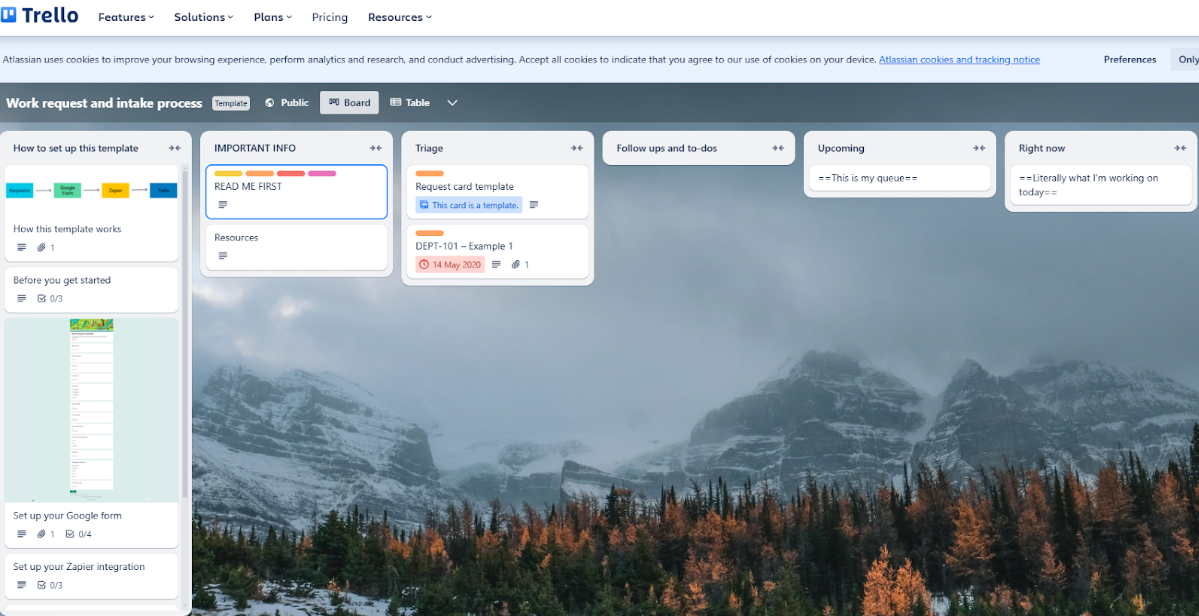
Switch between Timeline, Calendar, or Table view and leverage boards, cards, and lists to create workflows. Inside each card, you can add colorful labels, assign work to team members, set deadlines, create checklists, and more.
Plus, with Microsoft 365 and Google Workspace integrations, Trello emails project members whenever changes occur on the board, such as deadline notifications and task attribution. You can even link it to Slack to grab notifications in the project chat.
Top tip: Don’t let the 10-members-per-board limit stop your collaboration. Instead, create a new workspace, then copy & paste your project board there - giving you the opportunity to add another 10 members to that board. Or get everyone together on a Slack channel, and they’ll all catch the updates in the chat.

Trello’s interface is highly interactive, which makes it great for smaller projects. For larger teams handling more complex workflows, use structured templates and organize tasks into clearly defined categories to help keep everything streamlined.
Why Trello?
- Excellent collaborative project management tool
- Simple customizable interface
- Document sharing
- Task attribution
- Customizable color-coded labeling
- Create task checklists
- Helpful templates to kick-start project maps
- Perfect for beginners to advanced users
- Powerful integrations with email and messenger services for swift notifications
ClickUp
Best for time management
Price: Free. Paid Plans start from $7 per user per month.
ClickUp may be the perfect time management tool for busy, collaborative teams. When managing multiple projects, it can help you stay on top of deadlines through several functions and automations.
Create custom automation to define “When this happens, do this” triggers. For example, “notify me of changes on priority tasks”.

Busier teams can use the powerful AI ClickUp Brain to automate processes further. Simply explain in natural language what you want to happen when a certain trigger occurs, and the AI will carry out the plans.
For example: “When a Task with Open status in the ‘Project Task’ list is marked as ‘High Priority,’ assign it to Natalia and set a due date for 2 days from now.”
The useful app also features a chat function, allowing you to collaborate with your team on project progress across your entire business.
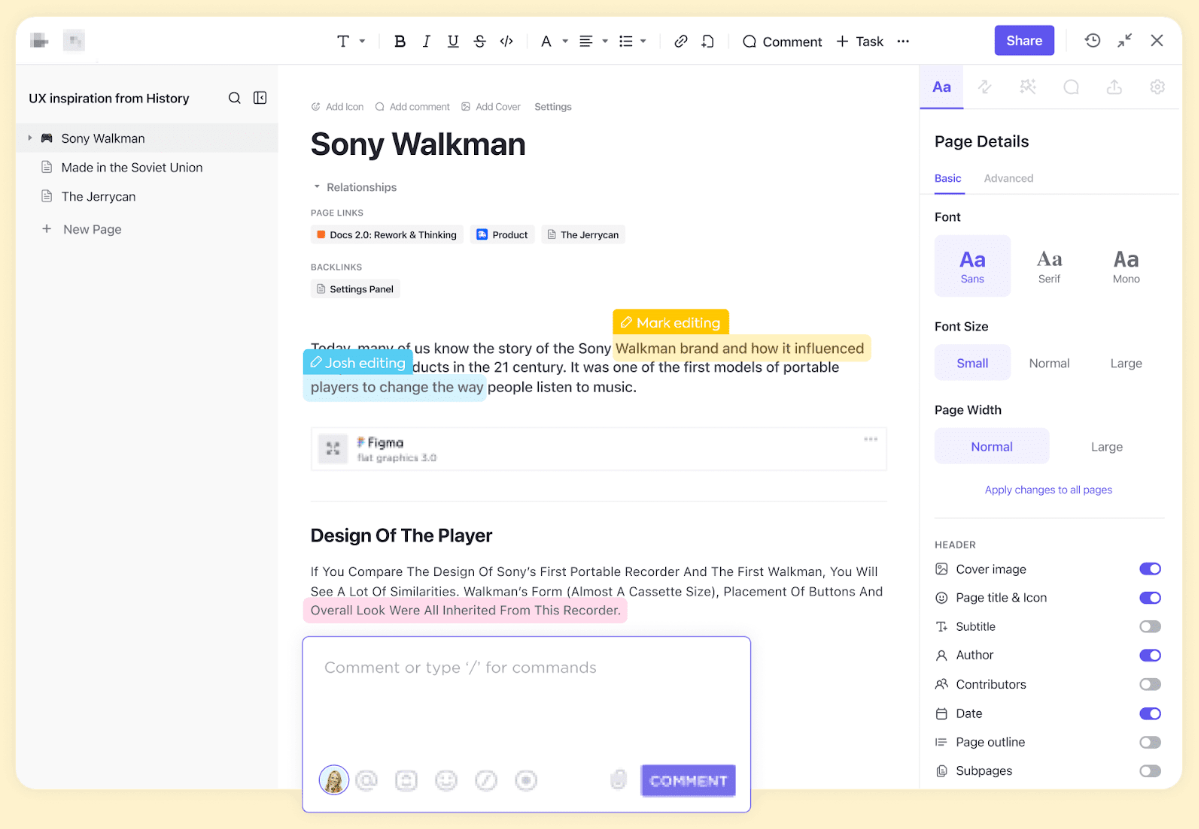
Ben Goodey, CEO at Spicy Margarita, explains that ClickUp also offers attributes through smart integrations to increase time-savings.
"As my team grew, ClickUp really helped improve our online collaboration. We went from managing multiple spreadsheets and sending daily email updates, to it all being kept neatly in one place. We also later discovered ClickUp has a time tracking Google Chrome Extension, which meant we could streamline two tools that were key for our virtual team into one."
ClickUp is packed with features, which means there’s a slight learning curve at first. To simplify your experience, start with the core features you need and gradually explore the more advanced functionalities.
Why ClickUp?
- Manage multiple projects and tasks through one platform
- Powerful third-party app integration
- In-app chat function to improve project comms
- Use AI to further automate mundane tasks
- Scale quickly with a readymade time management platform
Hootsuite
Best for social media planning
Price: Free. Paid plans start from $89 per month.
Hootsuite is perfect for teams collaborating to manage multiple channels or accounts, such as marketing agencies. It could also serve as a workspace for a central marketing team for businesses with multiple locations that each need their own social presence, such as automobile dealership groups.
With Hootsuite, you can collaborate on social media drafts before you post them.
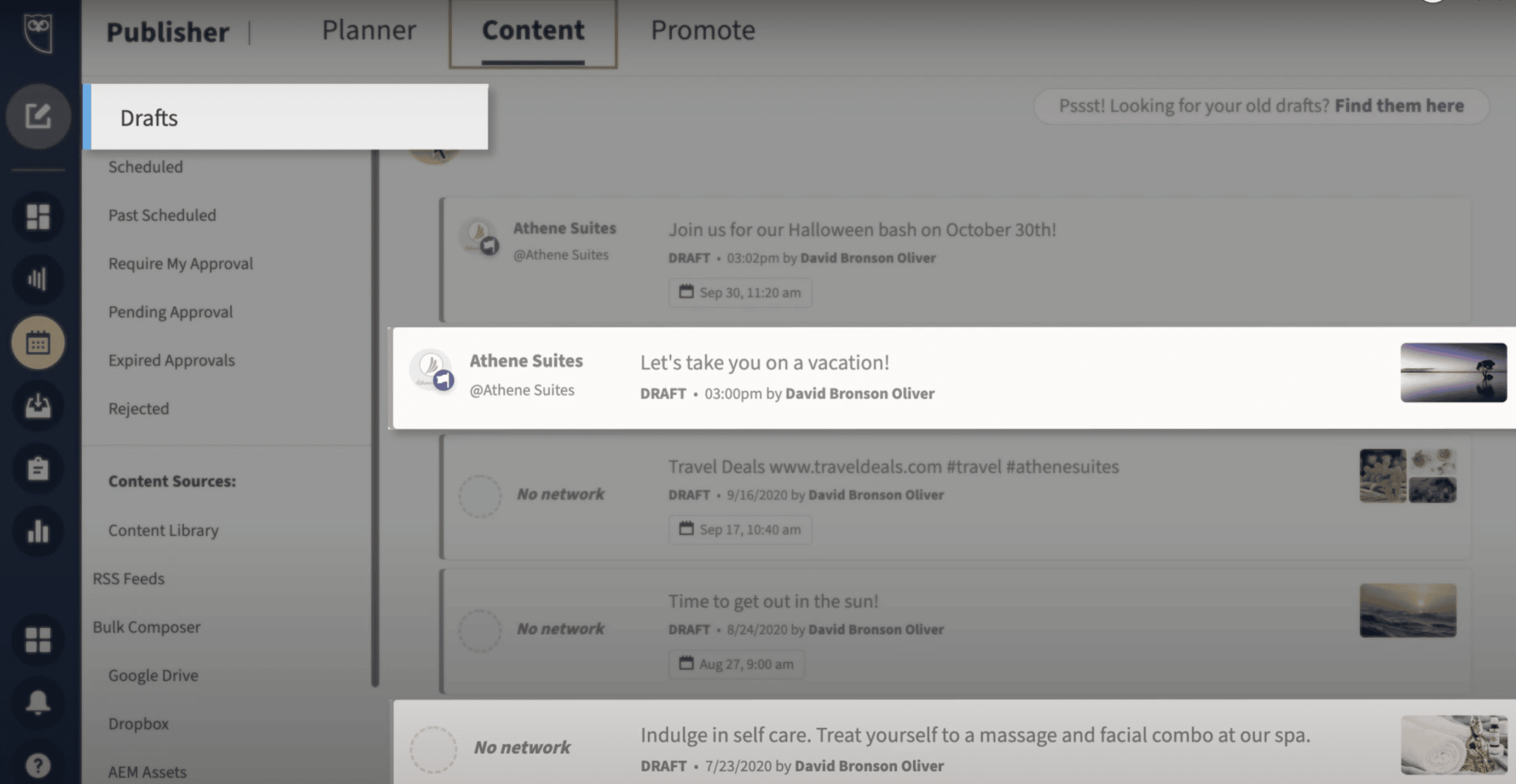
As an all-in-one social marketing solution, Hootsuite can help with posting (of course) and also assist with the tasks associated with social channels. For example, you can use it to manage multiple inboxes, run ad campaigns, track analytics, and boost engagement through comment management.
But where Hootsuite really excels is it’s still one of the only tools of its kind to support Facebook, YouTube, Instagram, LinkedIn, TikTok, Threads, WhatsApp Business, Pinterest, and X.
Many solutions still lack access to the account formerly known as Twitter—and, to be fair, Hootsuite still calls it that—but at least you have it available.

Other top features include OwlyWriter, a powerful in-app AI that can write or review your posts, offer improvements, turn blogs into social content, repurpose your top performers, and more.
Additionally, the incredible analytics view gives a comprehensive view of your performance and that of your competitors, so you can see what is and isn’t working for them.
That said, some users find the interface less intuitive than that of other platforms. If you’re new to Hootsuite, use their tutorials and templates to get a headstart on the setup process.
Why Hootsuite?
- Collaborate on drafts before they go live
- Access to all main social platforms - including X
- Schedule content in advance on all platforms
- Create and manage ad campaigns
- Audience-specific recommendations for the best time to post
- Useful AI features to help with post ideation/creation/review
- Powerful analytics views including competitor analysis
- Inbox management
Google Workspace
Best for collaborative documents
Price: Free. Paid plans start from $6 per user, per month.
If you weren’t already aware, Google Workspace is a cloud-based suite of tools to help with every element of office life. Formerly known as G Suite, Workspace includes powerful productivity tools like:
- Gmail: An email function that looks great and is simple to use across desktop and mobile.
- Chat: Works with Gmail to offer an all-in-one chat solution.
- Calendar: Simplify team coordination with the shared calendar, allowing you to plan meetings, set deadlines, assign tasks, and tag members.
- Meet: Allows you to keep the connective tissue of hybrid work alive with virtual meetings. Chat over coffee and make real-time edits in the document you’re discussing.
- Drive: Eliminates the need for file sharing by keeping shared documents in one central location, allowing those with access to jump in and out as needed.
- Docs: Create written documents with the ability to collaborate on the page or offer amendments via simple comments.
- Sheets: Shareable spreadsheets making tasks like budgeting and forecasting simple and transparent.
- Slides: Creating a new sales pitch deck? Slides can bring the whole sales team together to create something stunning.
Of course, each of those tools is helpful in its own right. However, when combined, they create an unbeatable toolkit for document collaboration.
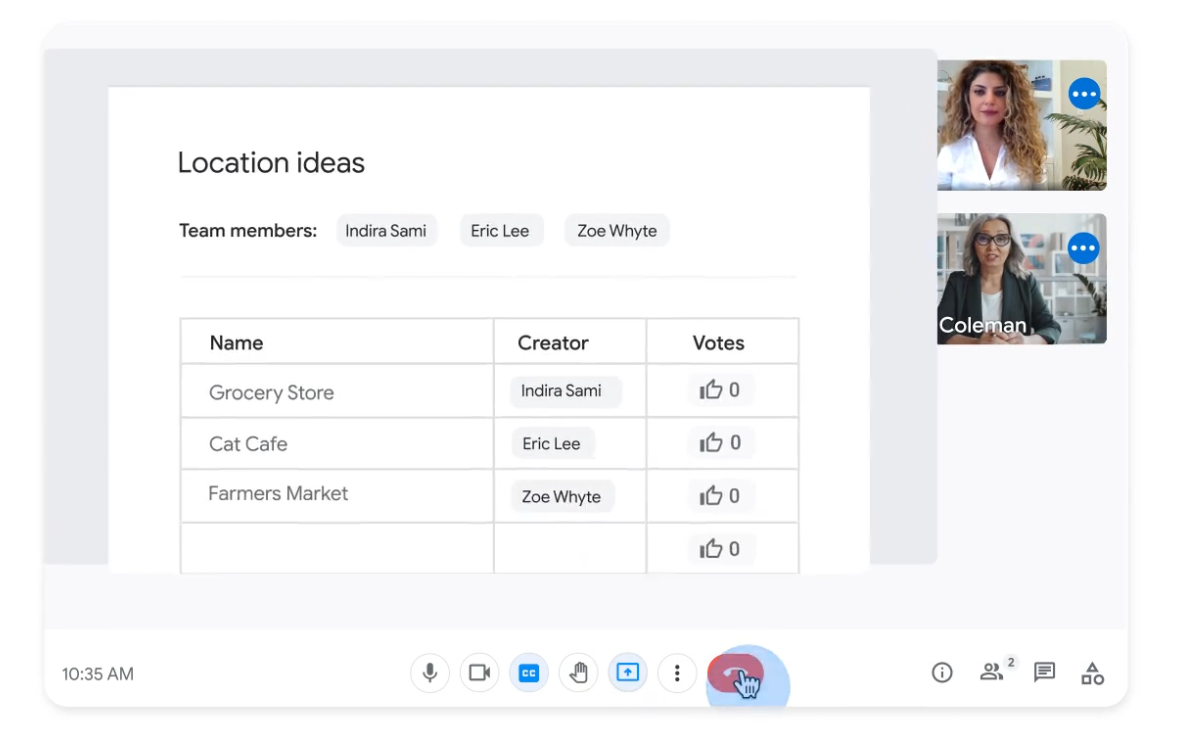
Google Workspace's awesome collaborative functionality puts it ahead of its nearest competitor, Microsoft 365, for teams that need to work together constantly. In fact, recent statistics show that Workspace (50.34%) has now surpassed 365 (45.46%) in terms of market share.
Another major bonus is that Google Workspace only requires a single subscription to access the complete suite of tools. This is perfect for smaller businesses with rapid growth in mind. Plus, if you do outgrow your plan, you can upgrade and customize your settings as needed.
Since it’s entirely cloud-based, a stable internet connection is needed for smooth collaboration. If you’re often on the go, consider enabling offline mode to keep working without interruptions.
Why Google Workspace?
- The most powerful document collaboration tool around
- Collaborate seamlessly in real-time on a range of platforms
- Calendar and Meet functionality means you can schedule & join virtual meetings easily
- Simple-to-use interfaces across apps
- Mobile and desktop functionality
- Up to unlimited storage on Enterprise Plans
- In-built spam filter in Gmail intuitively reduces spam
- Considerable support available
Zoom
Best for meeting collaboration software
Price: Free. Paid plans start from $13.33 per user per month.
Whether you want to host a webinar, brainstorming session, 1:1, or simply catch up with the team after the weekend, Zoom is the best meeting collaboration software.
Powerful integrations with Microsoft 365 or Google Workspace allow you to take and schedule virtual meetings directly through your calendar.
The Workspace integration can even extract meeting details from your email, automatically adding crucial information like topics, documents, and attendees. Plus, once you select “Make it a Zoom Meeting,” the link automatically populates and creates an email invite.
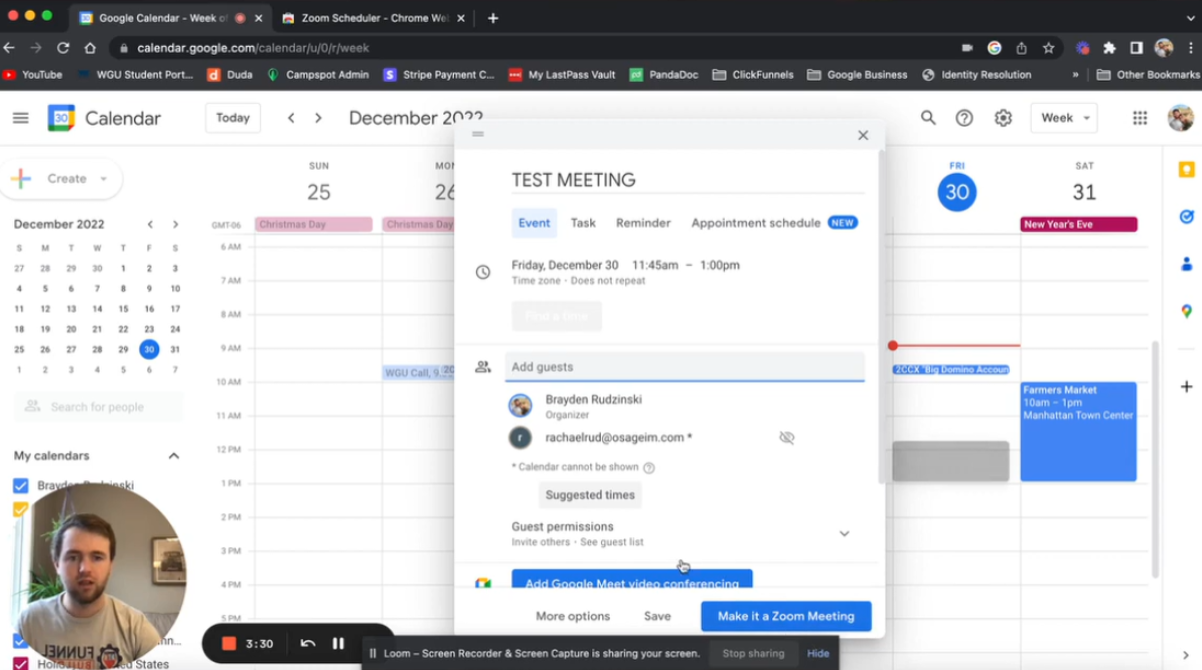
In addition to those super helpful integrations, Zoom also features a host of inclusions of its own. Incredibly simple usability is one. But there’s also the useful recording and transcription tools, perfect for when you need to share a webinar for those who can’t make it.
It also allows you to conference with 100 people just on the free plan. Admittedly, this is limited to 40-minute sessions. But when you upgrade, you have the chance to cast to 1,000 people with unlimited meetings and cloud storage on the Enterprise Plan.
Top tip: Your Jabra PanaCast 50 is Zoom-certified hardware, which means you can pair it with your Zoom headset to create the ultimate video conferencing experience. Combine professional audio and video quality with incredible Zoom connectivity to boost your meeting equity and collaborative potential.
Note that the Zoom platform has struggled in the past with security weaknesses.
Additionally, a lack of comment control at large conferences means you cannot delete inappropriate comments mid-session. This can potentially cause the audience to become distracted, disrupting the flow and impact of your meeting.
Those concerns have been enough for security-conscious firms like financial services, medical facilities, and law practices to look into alternatives. If that’s you, we recently chose Livestorm as the best video conferencing platform for security.
Why Zoom?
- Simple to use
- Robust free version
- Upgrades to suit business scale
- Ability to conference to large audiences
- Recording and transcription
- Great integration opportunities
Canva
Best for design collaboration
Price: Free. Paid plans start from $12.99 per month.
Canva is the perfect tool for allowing creative teams to collaborate on designs. We’re talking - advertising campaigns, posters, leaflets, flyers, and so much more.
But the neat thing about this software is the simplicity of use. So, even if you’re not creatively minded or in a dedicated design team, you can still work on eye-catching graphics with ease. For example, the ability to drag-and-drop uploaded imagery into your design makes creation fast and simple.
Literally, thousands of templates are available to help with other functions, from business card and logo design to stellar presentation ideas, striking infographics, and social posts. Plus, it’s all collaboration-friendly, so everyone can have an input.
Another bonus is that many of those pre-made designs are available on the free version.

However, upgrade, and you’ll get complete access to another top feature - Magic Studio. Named as one of TIME’s Best Inventions of 2024.
This intuitive AI tool comes with a host of clever features like text-to-image technology, allowing you to tell the program exactly what you want to create, and then letting it get to work.
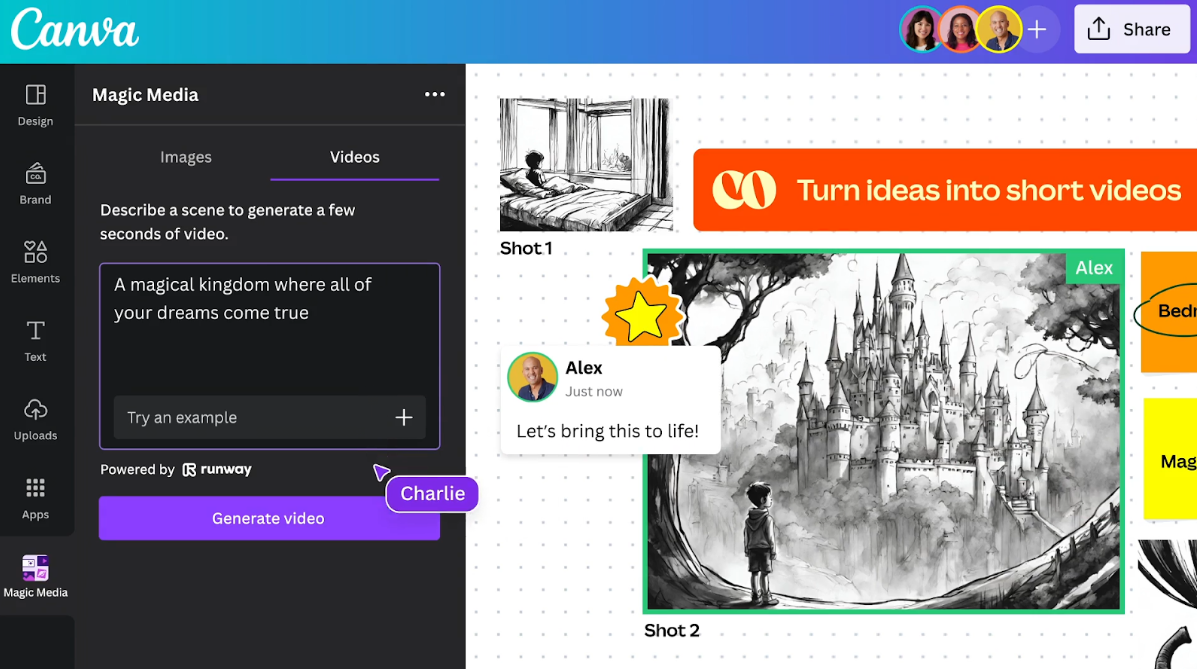
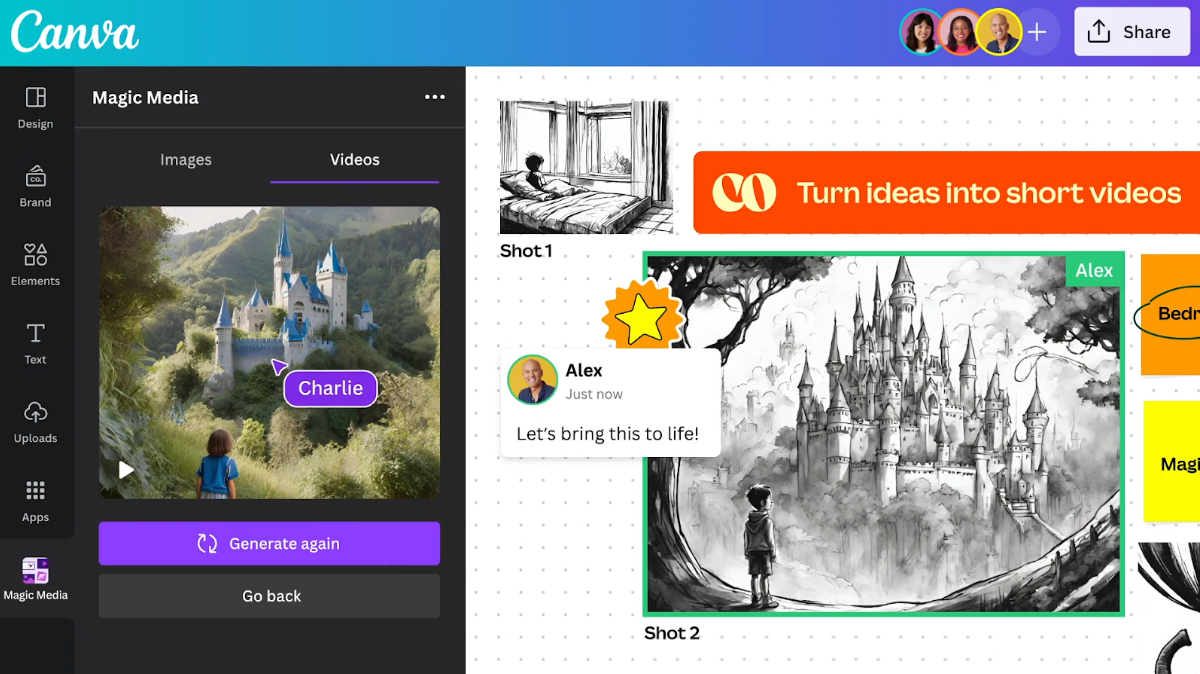
This software is perfect for design beginners or as an all-in-one creative solution for most of us. However, if you want to get more technical and in-depth with your creations, then you may run into a couple of limitations.
The inability to save favorite fonts and easily change the styling of one word in a line does cause some frustration. Additionally, some users on Reddit have commented about the clunkiness of adding more than one effect on imagery:
“Not being able to add more than one effect on text or images. For example, I usually like to add a drop shadow and outline to it, so I need to re-download the text box as an image and then add the second effect. It gets tedious.”
If you need additional functionality like this, a more specialist platform like Adobe Photoshop or Illustrator could be a better alternative. One other frustration is that the platform has a storage limit of just 5GB.
However, Canva more than suffices for the rest of us who need a simple solution to create striking designs.
Why Canva?
- Super simple usability
- Drag-and-drop design functionality
- Create a number of design styles
- Thousands of templates and designs to choose from for free
- Collaborate on designs with multiple team members
- Upgrade for powerful AI tools
GitHub
Best for code sharing and collaboration
Price: Free. Paid plans start from $4 per month.
GitHub is probably the most accessible code-sharing platform. But in terms of collaboration, it also features a robust community feel.
One of the top features of GitHub is the version control functionality. This allows developers to see and track any changes made to their code. It also highlights who made the changes and when through a combination of three key features:
- Commits: Gives a snapshot of the current code with the ability to include a descriptive message explaining the changes and reasoning for them.
- Branches: Separate lines of development that allow work to continue on different features without affecting the main codebase.
- Merging: Combines all changes from different branches back into the main codebase - essentially bringing all the works back together.

GitHub also features some pretty useful integrations. With the likes of Slack, Trello, Office 365, Gmail, and Discord to name just a few, it’s super simple to plan, manage, and track any changes to the codebase. Team members can be notified of alterations via email or direct message.
If, like me, you think anything to do with coding is terrifying, GitHub offers the perfect solution. Trackable changes allow you to develop your knowledge without being scared of wrecking your website in the meantime.
However, if you’re new to GitHub, its interface may seem complex at first. To get comfortable, start with the beginner tutorials before exploring advanced features.
Why GitHub?
- Allows collaboration with numerous team members
- Version control allows developers to track changes to base code
- Powerful integrations to keep the whole team updated
- Community-building function inspires collaboration
Airtable
Best for database management
Price: Free. Paid plans start from $20 per seat, per month.
It’s worth introducing Airtable as “Excel on steroids.” This database management tool allows you to completely customize your data — that seems super generalist, but it’s true.
We all know Excel and Google Sheets as the spreadsheet tooling masters. But Airtable takes this to a new level, giving you the power to bespokely manage all forms of data. And the free version gives you ample access to fully road-test it with unlimited databases and collaborators, as well as 2GB storage and up to 1,200 records per database.
Rich field types allow you to include basically any conceivable category you like, including text, numbers, attachments, checkboxes, and more. Then customize your view with grid, gallery, Kanban, and calendar options.
In fact, Airtable offers more customizable fields than any project or data management tools like Notion, monday.com, Asana, and lots more than Trello.
| Airtable | monday | Notion | Asana | Trello | |
|---|---|---|---|---|---|
Files | |||||
Text | |||||
Number | |||||
Rating | |||||
Gallery | |||||
Duration | |||||
Progress | |||||
Date | |||||
Currency | |||||
Percentage | |||||
Rollup | |||||
Checkbox | |||||
Total | 11 | 9 | 8 | 5 | 4 |
Seemingly unlimited customizations mean you’re able to run strictly spreadsheet tasks like CRM or inventory management. As well as creative databases like product catalogues, marketing campaigns, or purchase journey mapping.
Hannah Mills, Director of Brand and Product Marketing at Givebutter, loves the versatility of Airtable for his team:
"We swear by Airtable for online collaboration. The best thing about it is you can build almost any interface you need as a company - whether you need a brand asset bank or a project management software, Airtable makes it simple to build exactly what you need."
From a collaborative perspective, Airtable offers incredible functionality. Task assignment, commenting, and activity tracking are just three tools.
Plus, integrations with multiple apps (including a few on this list) allow you to build out your custom database and then send triggers using Slack, Gmail, Outlook, Google Calendar, or Zapier integrations, notifying you and the team of any updates.
You also have the opportunity to connect to virtual meeting software like Zoom. So you can catch up with the team and collaborate on Airtable in real-time. Take that one step further with Jabra PanaCast 50 for Zoom, and it’ll be like you’re in the same room.

One common feedback to note is that it may not be the easiest tool to navigate for database novices.
One user on Reddit commented:
“Airtable is a hard sell for anyone not willing to put in the time. I love it. I love the fact that I can add almost any feature I want the moment after I realize I want it. It’s perfect for someone who wants a fully custom, tailored solution and finds enjoyment in executing it themselves. But if you are not the DIY type, or you simply don’t have time, you’re going to need a likely more expensive, but turnkey solution.”
Airtable offers incredible customization, but it might take some trial and error to set up the perfect workspace. Use pre-made templates to speed up the process.
Why Airtable?
- Completely customizable databases
- Freedom to manage any database
- Leverage database management techniques in project management
- Generous free version
- Hundreds of powerful integrations
- Collaborate with unlimited team members
Notion
Best for brainstorming and standard operating process (SOP) creation
Price: Free to join. Paid plans start from $10 per user, per month.
Whenever you research Notion you’ll be greeted by the same phrase “It’s more than a note-taking app”. Although this is how it started life, it’s grown into a full-function tool.
Yes. You can still use it to jot down ideas and thoughts. But in doing so, you’re only scratching the surface of its capabilities.
Have the ability to create anything from blog frameworks and mapped content lists to cash flow views or task lists. Alternatively, why not turn Notion into your one-stop shop for wikis?
Create in-depth knowledge banks with links to helpful guides, how-to’s, and step-by-step processes. Perfect for experienced teams to collaborate on standard operating processes for growing businesses. This means your new recruits spend less time learning the ropes and more time using them.

Collaboratively, Notion is a winner too. Offering you the functionality to engage with your workspace as part of a team in real-time. Then, when you need to share your creation, you can publish any note to the open web. Meaning anyone can access the read-only version of your note whether they have a Notion account or not.
The customizations aren’t just limited to Notion’s functionality, though. Powerful integrations with other leading apps like Asana, 365, Google Workspace, Slack, Trello, and more open up the collaborative and project management potential even further.
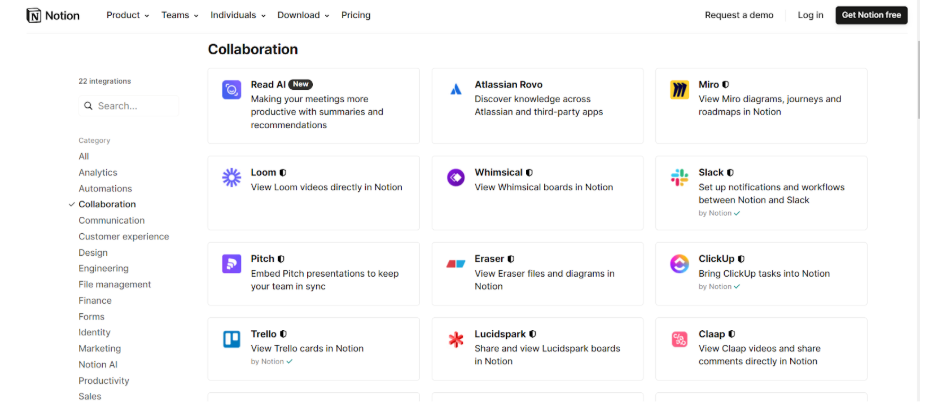
The sheer number of customization options can feel overwhelming at first. To get started, consider using Notion’s pre-built templates before creating your own workspace.
Why Notion?
- Extremely customizable design
- 20,000+ templates
- Excellent third-party integrations
- Robust collaboration tools
- Powerful AI capabilities
Loom
Best for online screen recording
Price: Free to join. Paid plans start from $15 per user, per month.
Imagine you’re a growing B2C brand offering customers a range of products and services. Creating detailed written product descriptions to educate your team can be mundane and time-consuming.
Instead, use Loom to record key information and then share the videos with team members without constantly arranging new virtual meetings or relying on their ability to learn from literature.
Research has concluded that viewers retain 95% of a video’s message, compared to 10% when reading the text.

Another example: Let’s say a member of your remote team struggles to understand a complex project step.
With Loom, you can record a quick video breaking down the task into simple steps, without thinking about how to map that out as an SOP or step-by-step guide over email.
Plus, with the Loom HQ function, you can store all videos simply and securely on the cloud. So, you can create a comprehensive video knowledge bank to assist with anything from educating new team members to responding to customers.
Speaking of email, simple integrations with platforms like Slack and Gmail allow you to send training videos via chat or insert video responses to emails.
Loom's simple editing tools mean you don’t need an advanced degree in video creation to create a helpful video.
While Loom’s screen recordings are crisp, real-life video quality is slightly lower. For sharper results, pair it with a high-quality webcam like PanaCast 20 and guarantee super-sharp audio-visual clarity every time.
Why Loom?
- Super simple screen recording
- Perfect for recording complex process
- In-app video library makes finding recordings simple
- Great integrations for easy sharing
- Use comments and emojis to boost video engagement
- Use Loom to replace recurring SOP meetings or presentations
- Simple editing functions
How to choose the right online collaboration software for your needs
Finding the right virtual collaboration software starts with understanding what you need most help with. Are you looking to streamline project workflows, improve team communication, or collaborate on documents in real time?
Here’s a quick checklist to guide your decision:
- Define Your Needs – Identify whether your top priority is project management, messaging, document collaboration, or all of the above.
- Check Key Features – Look for essentials like chat, file sharing, task tracking, whiteboarding, and app integrations.
- Consider Usability – Choose tools that are easy to onboard, intuitive for your team, and optimized for mobile use.
- Review Security – Ensure the platform offers data encryption, compliance certifications, and granular access control.
- Compare Pricing – Weigh the cost against features, explore free trials, and check how well it scales with your team.
- Read Reviews – Look for feedback on reliability, support quality, and real-world user experiences.
And when it comes to bringing remote and hybrid teams together in virtual meetings, there’s no substitute for hardware that supports rich, seamless collaboration. That’s where Jabra’s PanaCast lineup stands out — offering crystal-clear video, intelligent audio, and collaborative features like whiteboard streaming to keep everyone aligned and engaged.
PanaCast 50 – Perfect for transforming your office meeting room into a fully-equipped video collaboration space.
PanaCast 20 – Compact, powerful, and ideal for distraction-free meetings from home or shared spaces.
With plug-and-play simplicity, professional-grade quality, and intelligent features, choosing the right Jabra camera ensures your team stays productive — no matter where they’re working from.