The Ideal Home Office Setup: What You Need to Nail It + Inspiration

If you're reading this, you've probably spent enough time working from your kitchen table, couch, or that cramped corner of your bedroom to know it's time for a change. Your back is likely protesting that "borrowed" dining chair and your ears are tired of those oversized headphones that seem to pick up everything except your own voice during meetings.


The good news? Creating a productive home office doesn't require an interior designer's budget or a spare room in your house. It's about understanding what actually matters for your comfort, efficiency, and professionalism, then making smart choices to optimize your space.


This guide will walk you through everything from the must-have essentials to pro-level optimizations that will transform your workspace into one you want to show up to every day, even if that means just walking down the hall.

A basic home office setup with the essentials

Let’s start with the foundation—what every home office needs to function efficiently.

Ergonomic fundamentals

Ergonomics is beyond fancy office jargon for expensive chairs and standing desks — research shows that effective office ergonomics reduces musculoskeletal problems by 61%. It’s setting up your workspace to work with your body, not against it.


And small adjustments can have dramatic effects. A monitor raised by just two inches, a keyboard tilted slightly, or a chair adjusted by half an inch can make all the difference.


The Chair:

Think of your office chair as the foundation of your home office. The best chair will allow your feet to rest flat on the floor with your thighs parallel to the ground without bending your lower legs at an angle.


Your arms should rest gently on the armrest, with your shoulders relaxed and without shrugging or hunching.

Some tips to get it right:

  • If you are shorter, you can get an adjustable chair; if you are taller, consider a higher desk rather than raising your chair.
  • Ensure there is no gap between your lower back and the chair.
  • If your chair has no lumbar support, add a small cushion to the gap to maintain your spine’s natural curve. This will help your back feel supported, not pushed forward or pulled back.
  • To get the most comfortable armrest, imagine your arms in a comfortable handshake position.

Looking for recommendations? Fold on Reddit recommend the Herman Miller Aeron.


If you can find a way to sit and test it, maybe at a friend’s office, before you buy, that would be awesome. Here’s what it looks like:

An image of the Herman Miller Aeron sitting by a desk

Monitor and keyboard:


Your monitor position can make or break your posture. The top of your screen should be at or slightly below eye level. If you're using a laptop, this means you absolutely need a laptop stand. Your neck will thank you.

Some tips to get it right:

  • The distance between your screen and your face should be the length of your arm. Extend your arm such that your fingers almost touch the screen. If your fingers touch the screen, then it is too close and can cause eye strain. If it’s too far, it can lead to you unconsciously leaning forward all the time.
  • Your keyboard should be at a height where your elbows form roughly 90-degree angles. Your wrists should be straight, not bent up or down. Keep your mouse close to your keyboard to avoid overreaching. Your arm should move from the elbow, not the shoulder. If you're reaching for your mouse, it's too far away.

Extra tip: Standing desks have been on the rise lately, so if you have one, your monitor should remain at eye level to avoid neck strains (if it’s too high) or shoulder pains (if it’s too low).

Core tech stack

Remote work depends on communication, literally. So, your home office technology needs to serve three critical functions: supporting your daily work from home, enabling clear communication, and ensuring reliable connectivity. To do this, you need three things:


A capable computer:

Your computer is the heart of your setup. It should handle video calls and multiple applications without lag. When choosing a device, prioritize processing power over storage—external storage is easy to add later, but upgrading processing power isn’t.


High-speed internet:

You need a decent speed of at least 30Mbps download and 10Mbps upload, especially if your job involves a lot of video/audio conferencing. Test your connection at different times of the day to understand its real-world performance. Always have backup internet on your mobile phone to avoid the chaos of dropping out during an important client presentation.


Professional-grade headset:

Clear audio communication sets professionals apart from amateurs in the remote work world. You need to be able to hear and be heard if you are working from home or a cafe.


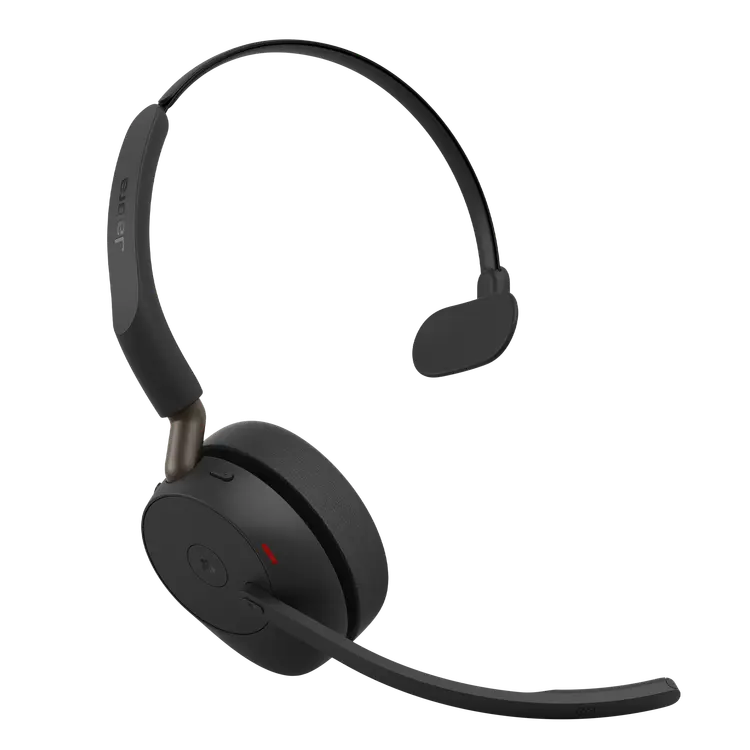
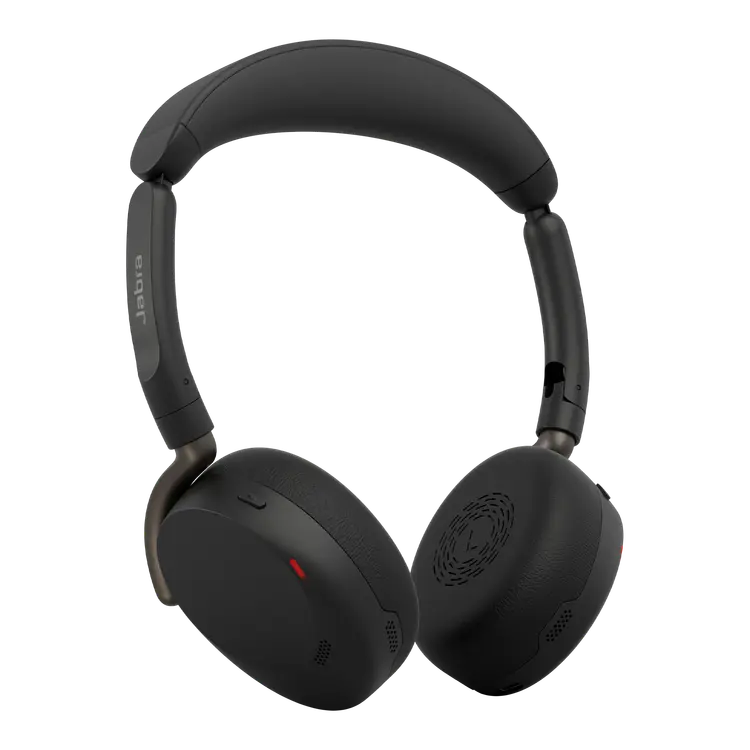
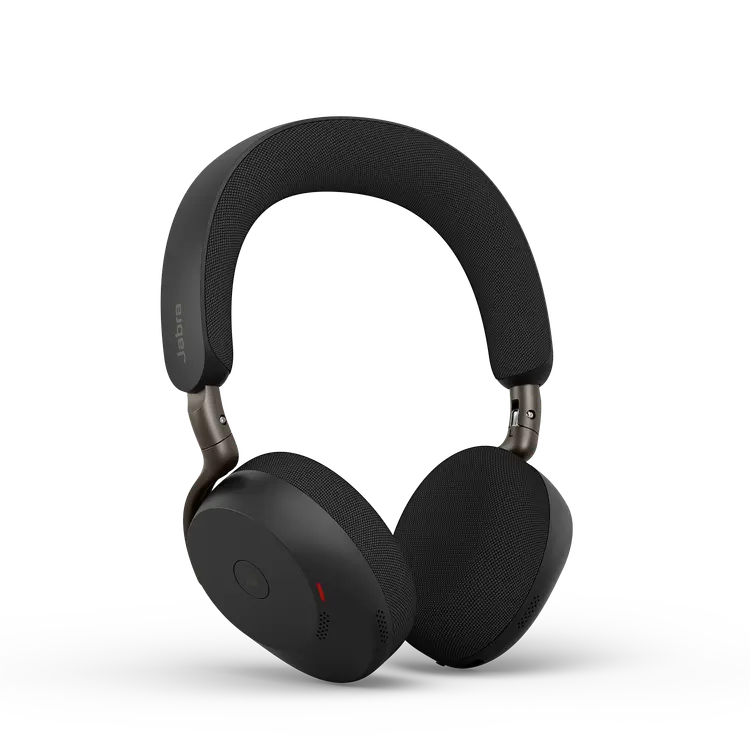
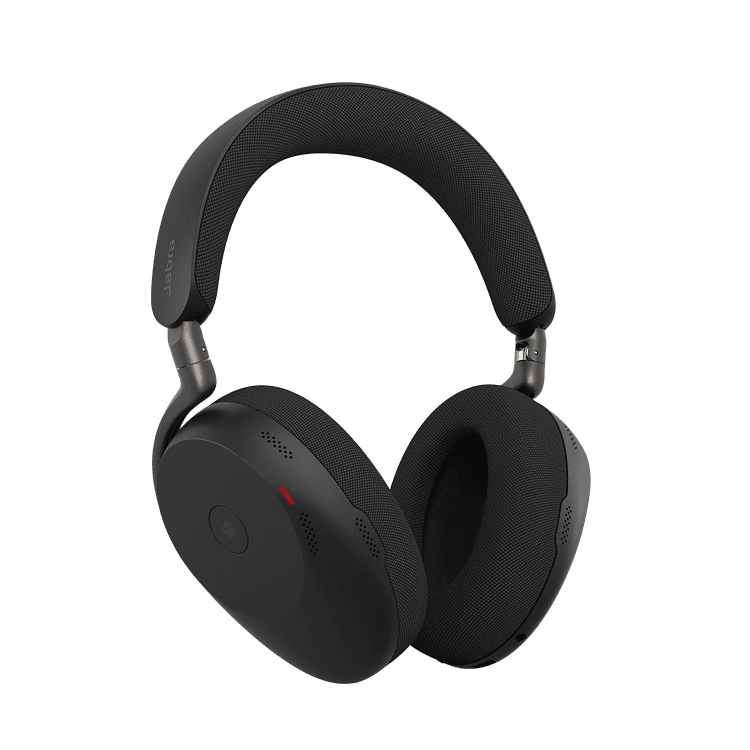
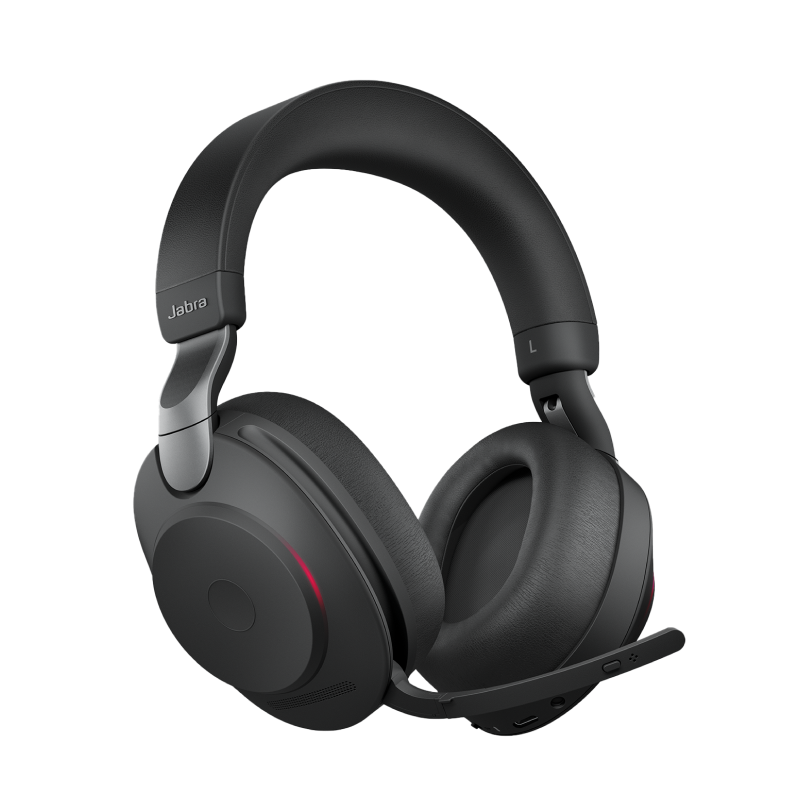
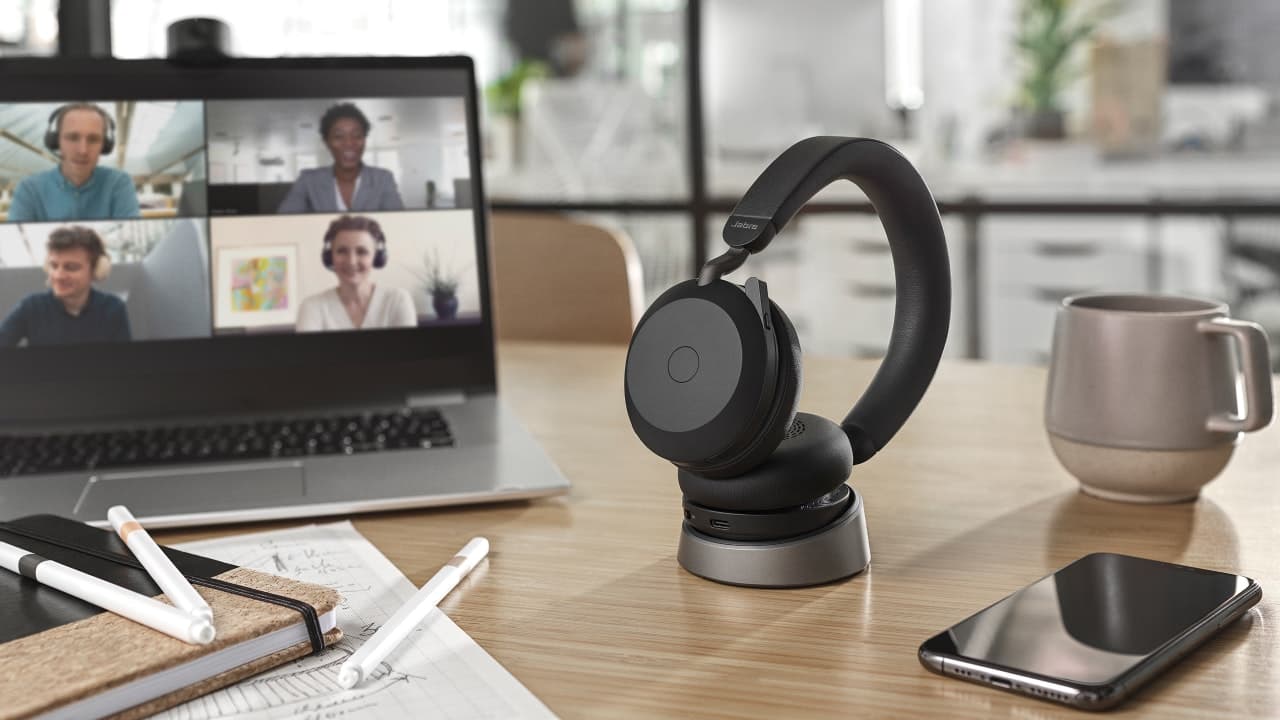
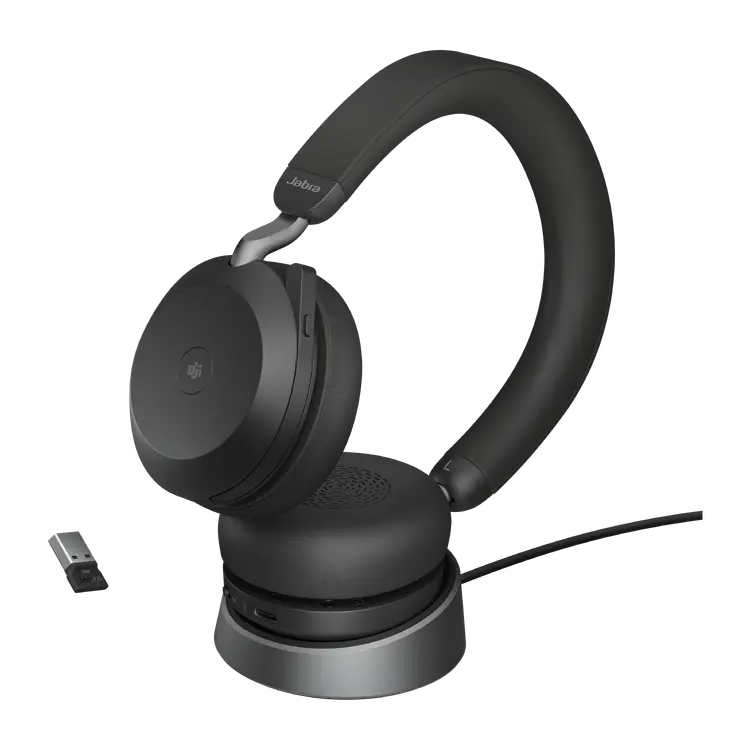
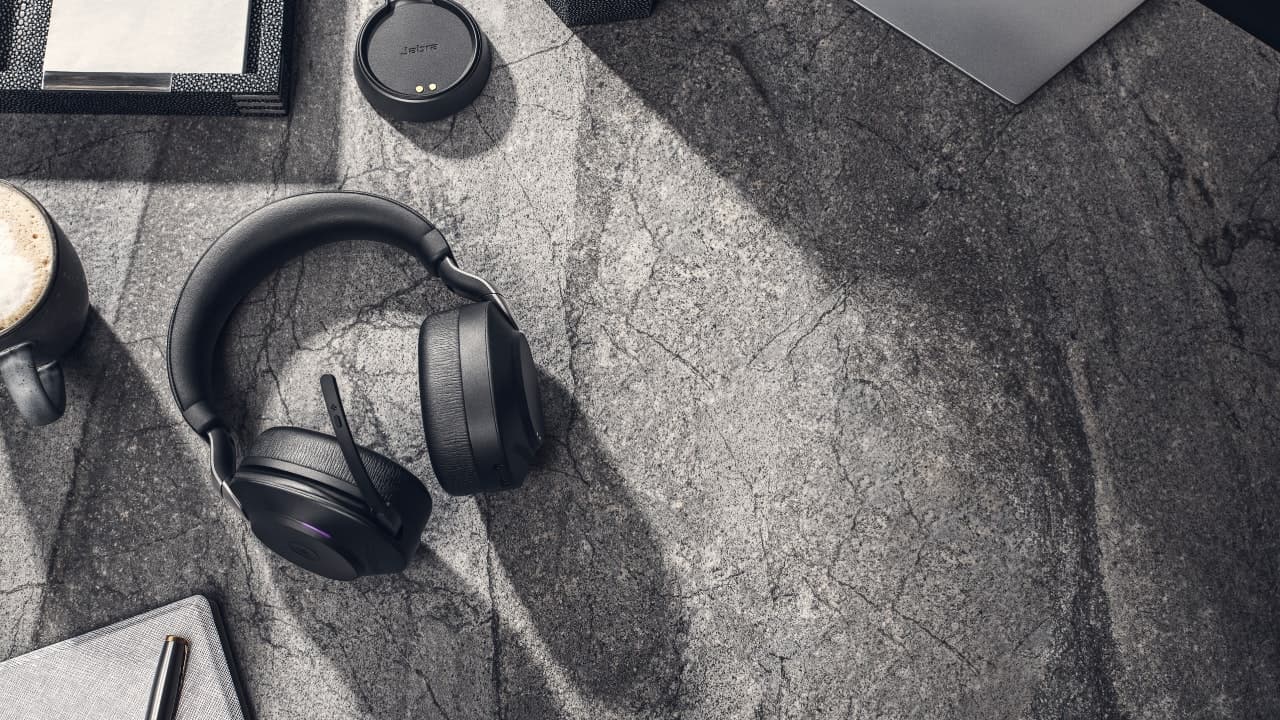
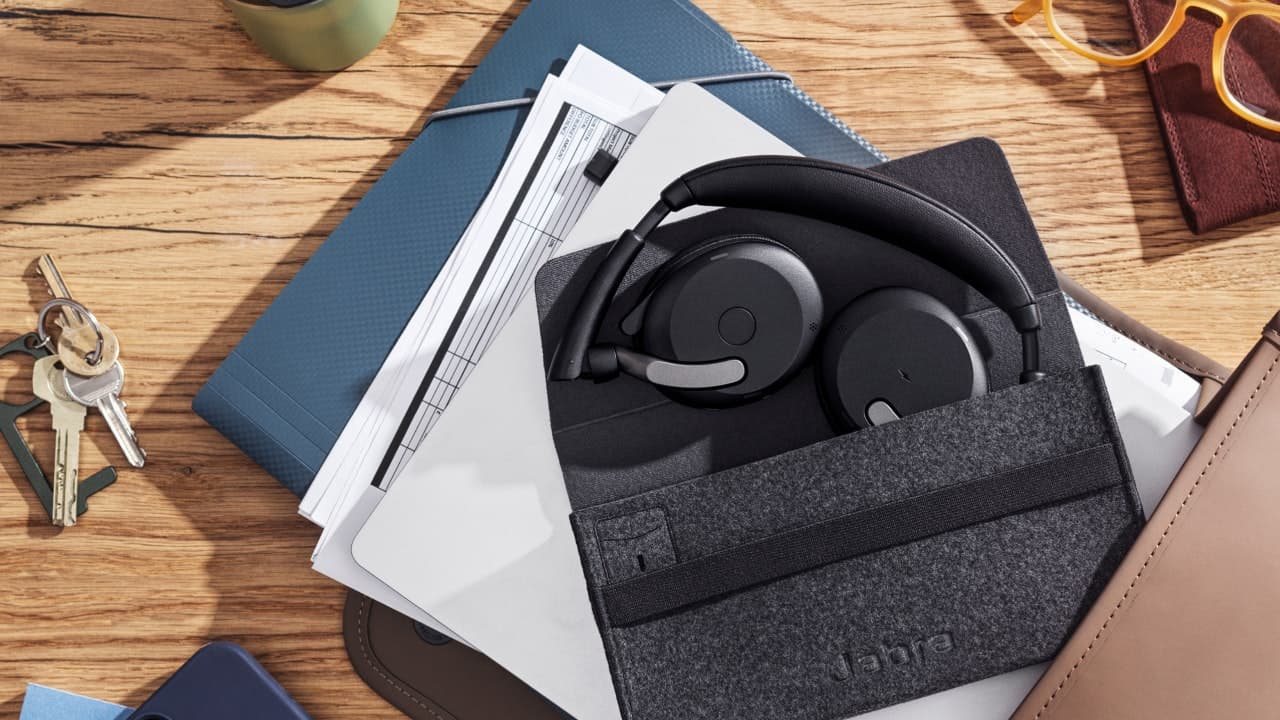
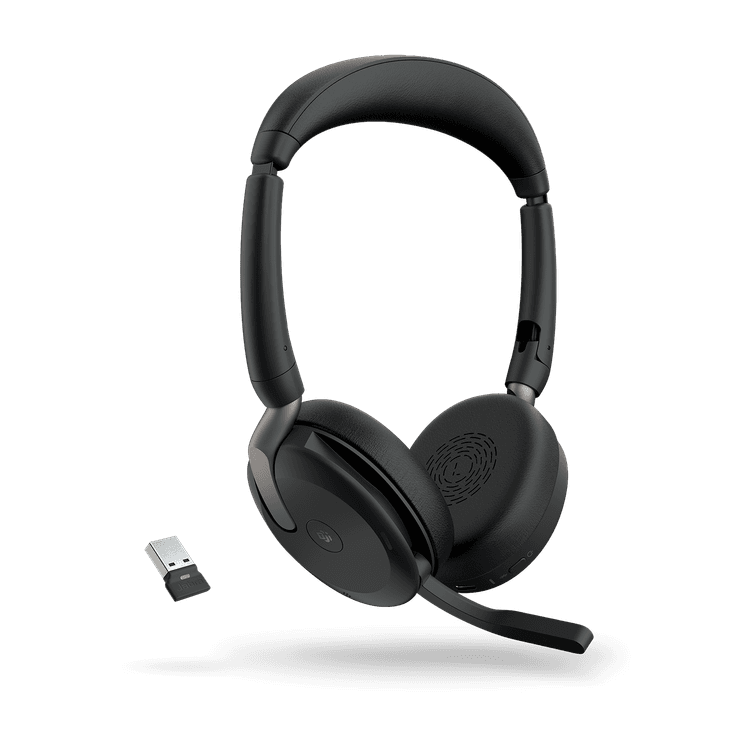
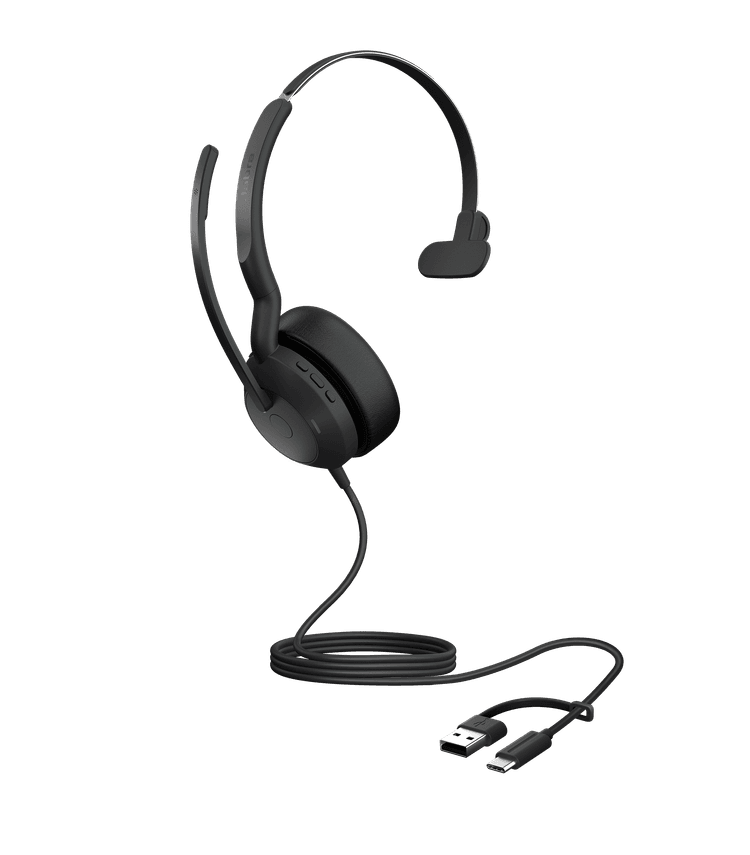
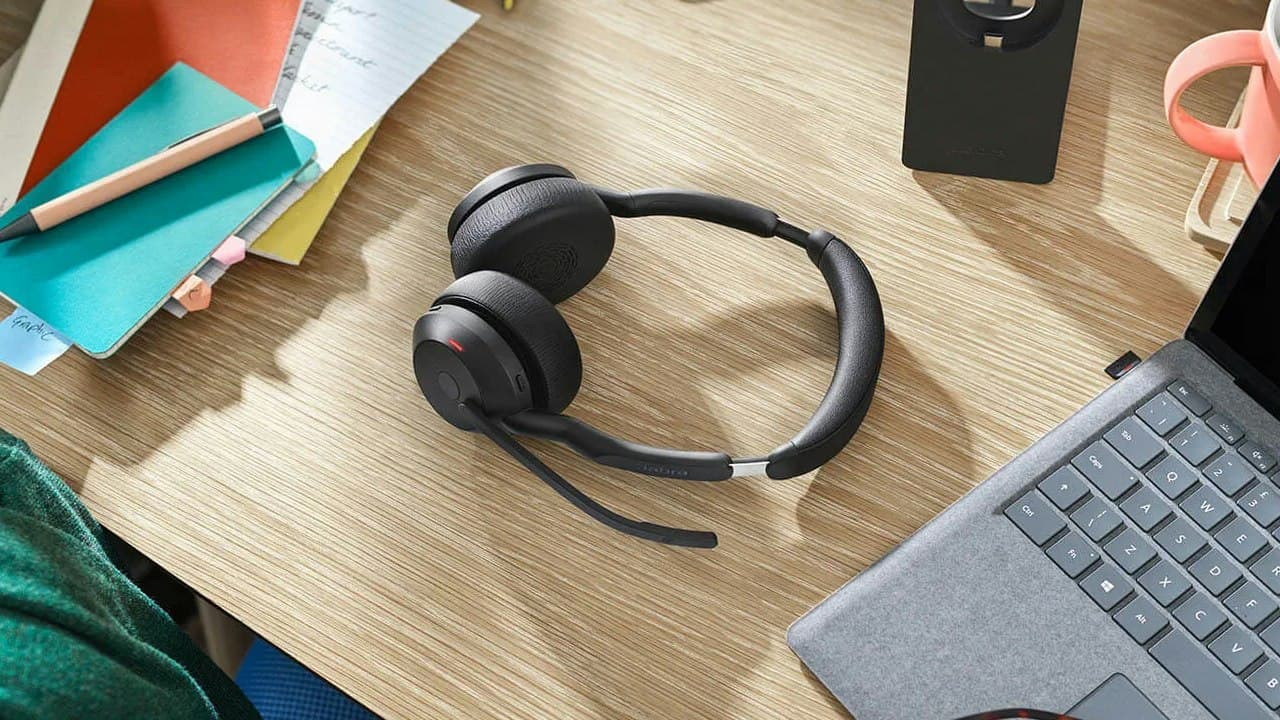
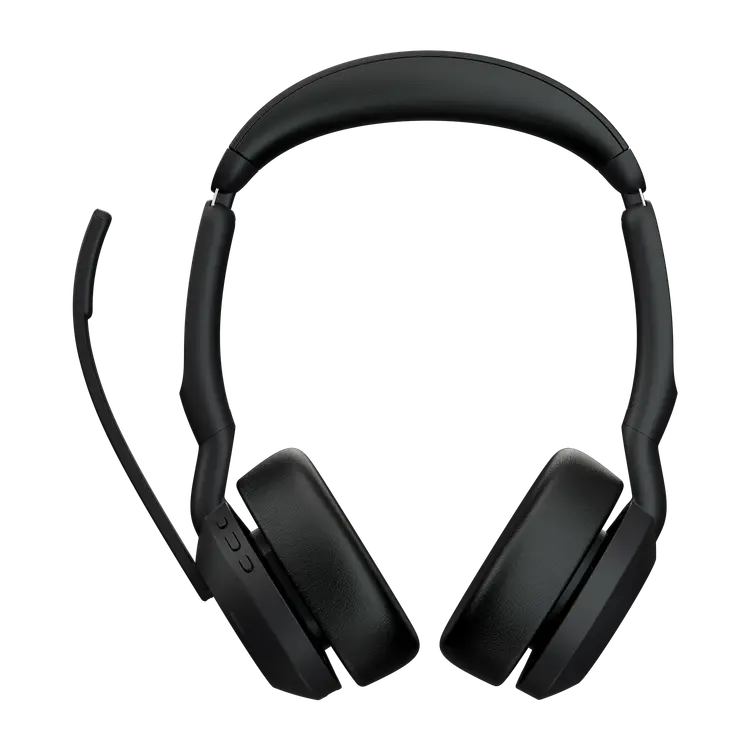
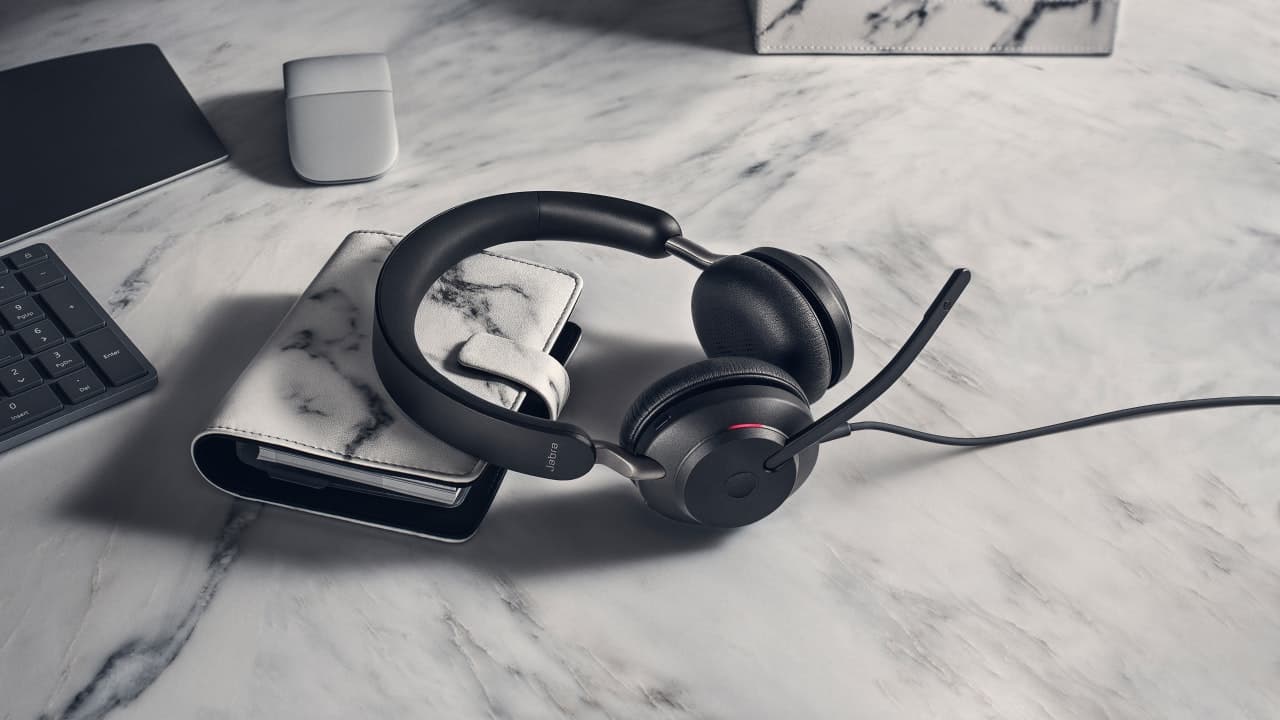
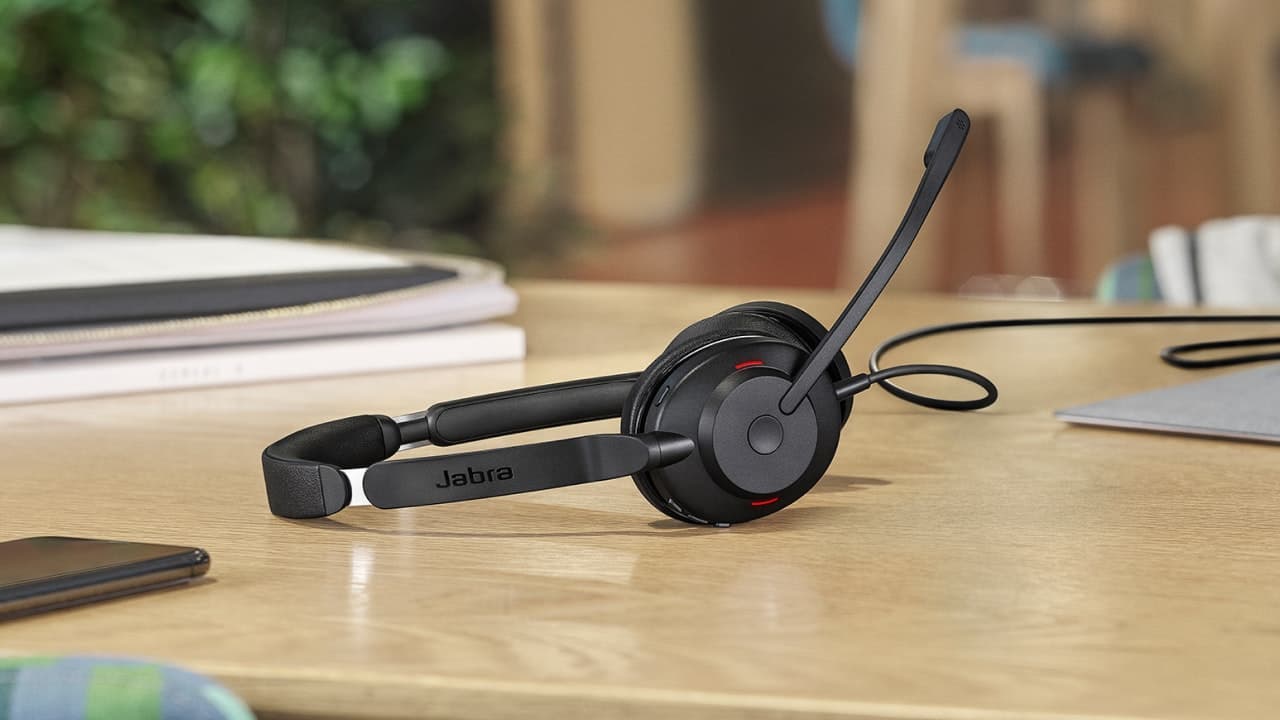
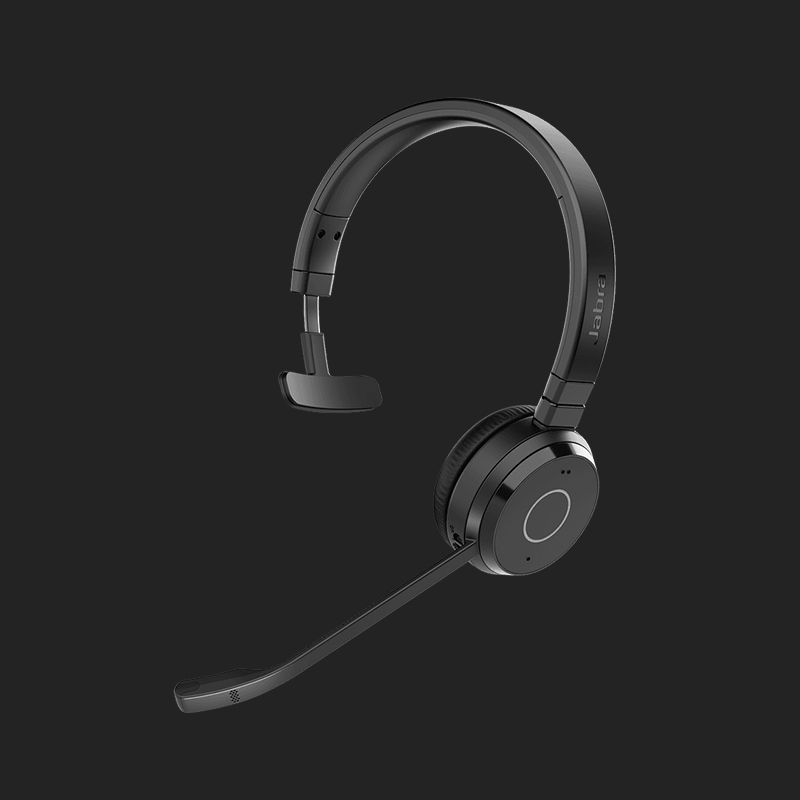
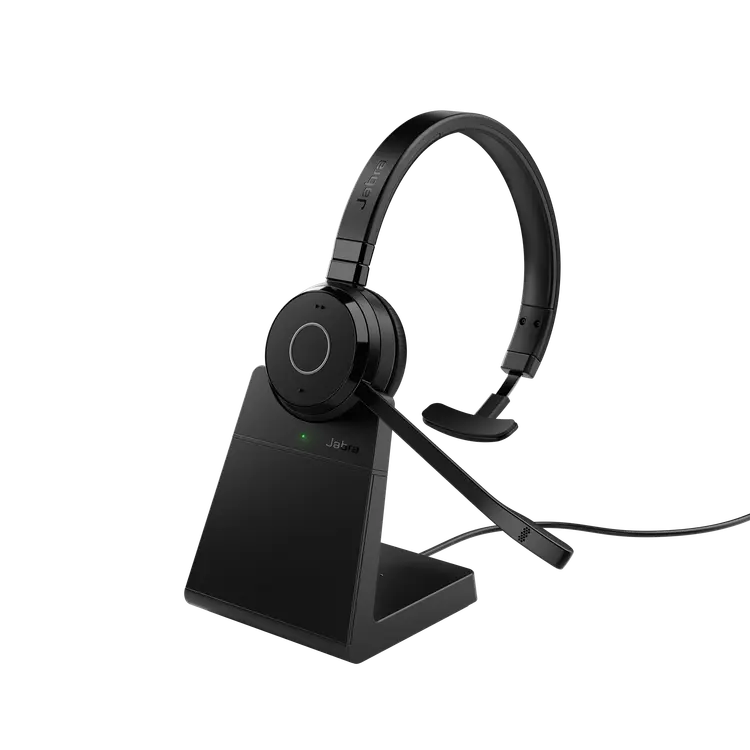
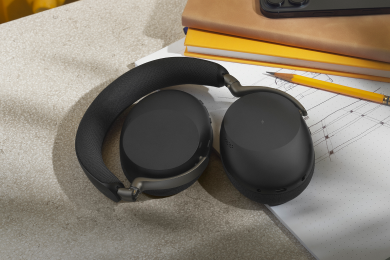
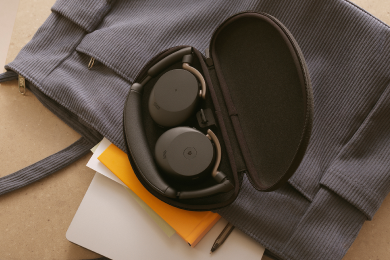
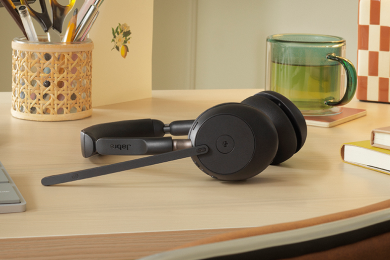
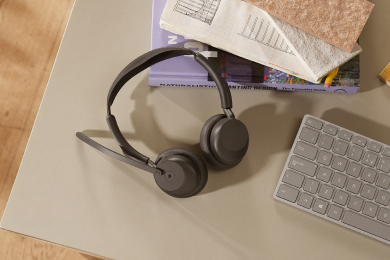
A professional headset like the Jabra Evolve2 75 (our premium range wireless headset) will create a professional sound environment regardless of your physical location. Its active noise cancellation works both ways, filtering out background noise for you and your listeners. The mic should be about two fingers' width from your mouth, slightly to the side, for the best sound.


A high-quality personal camera

Your personal camera plays a crucial role in remote communication. Blurry, low-quality video can make you seem unprofessional, while a high-resolution webcam enhances your presence.


Key factors to consider:

  • Resolution: A 1080p webcam is the minimum for professional clarity. 4K is ideal for crisp detail.
  • Lighting Optimization: Choose a camera with intelligent light adjustment to adapt to changing conditions.
  • Field of View: A narrower field of view (65-78°) keeps the focus on you, while a wider FOV (90°+) works better for team calls.

Jabra PanaCast 20 is a great choice—it delivers 4K ultra-HD video and automatically optimizes lighting, ensuring you always look professional.

Quick tip: Before an important meeting, send yourself a test invite to check both your video and audio setup from the other person’s perspective.

Essential lighting

Lighting impacts both your productivity and how you appear on camera. Ideally, place your desk perpendicular to a window—not facing it or backing it—and you’ll get good natural light (the best).


But, natural lighting also changes. That perfect morning setup might turn into a harsh glare by afternoon. As natural light fades, you will need artificial lighting to maintain consistent illumination, such as:

  • Task lighting: A good desk lamp helps reduce eye strain by providing focused light where you need it. Look for lamps with adjustable brightness and color temperature.
  • Ambient lighting: This is your room's general lighting. Aim for soft, evenly distributed light that doesn't create harsh shadows. Think of it as the foundation of your lighting setup.
  • Video call lighting: This light only comes on for video meetings. Position it behind your monitor, facing you. This creates even illumination for video calls without being harsh on your eyes. Ring lights work great for this.


The temperature of the light also matters. Cool light (5000K+) is best for focus and detailed work. Think bright, bluish light that mimics noon daylight. Warm light (2700-3000K) is more relaxing and easier on the eyes. Perfect for evening work when you're winding down.

The intermediate home office setup to level up the basics

Once you have the basics covered, these additions can significantly enhance your workspace:

Advanced audio-visual optimizations

Advanced audio and noise management:

You can significantly improve your audio setup by strategically adding acoustic panels around your workspace. These panels reduce echoes and create a more professional sound environment that helps you maintain focus during important calls while ensuring your voice comes through clearly to others.

If adding panels is not your thing or you need more flexibility, consider a professional-grade headset with advanced noise cancellation. Jabra Evolve2 75 headset, for instance, offers the kind of versatility remote professionals need to switch between devices while maintaining crystal-clear audio quality in the office or on the go.


Its advanced active noise cancellation helps you protect your focus, while the adjustable boom arm ensures your voice comes through clearly during important calls, even on the bus.

Advanced visual setup:

If you're still using your laptop's built-in webcam, consider switching to a dedicated 4K conferencing camera like Jabra PanaCast 20.


With AI-powered lighting optimization, intelligent zoom, and ultra-clear resolution, it ensures you always look your best on video calls—no matter the time of day. Whether you're leading a meeting or catching up with colleagues, the PanaCast 20 keeps your video sharp, well-lit, and professional.

Space organization and management

Now that you've optimized your audio-visual setup, it's time to tackle an often-overlooked aspect of productivity: space organization. We will start with one of the biggest culprits of visual chaos:


Cables:

The most effective way to avoid cable messes is to go wireless. A wireless keyboard, mouse, and headphones will instantly reduce cable clutter. Your backups can be wired and stored in a box.


You can also transform the cable snake pit under your desk into a clean, manageable system by installing under-desk cable trays. These simple additions keep your cables elevated off the floor, protected from dust, and, most importantly, organized in a way that makes troubleshooting much easier.


When paired with power strip mounting solutions that attach directly to your desk or cable tray, you create a complete cable management system that's both functional and accessible.


Vertical space:

Vertical space is often the most underutilized asset in a home office. You can maximize your workspace by adding vertical storage solutions that draw the eye upward and create more surface area without consuming precious floor space. Some ways to do that include:

  • Mounting your monitor or monitor arms to free up desk space while improving ergonomics.
  • Floating shelves installed at varying heights can create visual interest and space to hold reference materials, equipment, and decorative elements that would otherwise clutter your desk.
  • Adding wall-mounted racks like Andrew did.


Drawer organizations:

Drawer organizers are essential for maintaining order among smaller items inside your desk. Instead of tossing everything into a jumbled mess, you can create designated spaces for different categories of items. The key is to organize based on the frequency of use, i.e., keep daily essentials in easy-to-reach spots while storing less-used items in more remote locations.


Pro tip: When implementing these solutions, think about your daily patterns. Where do you naturally reach for things? What items do you use together? By aligning your organization with your work habits, you create a space that feels intuitive and supports your productivity rather than hindering it.

The pro setup for maximum productivity and professionalism

At this level, you are giving yourself the ultimate work-from-home experience. It’s best if you have an entire room dedicated to your home office.

Comprehensive ergonomic system

Standing desk with programmable settings:

The foundation of a pro-level ergonomic system is a programmable standing desk with preset heights for different activities. You can set specific heights for standing meetings, focused typing sessions, and collaborative work.


The best part is that these presets remove the friction of adjusting your workspace. With a single touch, your entire work surface moves to the perfect height for your current task. This seamless transition encourages more movement throughout your day, which is crucial for maintaining energy and focus during long work sessions.


The most common recommendations from Reddit are Uplift and Flexispot.

Ergonomic keyboard with proper tenting:

You can implement a split keyboard with proper tenting angles, allowing your wrists to maintain a more natural position. Here’s what Glove80, one of Redditers’ favorite split keyboards, looks like:

Image of Glove 80 keyboard. Source: https://www.moergo.com/

Combined with programmable keys for your most-used commands, this setup reduces the strain of repetitive actions while increasing your efficiency. Many professionals find that the initial adjustment period to a split keyboard setup quickly pays off in improved comfort and reduced wrist strain.


Multiple monitor setup:

Monitor positioning becomes more sophisticated at this level, often incorporating multiple screens on fully adjustable arms. You can create different zones for different types of work, perhaps a central screen for your main tasks, a vertical screen for code or document review, and a third screen for communication tools.

The key is to position each monitor so you can maintain proper posture while seamlessly shifting your attention between them.


Advanced communication center

Professional video conferencing system:

At this level, your video conferencing setup should rival broadcast quality. What sets a pro setup apart is the ability to switch between multiple camera angles and fine-tune video settings for different types of presentations.


For example, you can create preset camera positions for close-ups during one-on-one meetings, wider shots for product demonstrations, or an overhead view for showcasing physical materials.

A high-quality webcam like Jabra PanaCast 20 delivers 4K resolution, AI-powered framing, and real-time lighting optimization, ensuring you always look polished and professional.


For even greater flexibility, consider integrating multiple cameras with a video switcher, allowing seamless transitions between different angles—just like a professional broadcast setup.


Multiple audio options:

Professional communication demands flexibility in how you handle audio across different scenarios. Beside your main audio device that you use for one-on-one calls, you should have an audio device for team scenarios. So at this level, you can add a speakerphone to your setup. Jabra Speak 2 75, for example, allows you to move away from your desk while maintaining professional audio quality, perfect for those times when you need to reference physical materials or collaborate with others in your space.

Backup systems:

If you are a full-time streamer, for example, your livelihood depends on your connectivity, so you need to have backup systems.

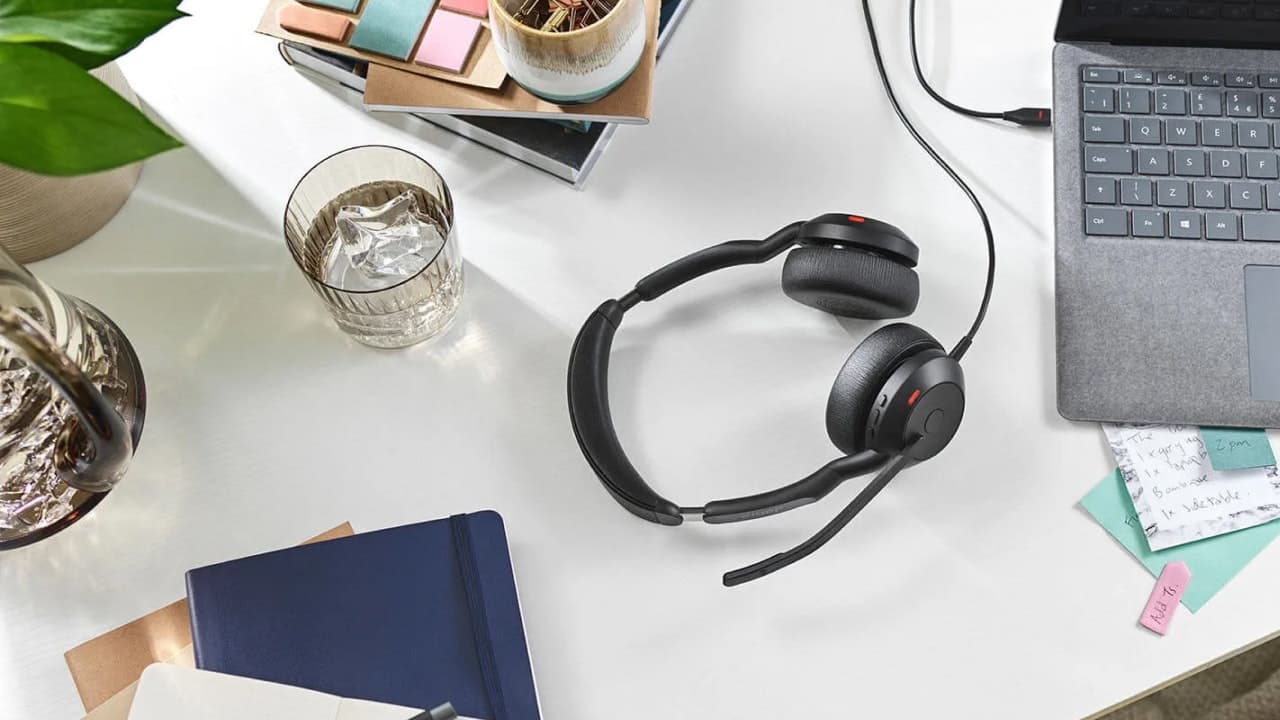
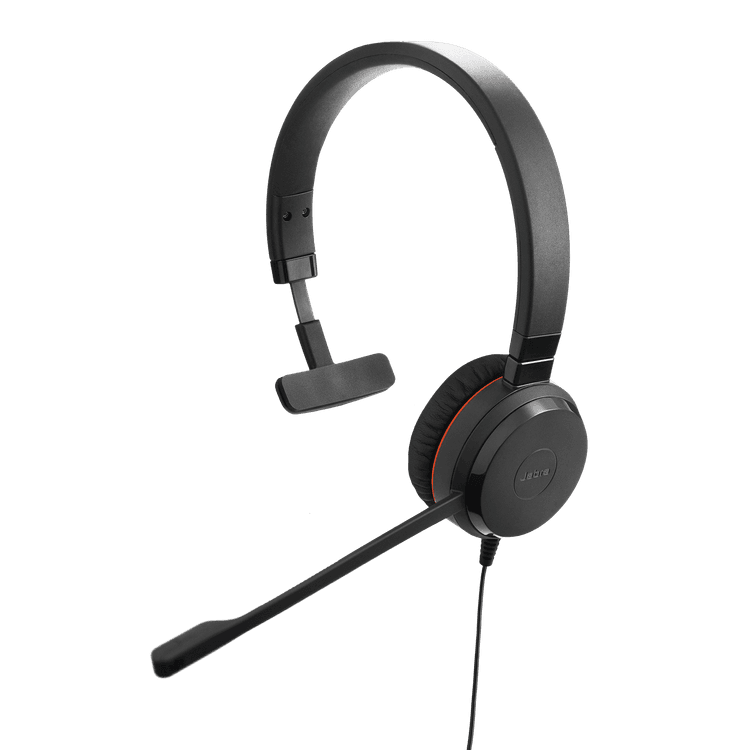
  • Keep a secondary headset like Jabra Evolve2 50 always charged and ready. For critical sessions, you can run a backup audio interface connected to a separate power circuit, this way, if one system fails, you can switch seamlessly without interrupting your stream.
  • Invest in a professional-grade UPS (Uninterruptible Power Supply) that can handle your entire setup.
  • Set up a dual-ISP system with automatic failover so that when your primary connection hiccups, your backup kicks in instantly.

It’s not a pro setup if you can’t handle technical issues smoothly and professionally without your audience ever knowing there was a problem.

Wellness integration

At the professional level, your home office should actively support both your physical health and mental well-being throughout extended workdays.


Air quality and ventilation:

Your cognitive performance is directly linked to the air you breathe. A professional-grade air purification system can remove microscopic particles, allergens, and pollutants that accumulate in enclosed spaces. Position your air purifier near your workspace but away from your microphone to avoid background noise during calls.


Standing support:

When using a standing desk, proper support becomes crucial for long-term comfort. An anti-fatigue mat with varied terrain features can help promote subtle movements while standing, improving circulation and reducing fatigue. Position your mat to allow for natural movement between sitting and standing positions without creating a tripping hazard.


Plants:

Adding plants to your workspace does more than create an attractive background for video calls. Strategic placement of air-purifying plants like snake plants or peace lilies can complement your air filtration system while adding humidity to dry office air. Consider placing one larger statement plant within the camera view and several smaller plants around your workspace for maximum benefit.


Temperature control:

Maintaining optimal temperature is crucial for cognitive performance. Instead of relying solely on central heating or cooling, you can add a smart temperature control system to your workspace that maintains your ideal working temperature throughout the day. This micro-climate control helps you stay focused and comfortable regardless of conditions in the rest of your home.


Spatial flow:

The professional home office requires thoughtful space planning to support both focused work and movement. Ensure clear pathways between your primary work zone, standing area, and movement space. This careful arrangement encourages regular position changes while maintaining the professional appearance of your video call background.

Professional background design

At the professional level, your video call background should be a thoughtfully designed element that enhances your professional presence and brand. The key to a professional background lies in creating depth and visual interest without distraction.


You can achieve this by arranging elements in layers, perhaps a clean wall as your base, with carefully positioned artwork or shelving in the mid-ground and subtle accent lighting to add dimension.


When selecting art pieces or decorative elements, choose items that reflect your industry or professional identity while maintaining a sophisticated aesthetic. A software developer might display elegant abstract art that hints at technological themes, while a creative professional might showcase design books and artistic elements.

Smart tips for your home office setup

Here are some smart tips to consider when setting up your home office, especially if you have small spaces or are budget-conscious:

  1. Start by investing in the elements that most directly impact your daily work, like a quality chair and proper lighting. You can improve your setup gradually.
  2. Consider a wall-mounted desk that folds down when needed or a corner desk setup that utilizes often-overlooked space. The key is thinking in terms of zones rather than square footage – even a compact space can accommodate focused work when properly organized.
  3. Look for refurbished (here are Jabra’s) professional-grade equipment.
  4. Start with a basic standing desk converter before investing in a full standing desk.
  5. When your office shares space with other household functions, you can create a distinct workspace using room dividers, strategically placed bookcases, or even curtains that can be closed during work hours.
  6. Use sound-absorbing materials like curtains or area rugs to reduce echo, and position your desk to face away from the primary noise sources.
  7. Add clip-on lights to shelving or monitor arms for space-saving illumination.
  8. If you are buying your first desk, choose one that is slightly larger than your current needs, so you won’t have to buy a new one when your workspace evolves.

Remember that your home office is a work in progress. Focus on creating solutions that support your current work style while remaining flexible enough to evolve with your needs. The most effective home office is one that you'll actually want to use day after day.

Build your home office with Jabra

Creating your perfect home office isn't about following a rigid template or implementing every possible upgrade at once. The journey from basic setup to professional workspace is unique to each person, and that's exactly how it should be. As you spend time in your space, you'll naturally discover which aspects need enhancement.


Perhaps you'll find yourself needing better audio quality for client calls or realizing that adjustable lighting would help you maintain energy throughout the day. With Jabra's ecosystem of professional-grade solutions, you can be confident that your technology will grow alongside your needs, providing the reliability and quality you need at every stage of your home office journey.