4K Ultra-HD resolution
Intelligent Zoom
180° field of view
AI video director

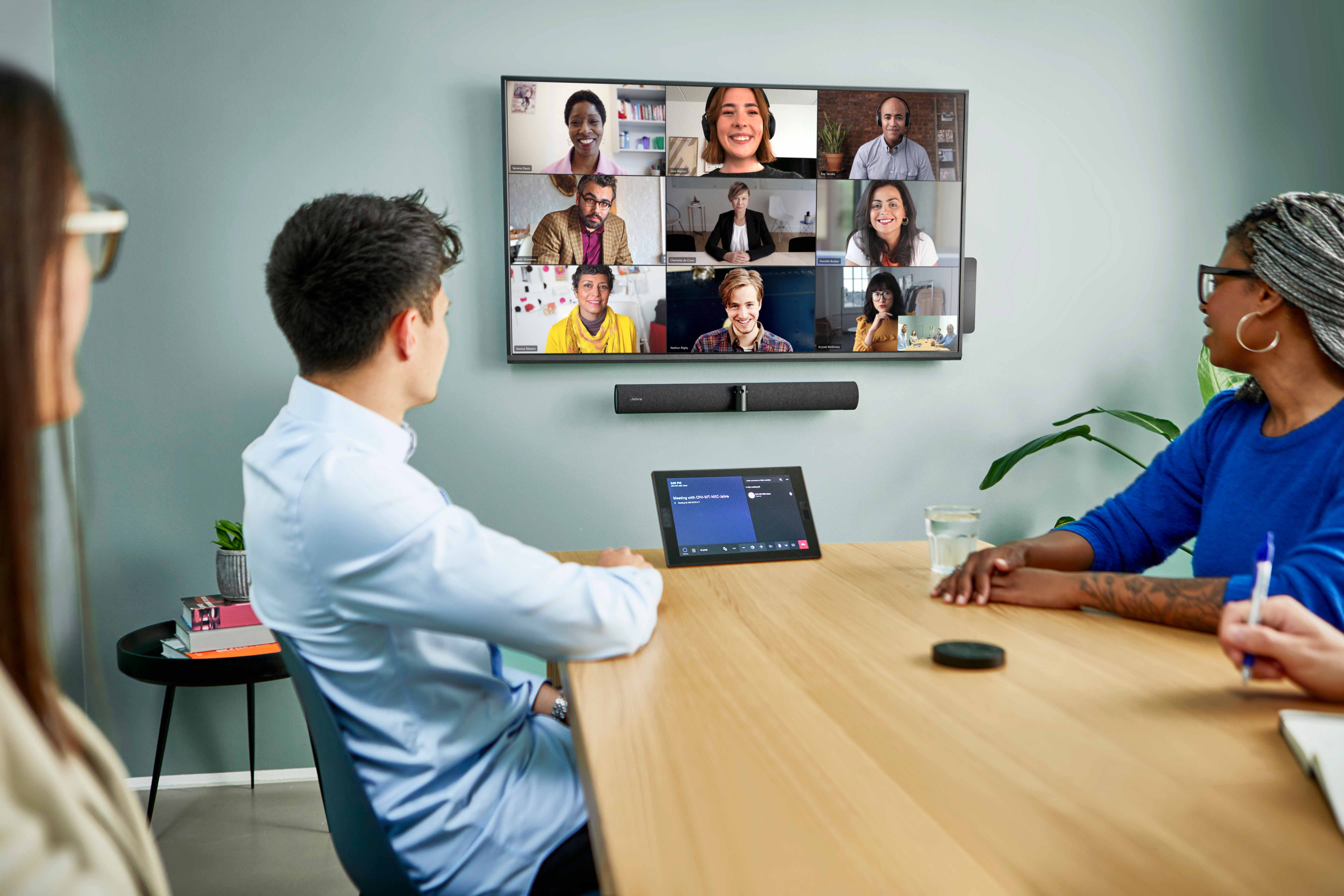
Our Mind The Gap report discovered that internet connection quality is the leading barrier to productivity in online meetings, with 48% of people saying bad internet disrupts their meetings. Audio quality (32%) and video quality (28%) are the second and third most common barriers.





64% of employees say that being able to see and hear their colleagues makes it easier to trust them. Plus, 46% agree that colleagues who had their videos on seemed more engaged in meetings.
By that same logic, poor video quality or inoperative and switched-off cameras can lower trust and engagement on both sides of the camera.
Celebrated business coach and collaboration expert Dr. Gleb Tsipursky highlights this need for high-quality cameras in meetings as a way to improve communication and team trust:
“When we can see someone's facial expressions and body language, it can help us understand their thoughts and feelings better. Seeing a colleague smile, nod in agreement, or furrow their brow in confusion can provide valuable cues …One of my clients, a mid-size IT company, found that after implementing a policy of keeping cameras on during virtual meetings, they saw a significant improvement in the level of trust and cooperation among team members”
Being able to pick up and react to the visual cues of team members requires high-quality camera technology. The best video conferencing cameras like that found on PanaCast 50 Video Bar System prioritize features like:
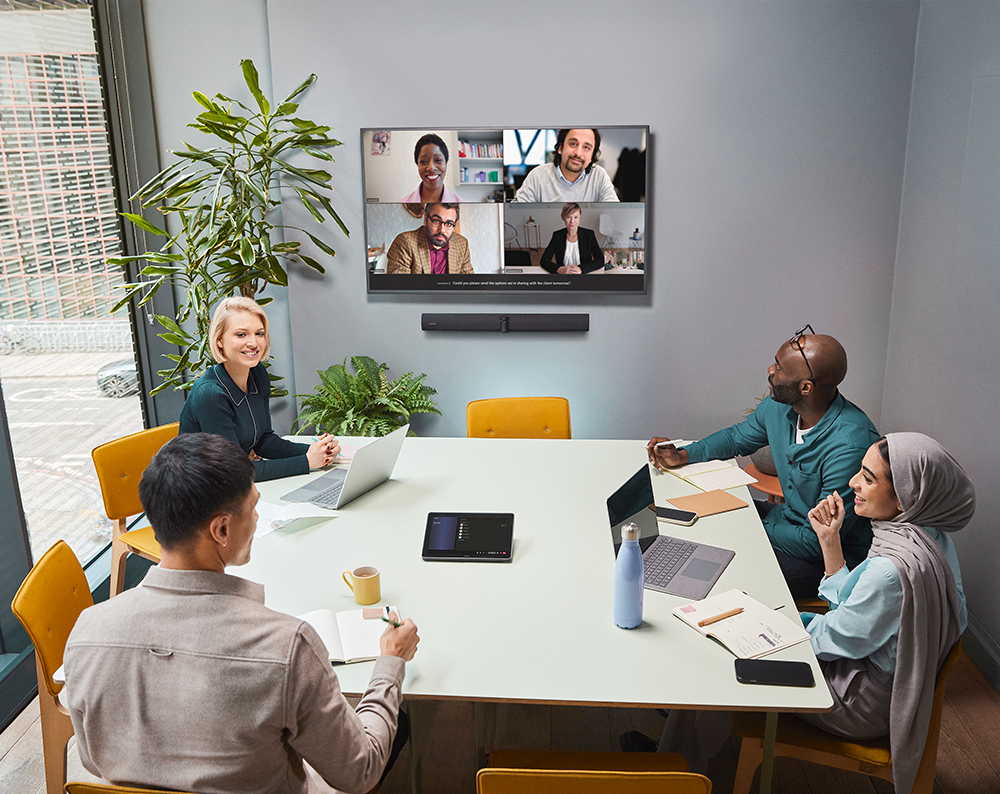
As a leader, when you can interpret your audience's emotion through non-verbal cues this is also a sign that they are actively listening.
CEO and two-time U.S. Congress Candidate Clint Engler highlights that active listening is imperative for trust building.
“Active listening is the secret sauce for building trust and rapport with your team, no mind-reading skills required! By giving your full attention, maintaining eye contact, and using nonverbal cues to show engagement, you demonstrate genuine interest in your colleagues' thoughts and concerns.”
He goes on to comment:
“This practice fosters an environment of openness and respect, encouraging more honest communication and strengthening relationships within the team.”
When Brian from Marketing drops his coffee just outside your session, your glass-walled meeting room means everyone sees it and focus fades fast.
However, technology like Intelligent Zoom, dynamic framing, and people detection, ensures the frame and focus stays on you — leaving Brian to mop up his mess in peace.


Standard webcams offer a restrictive 60°- 90°room view that leaves you open to blind spots on your feed. Since they don’t feel seen, participants sitting in the blind spot can become disengaged and quickly feel excluded from the meeting.
However, 180° field of view cameras display your whole space, including everyone in it - even when your conference room table is pushed up against the wall. This ensures nobody feels left out and they can give their full attention to the conference.
Recent studies have concluded that we find it more difficult to concentrate in virtual meetings as opposed to real-life sessions. That’s because of issues like cognitive overload, lack of non-verbal cues, distractions, and increased fatigue. People also talk less effectively on video calls than in person.
An AI video director dynamically switches camera views based on who's speaking and their gestures, and that:
At Jabra, we call this feature Virtual Director. It uses Edge AI proprietary algorithms to track your meeting and instantly adjust the frame to focus on whoever is speaking.
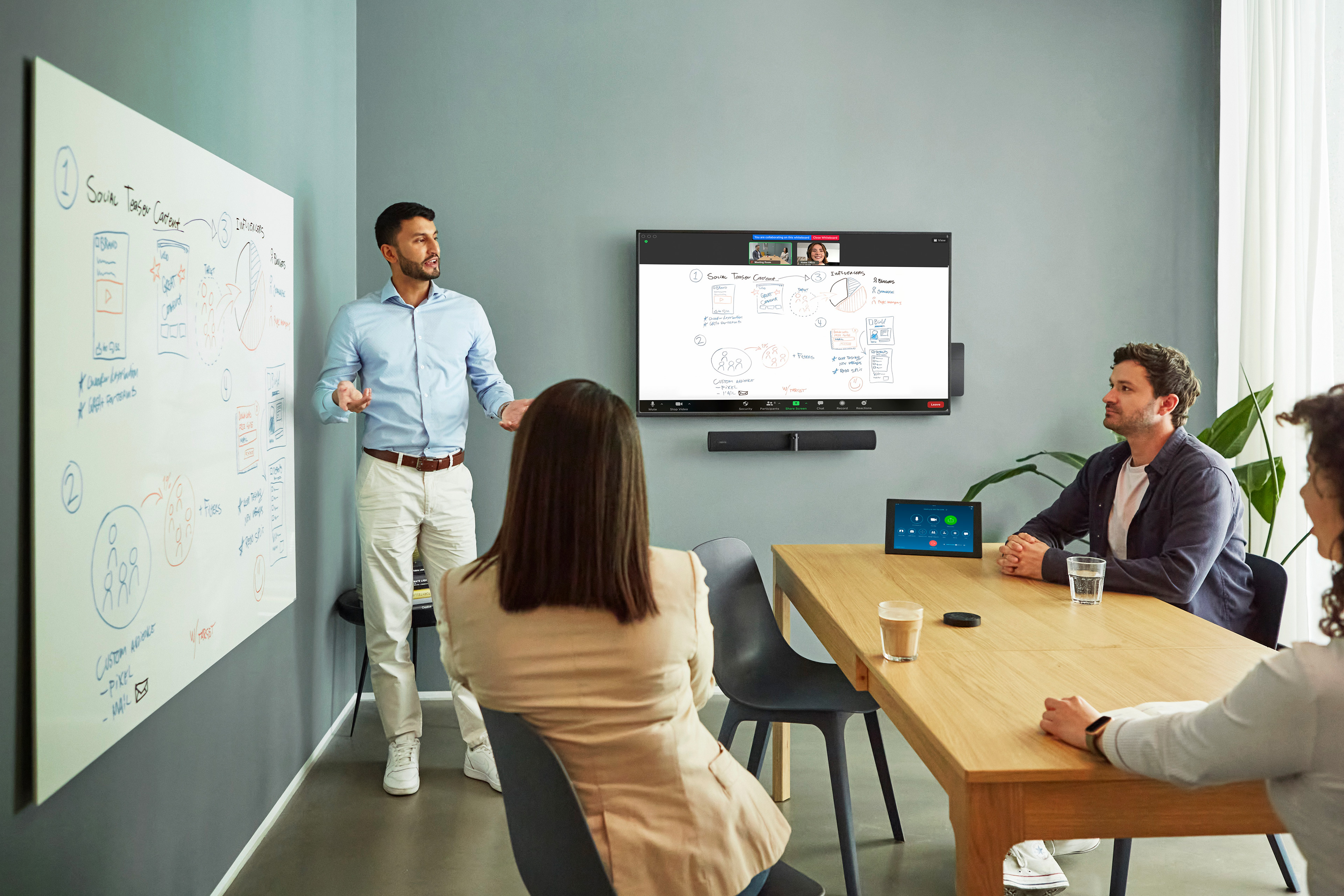
On the go? The surrounding environment in an unfamiliar space is even less manageable.
There are portable cameras like PanaCast 20 that still have excellent focus-enhancing features. Use them instead of your built-in laptop camera.

A drop-off in audio quality means team members work harder to process what’s being said. “Effortful listening” can increase stress levels and hamper memory function.
Studies by the Journal of Speech, Language, and Hearing Research found that:
“Effort significantly increases when a listener needs to repair a misperceived word, even if the verbal response is ultimately correct.”
When connecting from busy locations, holding a sales call from the kitchen as the kids get back from school, or even just trying to ensure no one misses anything in group discussions, use a microphone with these features:
Noise cancellation: Active Noise Cancellation (ANC) blocks distractions like typing or side conversations in busy offices, co-working spaces, or kitchen tables just before rush hour. By detecting and analyzing sound patterns it creates an “anti-noise” mirror signal to cancel out background murmurs.
Integrated or external high-quality speakers: Upgrading to high-end purpose-built speakers, as opposed to relying on the incorporated microphone in your laptop, offers clearer, distortion-free sound.
Bonus points if your audio device includes full duplex technology that allows for two-way transmission of audio. So, everyone on a call can speak and be heard simultaneously, with no more microphone drop when someone responds to your point, allowing for more natural conversations.

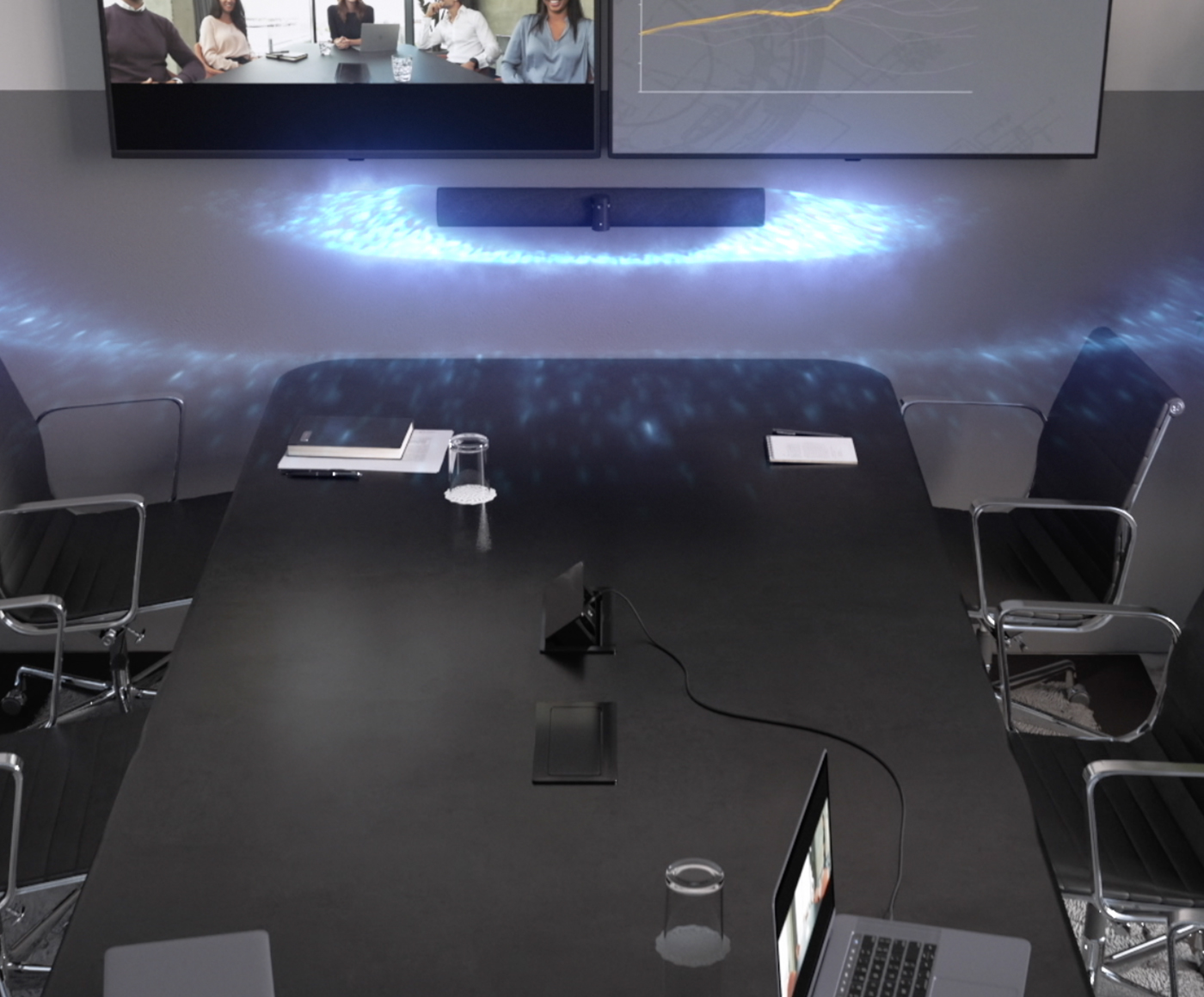
PanaCast 50 Video Bar System safeguards audio quality using eight beamforming microphones. This enhances meeting equity by ensuring that no one gets cut off by another person’s voice.
The directional sound data collection means that your points will be picked up in perfect clarity without catching input from the person sitting next to you. Plus, with full duplex audio allowing for natural two-way conversations, your virtual meetings feel a lot more ‘real’.
Singaporean health-tech start-up, HealthDr, discovered this when they wanted to improve the connectivity and audio quality of their video conference appointments.
Using our speakerphones, they were able to cut out annoying background noise to get diagnoses to patients quickly and clearly.
On the go? The beamforming microphones in Jabra Speak2 75 come in handy when you need to connect from a busy location like a cafe or bustling co-working setup.
By focusing on direct sound and suppressing all other inputs, you can catch up on a call from the carriage of a busy commuter train without the other person hearing a thing.
Unreliable conferencing solutions can cost businesses up to $34B annually. But with so many virtual meeting tools or apps available, how do you know which is best for you?
From small team check-ins and 1:1 sessions to large conferences, the three main platform options have clear benefits and limitations. Here’s a breakdown of each.
| Platform | Best for | Strengths | Limitations | Pricing |
|---|---|---|---|---|
Google Meet | Business professionals using Google Workspace |
|
| $6-$25 per user per month |
Zoom | Small teams and businesses needing flexible video conferencing |
|
| Free-$19.99/month |
Teams | Organizations already using Microsoft Office 365 |
|
| Free-Included with Office 365 |
That said, when choosing software and hardware, always make sure they play nice with each other. Here’s what to focus on:
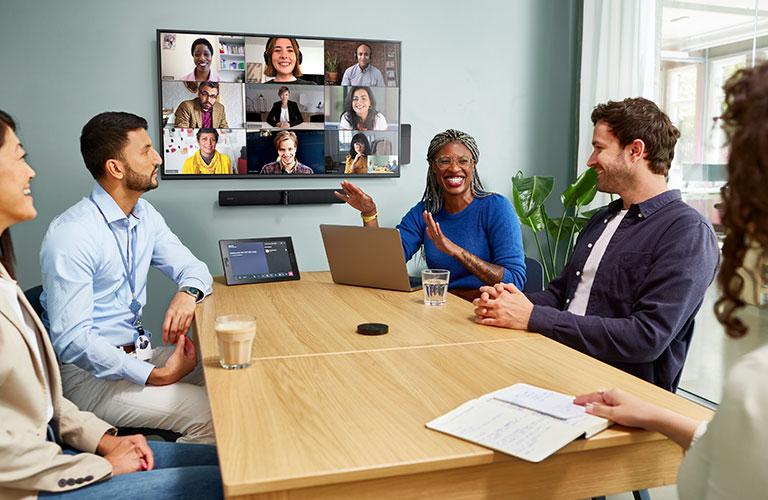
Slow or unreliable internet connectivity is one of the most common causes of poor virtual meeting experiences. But how can you improve your connectivity if you suffer from poor bandwidth?
The first thing to check is your upload and download speeds.
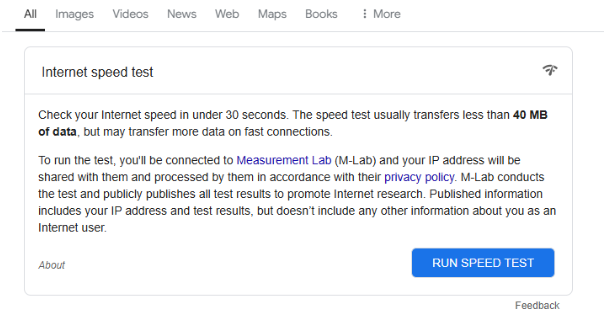
The minimum upload and download speeds for HD conferencing is around 10 Mbps. Run an online speed test to see what you’re dealing with. Just head to Google and search “internet speed test” and you should see this result at the top:

If your reading is coming up slow, there are some tricks you can try before switching providers.
“If you have an Ethernet connection your data can only be accessed by plugging a device into your network with an Ethernet cable. Data on a Wi-Fi network is more vulnerable, as everything must pass through an easily compromised router.”
But sometimes, it’s more than just your internet. Video conferencing can be expensive from a bandwidth perspective.
With HD video, audio streaming, and screen sharing, there can be a lot for your busy router to unpack - especially if you’re running a lengthy brainstorming session or webinar. One solution would be to lower the quality of your video to reduce the strain.
Alternatively, technology like Edge AI processors in PanaCast 50 can help reduce the strain by crunching video data before it’s processed.
Ordinarily, AI programs send video data to the cloud for processing. However, Edge compresses video data before it’s transmitted. This small change means reductions to several key areas of performance, including:
In addition, this intelligent technology processes and optimizes video data in real-time. This ideal combination enhances video quality while fostering collaboration.

PanaCast 50 eradicates this problem with intelligent sensors that boot up the system whenever someone enters the conference room. No more wasting time waiting for slow meeting room tech to warm up.
Teams can now simply enter the room, connect to the system, and start collaborating.
Right now, we know that 54% of hybrid and 42% of remote staff find it easier to get distracted on virtual sessions when compared with face-to-face meetings.
The key to improving the clarity and productivity of your video conferencing sessions lies in combining high-quality hardware, intuitive software, and reliable connectivity to create a collective experience that’s crystal clear, professional, and frustration-free.
Future-proofing your video conferencing setup with leading audiovisual technology like 4K Ultra-HD cameras, beamforming microphones, noise suppression, and intelligent framing can help you stay the center of attention.
Pairing this cutting-edge tech with leading software like Google Meet, Microsoft Teams, or Zoom, delivers a powerful combination that should guarantee connectivity and meeting clarity.
Take control of your video conferencing capabilities today by upgrading to professional-grade audiovisual technology with Jabra PanaCast 50 Video Bar System.