
Productive Virtual Meetings: Tools, Tips and Best Practices
According to Jabra and LSE’s Reevaluating Hybrid Work study, professionals report spending a quarter of their time in virtual meetings. However, many of these meetings still feel inefficient, unfocused, or forgettable.
Unproductive virtual meetings usually suffer from the same common pitfalls: poor sound quality, participant disengagement, or technical glitches. And when those issues stack up, your catch-ups, brainstorms, webinars, or conferences can fall flat — fast.
At Jabra, we’ve spent over 150 years in the communications business. So we know upgrading your virtual meeting hardware and solving any connectivity issues can enhance meeting efficacy. But there’s more to it than that.

Preparation matters, too. Elements like co-creating a meeting agenda with participants can boost engagement before anyone even logs on.

Let’s dive into this topic further to explain why those approaches work and share some tips, techniques, hardware, and strategies to ensure your meetings always deliver in terms of engagement and productivity.

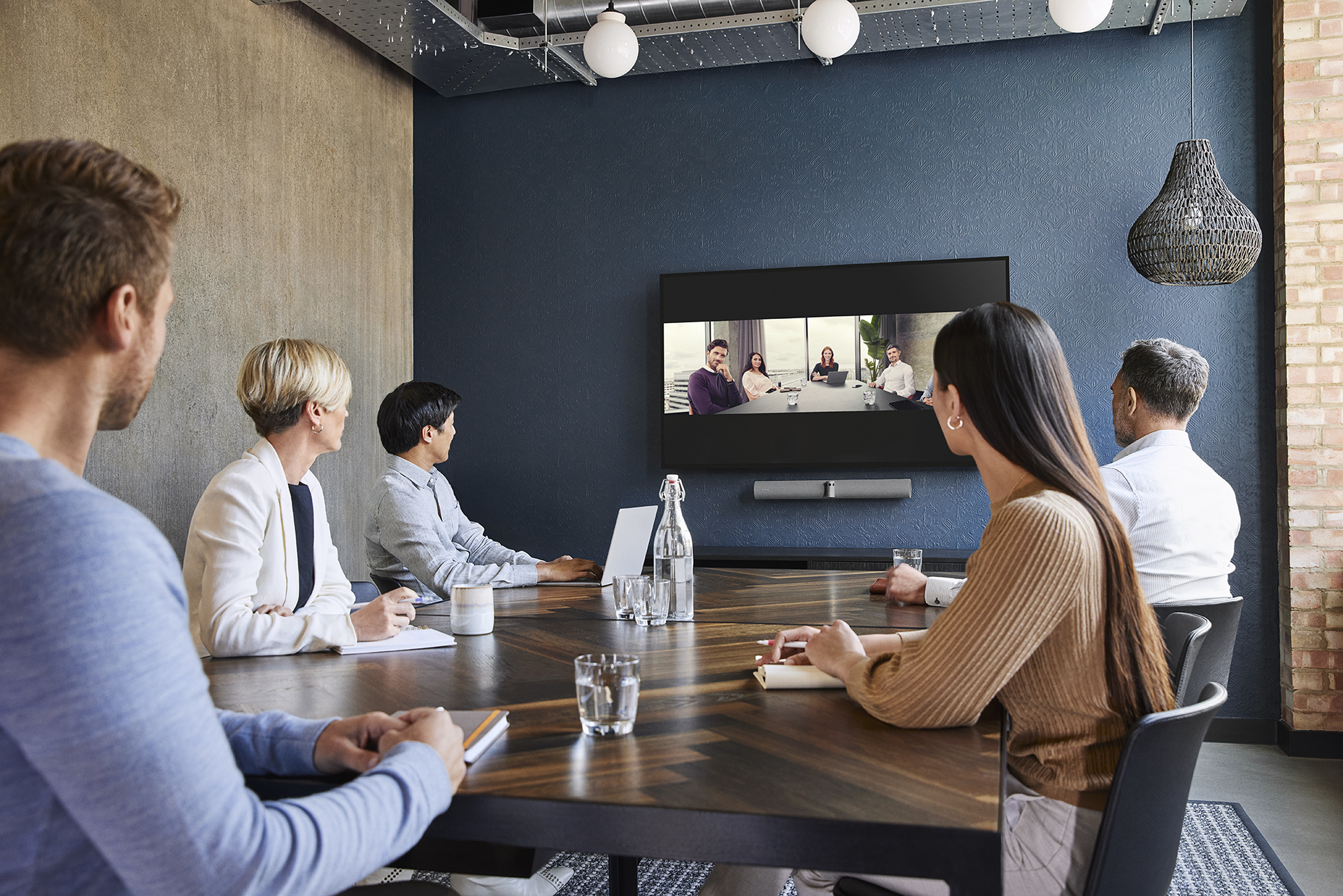
Virtual meetings are a form of communication where individuals in different locations can catch up in real-time via a mobile or internet connection.
The organizer gives participants a link to join the meeting (usually via email). Once connected, they can use personal cameras and their device's audio to chat ‘face-to-face’.
In 2020, virtual group meetings rose by over 613% and now 80% of meetings globally are either virtual or hybrid. This increase has unearthed issues like ‘Zoom fatigue’ and a lack of engagement in virtual sessions.
How to organize productive virtual meetings
The average corporate employee spends four hours a week preparing for and attending meetings. Imagine taking so long out of your week prepping for a conference or webinar only to suffer technical issues or for it to end up being completely unproductive.
Organization is the key to creating virtual meetings that never feel like a waste of energy.
Here’s what to do:
Start with clear objectives and an agenda
Open forums are helpful, but they can also wander off topic, leaving some of your team feeling left out as more senior members direct the discussion.
Instead, Shyamli Rathore - a leadership coach and senior moderator with Harvard Business Review - suggests answering six questions:
- What is the purpose of the meeting?
- What would a successful outcome look like?
- Who needs to be in the room to reach that outcome?
- What do the participants need from you?
- What do you need from the participants?
- What is going to be your contribution during the call?
Frameworking the answers to these questions before your meeting can help keep the discussion on task, drive productivity, and improve meeting equity.
For example, if we were hosting a meeting about a new product launch, we’d answer the six questions like this:
- What is the purpose of the meeting?
- To align all stakeholders on the goals, timeline, and key deliverables of the product launch.
- What would a successful outcome look like?
- Everyone leaves with a clear understanding of their roles, responsibilities, and deadlines.
- Key risks and dependencies are identified early.
- The team has a shared vision for success.
- Who needs to be in the room to reach that outcome?
- Product Manager
- Marketing Lead
- Engineering Lead
- Sales Representative
- Customer Success Manager
- What do the participants need from you?
- A clear outline of the project scope, objectives, and constraints.
- Defined roles and responsibilities for each stakeholder.
- A high-level timeline and key milestones.
- What do you need from the participants?
- Commitment to their assigned responsibilities.
- Honest feedback on potential challenges or gaps.
- Agreement on the next steps and follow-up actions.
- What is going to be your contribution during the call?
- Facilitating the discussion to ensure clarity and alignment.
- Providing insights into strategic objectives and expected outcomes.
- Documenting key takeaways and assigning action items.
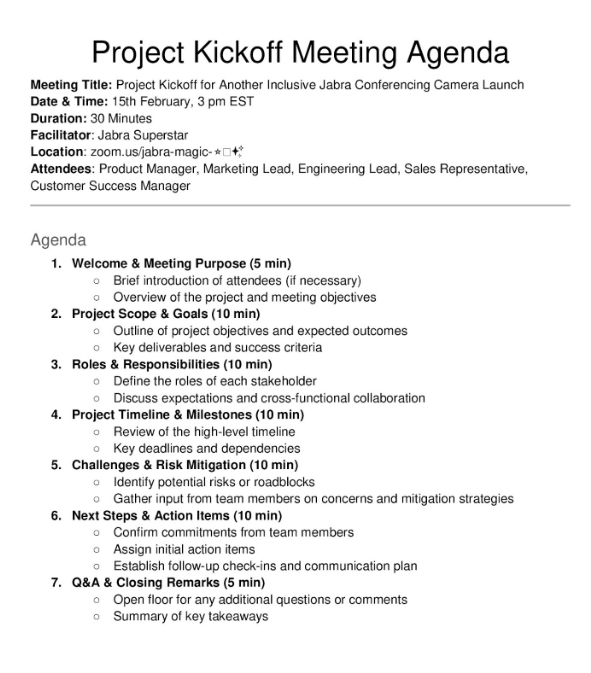
From there, we can easily create a meeting agenda that looks like this:
Solve technical problems before they appear
Some of the biggest issues affecting meeting productivity come from audio, visual or connection problems.
We’ve all seen those furrowed brows from confused colleagues as they work extra hard to understand what you’re saying due to a fragile connection or poor sound quality.
So, what can you do to fix the problem yourself?
Invest in stable internet
When working from home, ensure that your internet connection is as stable as possible. The experts at Uswitch recommend having a minimum upload speed of 3Mbps per person.
Use Google’s Internet Speed Test to see how fast (or slow) your connection is:
You can do this directly through the search results using Google’s own speed tester:


If your internet is slow, connecting via an Ethernet cable is one way to improve your speed and stability. Alternatively, here are some other things you can do to help support your broadband:
- Close background apps: Check what apps are running in the background of your phone or desktop, these can sap data from your connection.
- Disconnect from additional devices: Any phones, tablets, or other tech that could be draining your speed.
- Upgrade to a more powerful router: Dual-band routers operate on both 2.4GHz and 5GHz bands. These routers allow your meeting to run on 5GHz speeds while deferring all other devices to the 2.4GHz, giving you better speed and a more powerful connection.
- Get a signal booster or range extender: An extender plugs into the wall and increases the range of your connection to include the area it’s located in.
- Move your router closer to your workspace: Your router should ideally be in the line of sight of your devices.
If none of that helps, it may be time to start researching other internet providers. But at least you’ll know you did everything you could. But how do you find the right provider for your needs? The five core elements to review in internet packages are:
- Speeds: Look for the best upload and download speed you can get.
- Data caps: Some providers have caps limiting the amount of data you can use each month - not ideal when you’re taking and managing daily meetings.
- Contract terms: Some internet service providers can tie you into agreements for up to 2 years. However, many firms also offer contract buyouts, so don’t feel like you’re stuck on an existing deal if it’s not working for you.
- Customer service: Do your research on customer review sites like Consumer Reports to see which ISPs are offering great support when you need it. Alternatively, a quicker way to find out can be to search "internet [your city] Reddit" and check out what people are saying in those forums.
- Price: Ensure you know each month what fees and/or taxes are included in the price before agreeing.
Upgrade your Audio-Visual equipment
Upgrading to professional audio and visual devices can also improve productivity in meetings and increase inclusion rates.
Our research found that upgrading your connectivity and virtual meeting hardware are the biggest ways to improve productivity:
“Surprisingly, the simplest and most easily solved issues are still the biggest. Quality of internet connection (48%), quality of audio (32%), and quality of video (28%) were rated significantly higher, as the leading barriers to productivity in meetings.”
Unreliable meeting technology can also cause signal dips making it more difficult for participants to notice physical cues, listen to, and engage with the main points in your session.
Psychological studies have shown that the lack of nonverbal cues in virtual meetings can mean participants need to focus harder on the session, leading to increased feelings of stress, fatigue, and exclusion. The study also found that poor audiovisual connectivity can enhance these issues:
“Technological problems, such as time lag, low resolution, and audio failures, may further limit the richness of nonverbal cues in virtual meetings and make them difficult to perceive.”
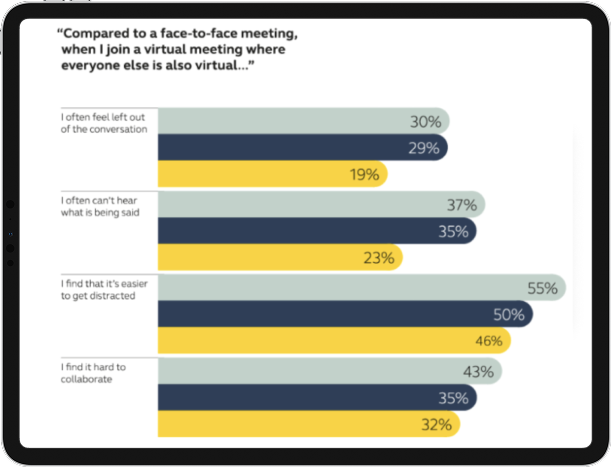
Connecting from loud or challenging environments, such as busy co-working spaces or train stations, can hamper audiovisual quality, further increasing the need to put active effort into engagement.
Leaders can challenge these inefficiencies and meeting stresses by leveraging professional-grade audiovisual technology in virtual meetings. High-quality speakers, headphones, and purpose-built video conferencing cameras can all help improve your connection.
Jabra Evolve2 75 headset blocks out the background and noise and keeps the focus on you, while Panacast 20 allows you to meet up in 4K resolution from anywhere.
Provide connection guidance
Two in three meetings are now virtual. But that doesn’t mean everyone has access to the same tech, familiarity with your chosen platform, or confidence using the specific hardware.
Our Hybrid Work Report 2023, shows that over 30% of employees are hesitant to take meetings in the office because they’re less comfortable with the technology. So why should it be any different for virtual catch-ups? Or, as Elizabeth Brochhausen, director of partnerships and experiential marketing at Pandora said recently:
“Often people will just assume that everybody knows what the process is, but without documentation of established processes, things can get really hairy.”
People entering your meeting late due to tech or connection issues can derail your session and cause late participants undue embarrassment. Leaders can nip this in the bud by creating and circulating simple troubleshooting guides ahead of the meeting.
These guides should address common challenges or barriers to connection and provide step-by-step solutions. An even better option would be to create helpful troubleshooting videos for users.
An excellent example below from TechJunkie shows users that you can join Microsoft Teams meetings directly from your inbox or calendar from the invite.
If you’re joining directly from your calendar, just find the occurrence in your calendar and select “Join”. Alternatively, you can open the invite email and choose the option “Click here to join the meeting”.
You can then choose to take the meeting via the dedicated Teams app. From here you can set your camera, microphone, and background settings.
Test your tech
To ensure smooth connectivity and functionality, think about testing your tech before the meeting. You may want to alter that prep time depending on the size of your session.
Good practice for larger sessions like conferences is to run checks a few days before - leaving you enough time to troubleshoot any issues. Check again after any problems have been resolved and once more about an hour before the session.
For smaller sessions, checking an hour to 30 minutes from the session can be enough to weed out any technical demons.
After testing your tech and chosen platform, provide useful guides to others in the meeting on how to do it too — again, short video tutorials would be perfect.
Increase Engagement with Personalization and Interactivity
Group creative sessions like new starter onboarding meetings, brainstorming sessions, or team-building events rely on interactive elements and participant engagement.
But inspiring engagement in your team discussions doesn’t have to mean calling on quiet employees to voice their opinions - this can often have the opposite effect.
In fact, Susan Cain, author of Quiet: The Power of Introverts in a World that Can’t Stop Talking, states that:
“The biggest mistake you can make as a CEO, manager, etc. is encouraging introverts to act like extroverts instead of acting like their best selves.”
Oftentimes, encouraging introverts to participate in meetings like extroverts can cause embarrassment, stress, and anxiety - especially when it comes to preparing for the next session.
Make the most of sharing opportunities - whiteboards
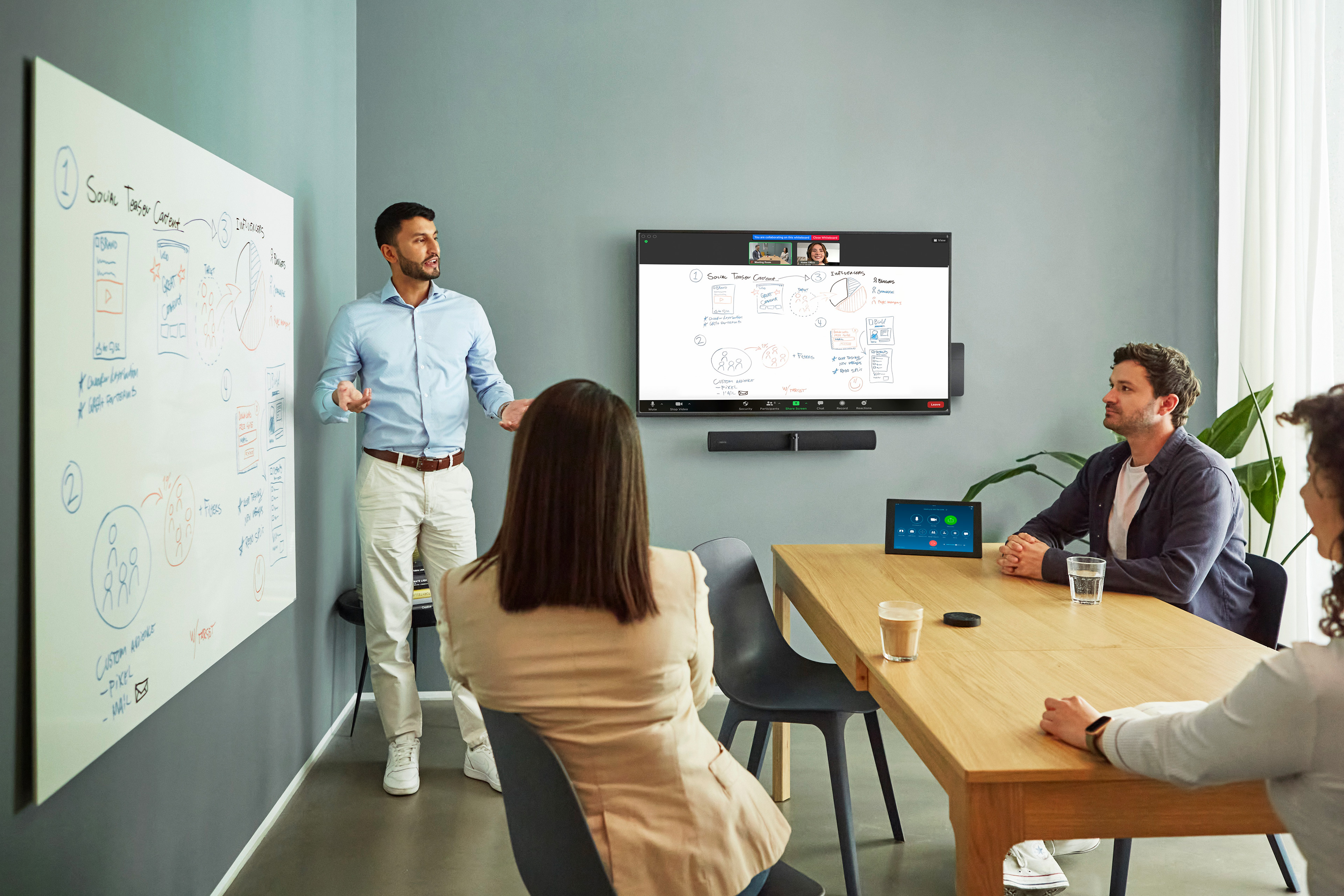
Something as simple as sketching out ideas on a whiteboard during meetings can boost creativity, drive engagement, and spark better team conversations.
Collaboration experts Atlassian agree, highlighting whiteboards as a powerful tool for team engagement:
“Whiteboarding fosters active participation from team members. It offers a space where they can share ideas and feedback freely. People feel heard when others consider their ideas. Whiteboarding can give them this opportunity.”
But it’s not just brainstorms and ideation sessions that benefit. Visualizing your thought process can help clarify complexity in many different meeting formats. Dr Valeri Colon - a documentation, training, and process expert at Connect Centric - suggests that the interactivity of whiteboards can enhance productivity in virtual meetings like:
- Project planning meetings
- Design and architecture discussions
- Problem-solving meetings
- Retrospectives
- Requirements gathering sessions
- Sprint planning meetings
- Daily stand-ups
- Code review meetings
- Incident response meetings
- Training and knowledge-sharing sessions
- Stakeholder alignment meetings
- Risk assessment sessions
And no — you don’t need to install a massive, high-tech board to get the benefits.
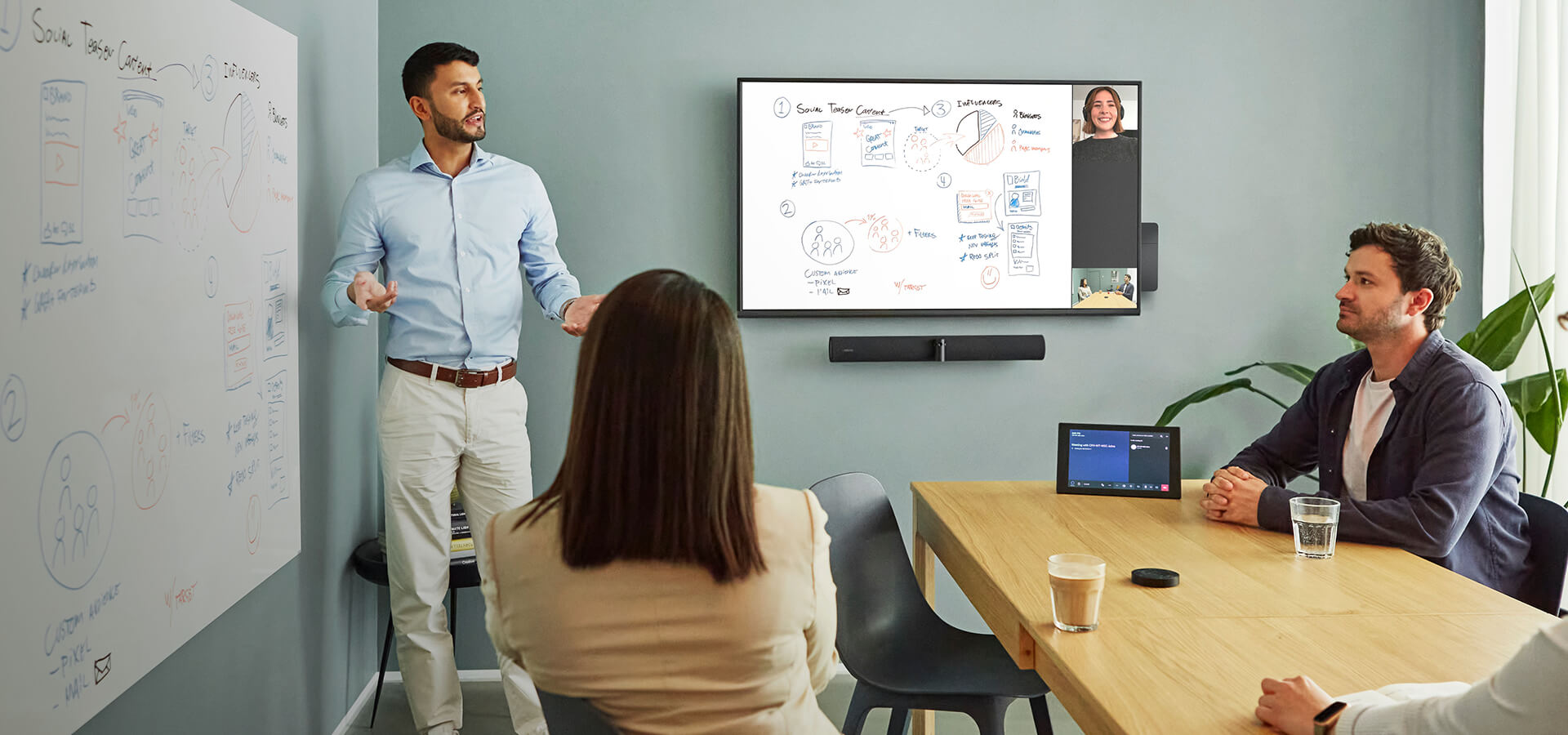
There are video conferencing cameras like Jabra Panacast 50 that come with a smart whiteboard-sharing feature. You tell the system where your whiteboard is, it zooms in, and streams your whiteboard into virtual meetings — even if it’s just a small board. Remote participants can see everything clearly, in real time, as if they were in the room.
Icebreaking introductions
As virtual meetings increase and teams become more geographically spread, the need for fun and engaging introduction tasks increases too.
A great approach to new meetings is to set aside 5 minutes at the start of the session for casual conversations and to build emotional connections. Some strategies and examples of good meeting introductions to help stimulate the conversation are:
- Talk food: “What is everyone having for breakfast/lunch/dinner”
- Weekend plans - who has them? What are they?
- Surprise your team with a stat or fact of the day
- Shoutout instances of great performance
- Highlight recent business wins
- Alternate the meeting host (for recurring sessions)
But, if you need to go deeper or encourage further inter-team conversation (like in brainstorming or team-building sessions), then icebreaker questions can help.
Here are some examples of icebreakers we've taken from Reddit to get brains ticking and tongues wagging:
- What’s a skill or hobby you’ve picked up recently?
- If you could instantly become an expert at something, what would it be?
- Share a fun fact that most people don’t know about you.
- What’s the most memorable place you've visited?
- If your life had a theme song, what would it be?
- Everyone show your animals (or one you would most want to have)
- Would You Rather
- What’s your best story involving a microwave?
Encouraging the introverts
The quieter members of your team probably won’t thank you for singling them out for opinions in a group discussion.
Having said this, you want to be sure you’re creating an inclusive and holistic meeting environment in which everyone’s opinion is heard, and they have a fair seat at the table.
So, how can you improve the inclusivity of your meetings by making them introvert-friendly?
- Collaborate and circulate the agenda: Send the meeting agenda via email or Slack asking for opinions and offering the opportunity for items to be added to the discussion. This fosters inclusivity and gives your team time to prepare.
- Respect anonymity: 74% of employees said they were more likely to give feedback if communication channels were anonymous. Platforms like Blind, Guerrilla Mail, or Deel Engage are great for pre-meeting ideation, as well as driving thought leadership in the session and gaining quality follow-up feedback.
- Create regular opinion sections: A more inclusive way to gain opinions from every attendee is to reserve a section at the end of meetings where everyone talks. Rather than calling on individuals randomly throughout the session. If employees know this section is coming in every discussion they can be better prepared when the time to speak comes.

Additionally, HR experts Insperity suggest leveraging your introverted workers’ natural tendencies before a meeting to allow them to contribute.
- Do they feel more comfortable asking a lot of questions upfront?
- Do they like to take time to ponder before giving you their opinion?
- Do they need extra time to research before discussing an issue at a meeting?
- Do they have a favored process for completing certain tasks?
Combat Zoom fatigue with smarter scheduling
Zoom fatigue is the feeling of being overwhelmed, stressed, or exhausted as a result of too many video calls.
Recent statistics show that 63% of remote workers are having more meetings online than they would have in the office, with 30% spending 2-3 hours in virtual meetings daily.
Frequent virtual meetings with subpar experiences - both in terms of technology and inclusivity - lead to mental exhaustion and decreased morale. Those statistics also highlighted that 23% of employees rate their Zoom meeting exhaustion as “extremely fatigued.”
It’s clear that Zoom fatigue is a problem, but how can you combat it to ensure your sessions remain thoughtful, engaging, and productive?
- Cancel unnecessary sessions: Remember, before scheduling your meeting, ask yourself “What is the purpose of the meeting?” Only schedule meetings when necessary and focus on shorter sessions (e.g., 30-45 minutes) to help maintain energy and attention.
- Stop for snacks: Build breaks into longer sessions to reduce screen fatigue and allow people to grab something to eat before returning to the room.
- Use Scheduling Tools: Platforms like Doodle, Calendly, or integrated calendar features can help find mutually convenient times - but remember to keep things brief.
- Asynchronous Alternatives: Rather than pulling everyone onto a call, ask yourself “Who do you need to reach the desired outcome?” And record meetings for unavailable colleagues or those in multiple time zones.
- No meeting days: Action a team-wide meeting ban on Fridays (for example). Shopify freed up 322,000 hours from their team calendars by canceling recurring meetings. That’s an extreme example, but ‘Free Fridays’ or no meeting days can work to reduce fatigue.

The Best Tools for Virtual Meetings
When you’ve taken care of scheduling issues to create more mindful calendars, it’s important to review your virtual meeting technology. Audiovisual restrictions can have an incredibly disengaging effect on your sessions.
For example, we found that 81% of knowledge workers say noise and interruptions are their biggest productivity stumbling block in the office. But could upgrading your meeting technology help eradicate some of these issues?
Holger Reisinger, Jabra’s SVP of Large Enterprise Solutions, suggests that’s the case:
“If employees are to feel a sense of belonging in virtual environments, they need the professional tools and technologies built exactly with those environments in mind.”
The most inclusive virtual meeting tools feature progressive benefits like:
- Noise suppression: Reduces background distractions to spotlight the person talking in the meeting.
- Intelligent zoom: Automatically adjusts the camera to keep everyone in view.
- Recording options: Capture meetings for those who couldn’t attend.
- AI transcription: Generate meeting notes in real-time.
- Interactive elements: Tools like polls, reactions, and breakout rooms boost engagement.
When you have all this intelligent technology on your side, productivity and virtual meeting equity get a huge boost. But what is the best hardware to achieve these results?
Hardware for crystal-clear communication
As we just touched on, reliable, professional hardware is the foundation of fostering collaboration and inspiring productive virtual meetings.
Our Hybrid Ways of Working 2022 Global Report emphasizes this by highlighting professional device users were 11% less likely to report feeling left out of conversations in virtual meetings.
So, what are the best professional devices for driving meeting equity and, ultimately, delivering better results from your sessions?
Jabra Panacast 50 - best for building meeting equity
One of the core challenges to achieving meeting equity and building a positive company culture is everyone feeling like they have a seat at the table.
Panacast 50 video conferencing camera tackles these barriers by leveraging leading audiovisual technology to enhance the quality of your connection.
Features like Intelligent Zoom and 180° field-of-view dynamically adjust your feed to deliver an eye-level view of all participants in the room. Placing them on-screen in glorious 4K with the use of three 13-megapixel cameras.
Plus, eight beamforming microphones and Dynamic Composition mean everyone sounds super sharp and gets the spotlight when it’s time to share their insights.
Richard Baguley from T3.com highlighted the upgraded quality of the Panacast 50:
“I found that the Panacast 50 had excellent performance, producing clear, sharp video and excellent audio. It excelled at picking out the sound of someone speaking while still outputting sound from the speakers, which makes for more natural conversations”
Jabra Evolve2 75 - best for meeting in noisy environments
When you’re catching up from noisy environments like a co-working space, cafe, or in your busy kitchen just before the school run, you need to be sure of your audio clarity.
With cutting-edge digital hybrid Active Noise Cancellation (ANC), the Jabra Evolve2 75 headset makes light work of background noise.
Plus, with 10-microphone technology, improved signal processing algorithms, and sleek design, you get all-day comfort as well as unrivaled call quality - no matter where you’re connecting from.
But this headset’s not just about audio quality. The ‘Busylight’ lets others know you’re in ‘do not disturb’ mode by showing a red light whenever you’re on a call. Fewer interruptions, fewer distractions, more engagement.
Jabra Panacast 20 - best for meeting on the go
The main benefits of virtual meetings are the ability to catch up and collaborate from anywhere. Now 80% of all meetings worldwide are either fully virtual or hybrid. So safeguarding and improving the hybrid meeting experience has never been more important.
The incredible portability and simple one-click setup of Panacast 20 mean it’s purpose-built to deliver professional performance in all types of virtual meetings.
But one of the challenges of meetings on the go is you’re never guaranteed the best environmental conditions.
However, this leading camera also features AI-powered lighting adjustments and 4K Ultra-HD video, ensuring you’re always connecting in perfect clarity. Now you just need to make sure you’re looking your best.

Software platforms for collaboration
The popular options in virtual meeting software are Google Meet, Zoom, and Microsoft Teams.
Zoom, Teams, and Google Meet have cornered the virtual meeting market with roughly 550 million daily users between them.
But, with three options to choose from, how do you know which is most suited to your needs? Let’s compare them.
| Feature | Google Meet | Zoom | Microsoft Teams |
|---|---|---|---|
User Capacity | Up to 250 participants depending on the subscription plan | Free plan: 100 participants; paid plans: up to 500 | Up to 250 participants |
Security | Encryption in transit; meeting links restricted to specific users; no end-to-end encryption | TLS encryption, but no end-to-end encryption; past issues like "Zoom-bombing" | Data encrypted in transit; encryption keys controlled by Microsoft |
Time limits | None | Free plan: 40-minute limit; paid plans: up to 24 hours | None |
Recording capabilities | Saved directly to Google Drive | Local recording on device | Cloud recording via Microsoft Stream |
Screen sharing & collaboration | Supports screen sharing; seamless integration with Google Workspace | Supports multiple simultaneous screen shares | Supports screen sharing; integrates with Office 365 |
Pricing overview* | Part of Google Workspace, starts at $6/user/month for Business Starter (up to 100 participants) | Free basic plan; paid plans start at $14.99/month for Pro (up to 300 participants) | Free version available; paid plans start at $5/user/month |
Top features | Real-time captions, easy accessibility, and integration with Google Workspace. | Breakout rooms, polls, virtual backgrounds, and recording capabilities. | Integration with Office tools, file sharing, and robust security. |
Best for | Quick, browser-based meetings | Large teams and webinars | Organizations using Office 365 |
Overviewing everything in that table, Google Meet and MS Teams are better suited for real-time collaboration due to their integration with existing office suites.
In contrast, Zoom is favored by larger teams for its ease of use. But leaders should be mindful of potential security risks due to TLS encryption.
Reclaim Your Virtual Meetings Today
Virtual meetings have allowed us to connect with teams across the globe. But with those connections come challenges.
Poor connectivity, audiovisual quality, superfluous meetings, and lackluster agendas can act as barriers to collaboration. Harming engagement, fostering fatigue, and resulting in unproductive meetings.
When you consider that employees spend 392 hours per year in meetings, unproductive sessions are a huge sap - both in terms of time and budget.
But there are things you can do to make positive changes and increase the quality and productivity of your meetings.
Canceling excess catch-ups and refining those that remain with clear, actionable agendas that everyone has the option to feedback on are great places to start. Meanwhile, setting clear objectives and focusing on shorter catch-ups can all have a positive impact.
Being selective with your software is important too, but leveraging leading hardware like Panacast 50, Panacast 20, and Evolve2 85 can ensure professional-grade audiovisual quality whether you’re connected from home, the office, or on the go.
Reclaim your virtual meetings with Jabra and end unproductive sessions that are sapping your culture, time, and budget.